
YouTube Transcript Summary: Instant AI Summaries Fast
YouTube Transcript Summary: Instant AI Summaries Fast

The fastest reliable way to get an accurate YouTube transcript summary is to paste the video URL into an AI summarizer or install a Chrome extension that works directly on YouTube. Either route returns three outputs you actually need: a timestamped transcript, a TL;DR of two to three sentences, and clickable key moments you can jump to instantly. Many tools process short videos quickly, while multi-hour videos use chunked processing that takes longer but still beats watching the whole thing.
Here is what a solid workflow delivers:
- Timestamped transcript: every line linked to its exact moment in the video
- TL;DR: two to three sentences capturing the core argument
- Clickable key moments: the three to five segments worth watching
Pro Tip: Before you trust the summary, jump to one timestamp and confirm the AI’s main claim against what the speaker actually says. Thirty seconds of verification saves you from acting on a hallucinated takeaway.
For most users, Baitless is the recommended starting point: install the Chrome extension, open any YouTube video, and the summary appears in-place without switching tabs.
Table of Contents
- How do you generate a transcript and summary from a YouTube video?
- What features should you look for in a YouTube summarizer?
- How do AI summarizers differ from YouTube’s native transcript?
- Who benefits most from AI video summaries?
- What privacy and accuracy risks should you know about?
- How do pricing models and free credits typically work?
- How does Baitless work from install to export?
- How do you export and reuse a transcript or summary?
- Key Takeaways
- The case for summarizing before you watch
- Get started with Baitless today
- Useful sources
How do you generate a transcript and summary from a YouTube video?
The workflow is the same whether you use a web app or a Chrome extension. Follow these steps:
- Copy the YouTube URL from your browser’s address bar or the share button.
- Paste it into the summarizer (web app) or open the video with your extension active.
- Let the tool fetch captions. If the video has native captions, processing takes seconds. If it does not, the tool runs automatic speech recognition (ASR), which can add several minutes and may cost extra credits.
- Choose a summary style: TL;DR for a quick read, key points for a structured list, or chapter outline for a long video.
- Export or copy the result in your preferred format.
Branching note: caption-based processing is faster and more accurate. ASR is the fallback for videos without captions, and ASR jobs can increase processing time from seconds to several minutes, often billed per 90 seconds of audio.
Common failures and quick fixes:
- Private or members-only video: most tools rely on public YouTube APIs and cannot access restricted content.
- Captions removed or disabled: the tool falls back to ASR; expect lower accuracy and longer wait times.
- Processing error mid-video: refresh and retry; very long videos occasionally time out on the first attempt.
Pro Tip: If the video has chapter markers, enable them before summarizing. Many tools use chapter boundaries to structure the output, which produces cleaner key-moment lists.
What features should you look for in a YouTube summarizer?

Not every tool delivers the same quality. Here is the checklist that separates useful from frustrating:
| Feature | Why it matters |
|---|---|
| Accuracy (captions vs. ASR) | Source captions produce mid-90% accuracy; ASR drops with noise or accents |
| Clickable timestamps | Jump directly to any key moment to verify claims without scrubbing |
| Export formats (TXT, SRT, Markdown) | SRT is required for caption reuse; Markdown feeds directly into blog drafts |
| Language support | Multilingual captions and translation expand the tool’s research value |
| Batch processing | Summarize a playlist or series in one request instead of one by one |
| Chrome extension | In-place summarization on YouTube means no tab switching |
| Privacy and data handling | Know whether the tool uploads audio or only fetches existing captions |

Chrome extensions can surface key moments without leaving the video player, which is a genuine time-saver when you are deciding whether to watch or skip. Clickable timestamps serve as navigation, not decoration: they let you verify the AI’s claims against the original source in seconds.
How do AI summarizers differ from YouTube’s native transcript?
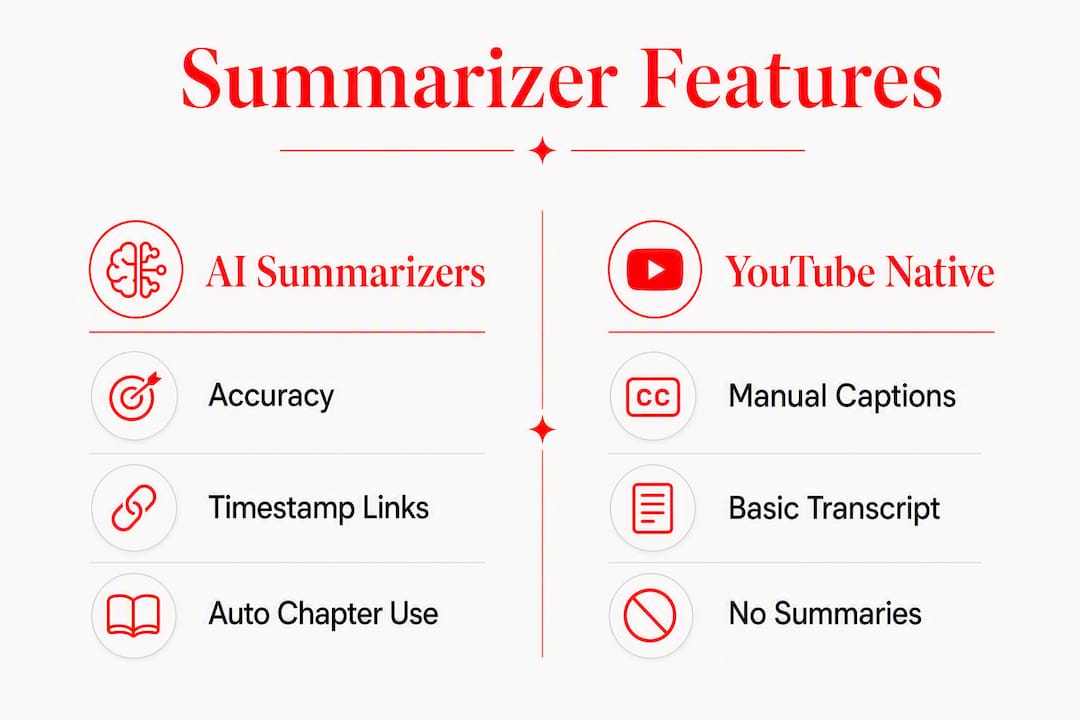
YouTube’s built-in transcript is read-only, hard to copy in bulk, and offers no summary or export. You can click a caption line to jump to that timestamp, which is genuinely useful for verification, but that is where the functionality ends.
What AI summarizers add on top:
- Condensation: a 90-minute lecture becomes a 200-word TL;DR
- Argument extraction: the tool identifies the central claim, not just the words
- Chapter creation: long videos get broken into labeled sections
- Promptable outputs: you can ask follow-up questions against the transcript
The practical rule: use YouTube’s native transcript to spot-check a timestamp from the AI summary. If the AI says “the speaker argues X at 14:32,” click to 14:32 in the native transcript and confirm. That two-step check catches most hallucinations before they cause problems.
Pro Tip: For critical research, prefer videos with manually uploaded closed captions. Auto-generated captions from noisy audio or heavy accents produce unreliable summaries regardless of which AI tool you use.
Who benefits most from AI video summaries?
The workflow fits a wide range of users, and the right output format depends on what you are trying to do:
- Students: export key points and paste them into flashcard apps or study notes; TL;DR works for deciding which lecture to prioritize
- Researchers: use chapter outlines to triage long interviews or conference talks before committing to a full watch
- Content creators: pull timestamped quotes and ideas from competitor videos or reference material without watching every second
- Professionals: recap a recorded meeting or livestream in minutes using the key-points format
- Casual viewers: a two-sentence TL;DR tells you whether a 45-minute video is worth your evening
There is also an accessibility angle worth noting: a searchable text transcript lets users with hearing difficulties read content, and translation support opens videos in other languages to a broader audience.
What privacy and accuracy risks should you know about?
Third-party summarizers introduce two categories of risk: what they do with your data, and how accurate their output actually is.
Privacy checklist before you commit to a tool:
- Does it upload audio to its own servers, or does it only fetch existing YouTube captions?
- What is its data retention policy? Does it store your transcripts?
- Can it access private, unlisted, or age-restricted videos? (Most cannot, and attempting to bypass restrictions risks tool instability.)
- Does it comply with YouTube’s API terms of service?
On accuracy: summary quality is capped by transcript quality. Background noise, cross-talk, and strong accents degrade auto-captions, and a poor transcript produces a poor summary regardless of how good the LLM is. Reported accuracy for clear audio is often in the mid-90% range, dropping noticeably with audio problems.
Verification steps that take under two minutes:
- Sample two or three timestamps from the summary and confirm them against the video
- Compare the summary’s central claim to the transcript text directly
- For high-stakes research, export the full transcript and run a second LLM pass with targeted prompts
Pro Tip: When accuracy matters, export the full transcript and ask an LLM like ChatGPT or Claude to check specific claims rather than summarize the whole thing. Focused prompts catch errors that a general summary glosses over.
How do pricing models and free credits typically work?
Most AI summarizer pricing follows a predictable pattern:
- Free tier: a limited number of summaries or credits per month, enough to evaluate the tool
- Credit packs: pay per summary or per unit of audio processed; ASR jobs cost more than caption-based ones
- Subscription: flat monthly fee for high-volume users who summarize daily
- Enterprise or API plans: batch processing for teams or developers, often priced per request or per minute of audio
Credit mechanics vary. One credit typically covers one summary of a standard-length video. Translations, ASR transcription, or additional export formats may each consume extra credits. Watch for per-export fees that are not obvious at sign-up, and use batch processing when you have multiple videos to summarize at once since many tools cache transcripts and do not charge twice for the same video.
How does Baitless work from install to export?
Here is the end-to-end flow with Baitless:
- Install the Chrome extension from the Chrome Web Store.
- Sign up to claim your 25 free summary credits, no payment required.
- Open any YouTube video in Chrome; the Baitless panel appears alongside the player.
- Choose your summary depth: quick TL;DR or a fuller key-moments breakdown.
- View timestamped key moments directly in the panel, clickable to jump in the video.
- Export or copy the summary in your preferred format.
Baitless runs in-place on YouTube, so there is no tab switching and no URL copying. The 25 free credits cover a solid trial period for casual users; a subscription unlocks daily use without running out.
Practical tips for getting more from it:
- For long videos or series, use the chapter view to navigate by topic rather than scrolling through a flat list
- When summarizing a playlist, process videos back to back and compare key moments across episodes
Pro Tip: Use Baitless’s seekable timestamps to pull exact quotes for your notes. Click the timestamp, pause the video at that moment, and copy the speaker’s exact words from the transcript panel rather than paraphrasing from memory.
How do you export and reuse a transcript or summary?
Export format determines what you can do next:
- TXT: paste directly into notes apps, Notion, or Obsidian
- SRT: import into video editors or subtitle tools for caption reuse
- Markdown: drop into a blog draft or documentation file with formatting intact
- JSON: feed into scripts or automation pipelines for structured processing
Concrete reuse workflows:
- Paste the TL;DR into a doc and expand each sentence into a paragraph for a quick blog intro.
- Copy key points into Anki or Quizlet as flashcard prompts.
- Feed the full timestamped transcript into ChatGPT or Claude with a focused prompt.
- Use chapter headings as section titles for a summary article or newsletter.
- Extract three to five quotes with timestamps for a social media thread or slide deck.
Useful LLM prompts that take a transcript as input:
- “Turn these key points into a 300-word article introduction.”
- “Identify the three strongest arguments in this transcript and list the evidence for each.”
- “Convert this transcript into ten flashcard question-and-answer pairs.”
- “Flag any claims in this transcript that need a citation.”
Key Takeaways
The fastest way to get a reliable YouTube transcript summary is to paste the URL into an AI summarizer or use a Chrome extension like Baitless, then verify at least one timestamp before acting on the output.
| Point | Details |
|---|---|
| Paste URL or use extension | Both routes work; extensions like Baitless summarize in-place without leaving YouTube. |
| Verify at least one timestamp | Jump to a key moment in the original video to confirm the AI’s main claim before relying on it. |
| Prefer manual captions | Videos with manually uploaded captions produce significantly more accurate summaries than auto-generated ones. |
| Watch privacy and pricing | Check whether the tool uploads audio or only fetches captions, and watch for hidden per-export fees. |
| Start free with Baitless | Baitless ships with 25 free credits; install the Chrome extension and summarize your first video in under a minute. |
The case for summarizing before you watch
Most people treat AI video summaries as a convenience. They are actually a filter. The real productivity gain is not saving ten minutes on a video you were going to watch anyway. It is the hour you do not spend on a video that turns out to be irrelevant, padded, or simply not what the title promised.
The tools that do this well share one design principle: they treat the summary as navigation, not a replacement. Clickable timestamps are the tell. A tool that gives you a paragraph of text with no way to verify it is asking you to trust the AI blindly. A tool that lets you jump to the exact moment the speaker makes a claim is giving you the ability to think for yourself.
The verification habit matters more than the tool you pick. Paste the URL, read the TL;DR, click one timestamp, confirm it. That thirty-second check is what separates a useful workflow from one that just moves the misinformation faster.
Get started with Baitless today
Skipping a 40-minute video because the TL;DR told you it was not worth your time is a better outcome than watching it and realizing that twenty minutes in. Baitless is built for exactly that decision: install the Chrome extension, open any YouTube video, and the summary appears alongside the player before you have committed a single minute to watching.

Free credits require no payment information. Install, summarize, and decide. If you watch YouTube daily for research, learning, or content review, the subscription tier removes the credit limit so you never have to think about it. Visit baitless.io to install the extension and claim your free credits now.
Useful sources
These are the most reliable references for deeper technical detail on transcripts, summarization, and API access:
- YouTube Help: View video transcripts — official guide to YouTube’s native transcript feature, caption access, and timestamp navigation
- youtube-transcript-api on GitHub — open-source API for extracting captions, running ASR, and batch processing up to 100 videos per request