
Get a YouTube TLDR in Seconds with Timestamped Proof
Get a YouTube TLDR in Seconds with Timestamped Proof

The fastest way to get a reliable YouTube TLDR is to install a Chrome extension like Baitless, click the in-page button while the video is open, and read your summary in under ten seconds. No copy-pasting, no tab-switching. If you prefer not to install anything right now, paste the video URL into a web summarizer and get the same result in a few extra clicks.
Either way, here is what you get instantly:
- A concise TL;DR of the video’s core argument or narrative
- Timestamped summary points that link directly to the exact moment in the video
- A full transcript you can search or read alongside the summary
- Translation into your preferred language
- Export options: blog bullets, social post copy, or slide-ready notes
The one habit that separates confident users from frustrated ones: treat every summary as a navigation tool, not a final verdict. The timestamps are there so you can jump to the source and confirm before you act on anything.
Key Takeaways
AI-powered YouTube TLDRs work best as navigation tools: use the summary to find the relevant moments, then verify with timestamps before acting on any claim.
| Point | Details |
|---|---|
| Install or paste to start | Use a Chrome extension for in-page speed or paste a URL into a web app for occasional use. |
| Timestamps are the trust layer | Every summary point should link to the exact video moment so you can verify before citing or sharing. |
| Free credits cover casual use | Baitless offers a limited number of free summary credits; upgrade only when daily use exceeds the free allotment. |
| Chunk long videos | For videos over four hours, summarize in segments and synthesize the results for better accuracy. |
| Verify surprising claims | Click at least two timestamps per summary, especially for statistics, named facts, or quoted figures. |
Table of Contents
- What core features should a YouTube TLDR tool have?
- How do you get a TLDR from a YouTube video in three steps?
- Why do timestamps matter for verifying AI summaries?
- What does pricing look like for YouTube TLDR tools?
- What should you know about privacy and copyright?
- Who gets the most out of YouTube TLDRs?
- How do you access YouTube TLDR tools: extension or web app?
- Tips for getting more accurate TLDRs
- What the best TLDR workflow actually looks like
- Baitless gives you a TLDR and the proof behind it
- Sources
What core features should a YouTube TLDR tool have?
Not every YouTube summary tool is built the same, and the gap between a useful one and a frustrating one usually comes down to a handful of specific capabilities.
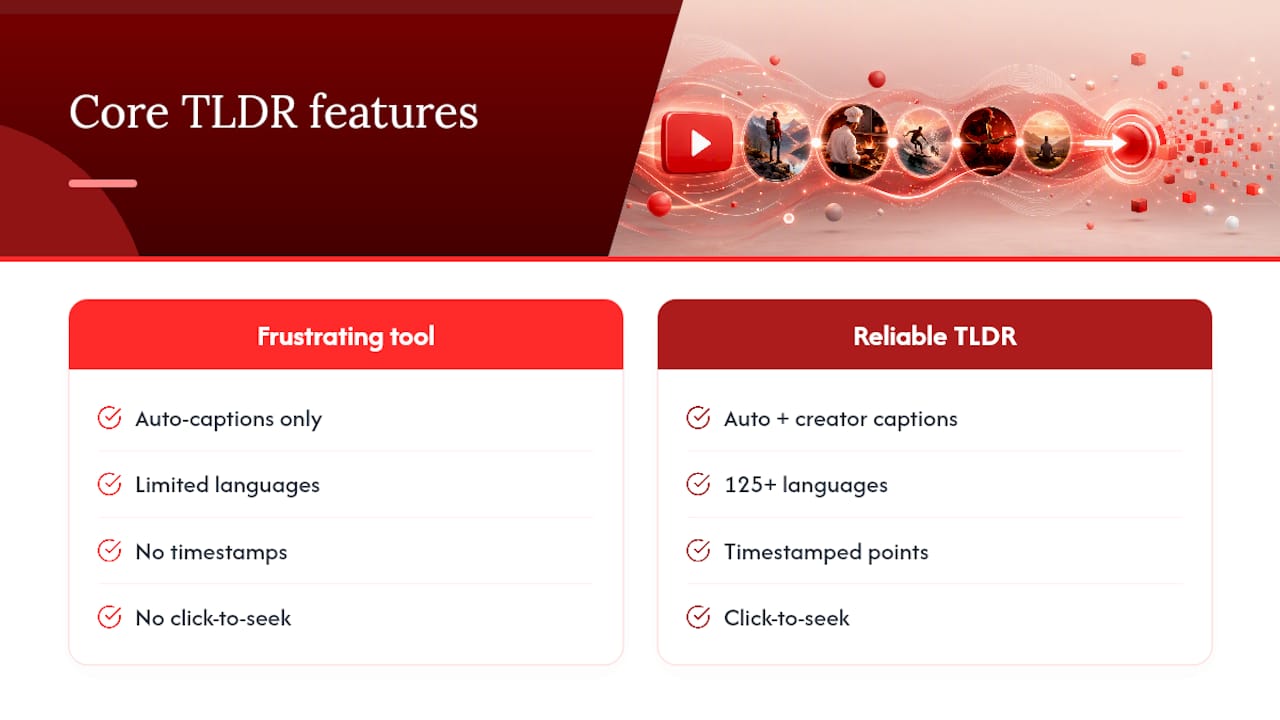
Transcript extraction and language support are the foundation. A tool that only reads YouTube’s auto-generated captions will struggle with heavily accented speech, technical vocabulary, or any video where the creator uploaded their own caption file. The best tools pull from both sources and let you see which one they used. YouTLDR supports over 125 languages and caches transcript data locally per video, which means repeat visits load instantly without a fresh API call.
Timestamped summary points are the trust layer. A summary that says “the speaker argues X” is useful. A summary that says “the speaker argues X [4:32]” is verifiable. That link to the exact moment is what separates a reliable TLDR from a plausible-sounding hallucination.
A YouTube TLDR tool without clickable timestamps is like a book with no page numbers. You can read the summary, but you cannot check the source. Timestamps turn a summary into a navigation system.
Seek-to-timestamp behavior inside the extension panel means you click a summary point and the video jumps there immediately, no manual scrubbing. This is the feature power users cite most often as the reason they stick with an extension over a web app.
Chat or Q&A on the transcript lets you ask follow-up questions directly: “What time does the speaker mention the study?” or “Summarize only the section on pricing.” This turns a passive summary into an active research session.
Export and repurposing outputs round out the feature set. Blog-ready bullet points, social post drafts, and slide outlines are the most common formats. If you create content or take research notes, this alone justifies the tool.
How do you get a TLDR from a YouTube video in three steps?
The workflow is the same whether you use an extension or a web app. Three steps, under a minute for most videos.
-
Open the video and trigger the tool. With a Chrome extension, click the extension icon or the in-page panel button while the video is playing. With a web summarizer, copy the video URL and paste it into the tool’s input field.
-
Fetch the transcript and run the AI summarizer. The tool pulls the transcript from YouTube’s caption data. For videos longer than roughly four hours, Youtubetranscript into segments and summarizes each chunk before synthesizing a final output. This prevents the token-limit errors that cause incomplete summaries on long videos.
-
Read the TLDR, verify with timestamps, and export. Scan the summary points. If anything surprises you or you plan to cite it, click the timestamp and confirm against the actual audio. Then export in whatever format fits your workflow.
Pro Tip: Before you share or act on a summary claim, click at least two timestamps. AI summarizers occasionally compress or slightly reframe a speaker’s point. Two spot-checks take thirty seconds and catch the most common errors.
Why do timestamps matter for verifying AI summaries?
AI summarizers are good at compression. They are less reliable at precision. The gap between those two things is where hallucinations live.
A hallucination in this context is not a dramatic fabrication. It is usually a subtle one: a statistic rounded up, a speaker’s hedged claim stated as a fact, or two separate points merged into one. These errors are hard to catch if you only read the summary. They are easy to catch if you click the timestamp and listen for ten seconds.
The practical checklist for verification is short:
- Quoted numbers or statistics: always timestamp-check these. Numbers are the most commonly compressed or rounded in AI summaries.
- Speaker claims presented as facts: if the summary says “X is proven,” check whether the speaker actually said “studies suggest” or “in my experience.”
- Named people, dates, or specific events: these are low-frequency but high-stakes errors. A wrong name or date in a research note can propagate.
- Anything you plan to publish or share: one timestamp check per claim you intend to use externally.
Raw transcript access is the safeguard that makes this possible. When a tool shows you the full transcript alongside the summary, you can search for the exact phrase and read the surrounding context. Tools that hide the transcript and only show the summary remove your ability to audit the output.
Pro Tip: Use the summary to find the relevant section, then read the transcript for that section rather than relying on the summary’s phrasing. The transcript is the ground truth; the summary is the index.
What does pricing look like for YouTube TLDR tools?
Most YouTube summary tools follow a freemium model with a credit-based limit on the free tier.
Baitless offers a limited number of free summary credits with no time pressure, which covers casual use comfortably. YouTubeTranscript.dev’s free tier allows a limited number of free summaries per day, with an optional sign-up for 100 credits per month. Paid tiers across the category typically add higher monthly credit volumes, API access for batch workflows, and faster processing queues.
| Feature | Free tier | Paid tier |
|---|---|---|
| Summary credits | Limited (e.g., 3/day or 25 total) | Higher monthly allotment |
| Video length limit | Usually up to 4 hours | Often extended or unlimited |
| API access | No | Yes (on select plans) |
| Export formats | Basic | Full (blog, social, slides) |
| Processing speed | Standard | Priority queue |
Who should upgrade:
- Daily learners and students who summarize multiple videos per day will exhaust free credits within a week or two.
- Researchers and journalists who need API access for batch processing or integration with note-taking tools like Notion or Obsidian.
- Content creators who rely on export formats for repurposing video content into written posts.
Casual viewers who check a summary once or twice a week rarely need to pay anything.
What should you know about privacy and copyright?
Privacy concerns with YouTube summary tools are real but manageable. The key is understanding exactly what data the tool touches.

A well-designed tool needs two things: the video’s public URL and the transcript that YouTube already makes available. It should not read your browsing history, access other tabs, or store your search queries. Chrome Web Store listings for extensions like YouTLDR explicitly describe local caching of transcript data and minimal background permissions, meaning the extension only activates when you click to fetch a transcript.
Practical privacy settings to know:
- Local caching stores the transcript on your device temporarily, which speeds up repeat visits and avoids re-sending data to a server. Prefer tools that cache locally rather than server-side when possible.
- Signed-in vs. signed-out mode: signing into an account syncs your summaries across devices but also means the provider stores them. For sensitive research, use an ephemeral or incognito session.
- Server-side storage expiration: ask or check whether the provider deletes stored transcripts after a set period.
On copyright: summarizing a publicly available YouTube video for personal use or research sits comfortably within fair use principles under U.S. copyright law. Redistributing a full transcript verbatim is a different matter. The safe practice is to share your summary and link to the original video, not to republish the raw transcript text.
Pro Tip: Check the extension’s permissions screen before installing. A YouTube summarizer that requests access to all websites or your browsing history is asking for more than it needs.
Who gets the most out of YouTube TLDRs?
The use cases cluster around four groups, each with a different workflow.
- Students use TLDRs to preview lecture recordings before class, extract quotable moments for papers, and review long seminar videos without rewatching the full session. The timestamp feature is especially useful for pulling specific quotes with a verifiable source.
- Researchers and journalists use them to scan source material fast. A 90-minute interview becomes a five-minute read, with timestamps that let them jump to the exact exchange they need to verify or cite.
- Content creators mine TLDRs for angles, counterarguments, and clip ideas. The export-to-bullets feature converts a competitor’s video into a structured outline in seconds, which is useful for scripting responses or finding gaps in existing coverage.
- Knowledge workers use them for meeting prep and competitive research. A product demo video, an earnings call recording, or a conference keynote can be summarized before a meeting so you walk in with context rather than catching up in real time.
How do you access YouTube TLDR tools: extension or web app?
The choice between a Chrome extension and a web app comes down to how often you use the tool and what environment you are in.
Chrome extensions integrate directly into the YouTube page. The summary panel opens beside the video, timestamps are clickable without leaving the page, and there is no copy-paste step. For anyone summarizing more than a few videos per week, the in-page workflow is noticeably faster. The YouTLDR Chrome extension and TLDR YouTube both follow this model, with in-panel transcripts and one-click summaries.
Web apps are better when extensions are blocked (corporate IT environments, school networks) or when you need bulk operations. Paste multiple URLs, process them in sequence, and export the results. YouTubeTranscript.dev handles videos up to four hours and uses chunking for longer content, which makes it a practical option for researchers processing long-form interviews or documentary footage.
A few practical notes on installation and limits:
- Chrome extensions install in under a minute from the Web Store and require no account to start.
- Most tools handle videos up to four hours natively; anything longer gets chunked automatically.
- Language support varies: look for tools that explicitly list the languages they support rather than assuming “all YouTube languages” means full accuracy across all of them.
- Non-English videos with poor auto-captions produce weaker summaries. If the video has uploaded captions in the original language, the summary quality improves significantly.
Tips for getting more accurate TLDRs
Small adjustments to how you use these tools produce noticeably better output.
- Prefer videos with uploaded captions. Auto-generated captions on technical, accented, or fast-paced speech introduce errors that compound in the summary. When a creator has uploaded their own captions, the transcript is cleaner and the summary is more precise.
- Chunk long videos manually if the tool does not do it automatically. For a three-hour documentary, summarize the first hour, then the second, then the third. Synthesize the three chunk summaries yourself. This gives you more control than a single end-to-end pass.
- Ask targeted follow-up questions. After reading the initial summary, use the chat feature to ask: “What timestamp covers the section on pricing?” or “Does the speaker mention any specific studies?” Targeted questions surface details the top-level summary compresses away.
- Use language selection and translation to verify non-English claims. If a video is in Spanish and you are reading an English summary, switch the tool to summarize in Spanish first, then compare. Translation errors in the summary are easier to spot when you can check against the source language.
Pro Tip: *If a summary feels unusually confident about a nuanced claim, that is a signal to check the transcript. AI models tend to flatten hedged language.
What the best TLDR workflow actually looks like
The conventional wisdom around AI video summaries is that they save time by replacing watching. That framing misses the more useful application: they save time by telling you where to watch.
A 90-minute video rarely has 90 minutes of content you need. It might have eight minutes of genuinely relevant material scattered across six timestamps. A good TLDR surfaces those eight minutes. The mistake is treating the summary as the destination rather than the map.
Baitless was built around this principle. The free tier’s 25 credits are enough to test the workflow across a range of video types before deciding whether daily use justifies a subscription. The readers who get the most out of it are not the ones who stop at the summary. They are the ones who use the summary to jump directly to the moments that matter, confirm what they heard, and move on.
The verification-first habit takes about thirty extra seconds per video. Over a week of regular use, it is the difference between a research workflow you can trust and one you are always second-guessing.
Baitless gives you a TLDR and the proof behind it
Most summary tools hand you a paragraph and leave you to wonder whether it is accurate. Baitless gives you the summary and the timestamped evidence in the same panel, so you can confirm any claim in one click without leaving the page.

The core workflow: install the Chrome extension, open any YouTube video, and click to generate a summary. Each summary point links to the exact moment in the video. The full transcript is searchable. You can export to blog bullets, social copy, or slide notes. For non-English videos, translation is built in.
The free tier includes 25 summary credits, no time limit. That is enough to cover a week of active research or a month of casual use. When daily use pushes past the free credits, a subscription unlocks higher monthly volumes and priority processing.
Install Baitless and run your first summary in under a minute.