
YouTube Time Management: Get the Point in Under 2 Minutes
YouTube Time Management: Get the Point in Under 2 Minutes

An AI YouTube summarizer gives you a concise TL;DR, several key bullets, and clickable timestamps quickly per video. You decide what to watch, skip, or save before spending a single minute of your real time. Baitless does exactly this as a Chrome extension, and it starts free with 25 summary credits.
Here is what a typical output looks like:
- TL;DR: a few sentences capturing the video’s core argument
- Key moments: several bullets tied to specific timestamps
- Jump links: click any timestamp to land at that exact moment
Pro Tip: Before installing anything, open a long video you have been putting off and use it as your first test summary. You will see the format immediately and know whether it fits your workflow.
With 500 hours of video uploaded to YouTube every minute, the backlog of “I’ll watch this later” content never shrinks on its own. AI summaries are the practical fix.
Table of Contents
- How does an AI YouTube summary actually work?
- How to get your first summary in under two minutes
- What do the free credits and subscription actually cover?
- What does Baitless access, and how accurate are the summaries?
- Practical workflows for professionals, students, and researchers
- When summaries miss the point: quick fixes to try
- Key Takeaways
- A note on what Baitless is actually trying to do
- Baitless cuts your YouTube watch time from the first click
- Useful sources
How does an AI YouTube summary actually work?
The process runs in three fast stages. First, the tool extracts the video’s transcript, either from YouTube’s own caption track or by scraping the page’s DOM as a fallback. If a video has no captions, quality drops noticeably, which is why caption availability matters.
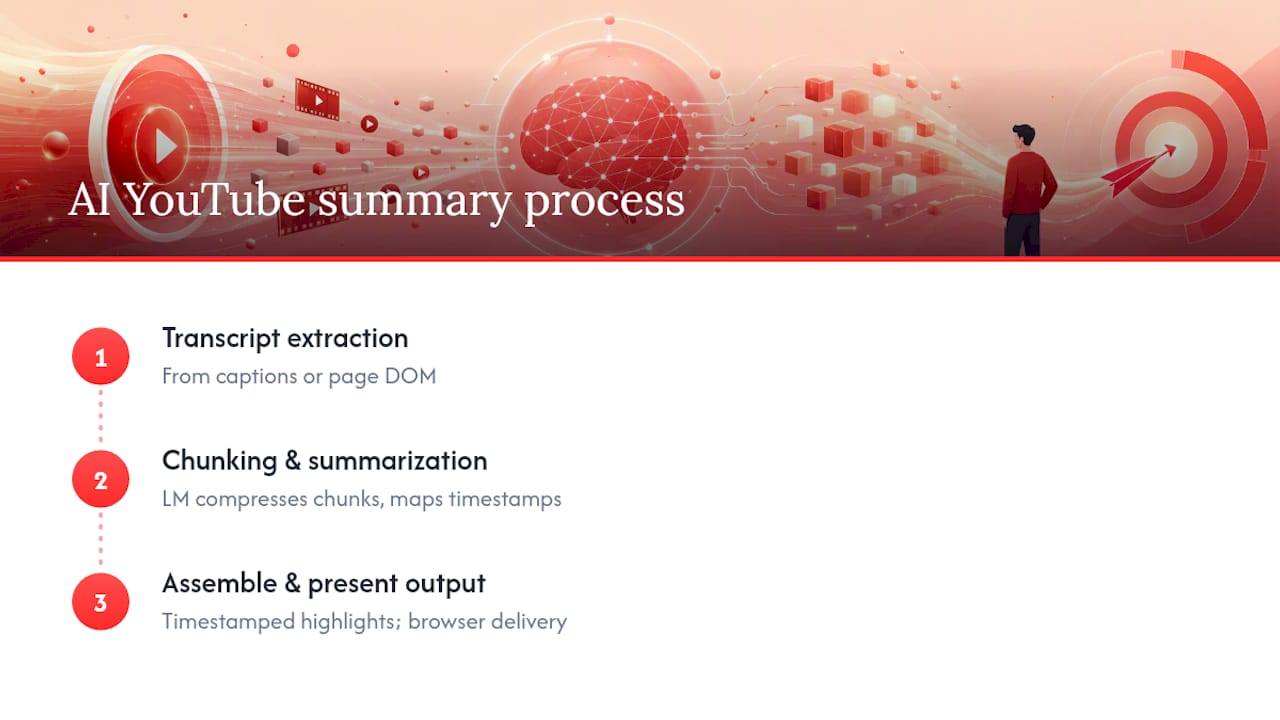
Second, the transcript gets chunked into segments and fed through a language model. The model identifies the highest-signal passages, compresses them into a TL;DR, and maps each key point back to its source timestamp. Some extensions also use vision grounding on thumbnails to confirm chapter boundaries.
Third, the output is assembled and returned to your browser. Typical timing varies with video length, generally scaling from a few seconds for short videos to around two minutes for longer ones.
Process at a glance: Transcript extraction → chunking → summarization → timestamp alignment → final output
One 90-minute meeting recording, for example, can save a viewer roughly 85 minutes when summarized rather than watched in full. Some extensions support a bring-your-own API key (BYO) model, keeping your key and transcript data local rather than routing through a shared backend, which matters for sensitive content.
Pro Tip: If a video has auto-generated captions only, expect slightly lower summary accuracy. Manually uploaded transcripts produce the cleanest output.
How to get your first summary in under two minutes
You need Chrome on a desktop, an active internet connection, and nothing else to start.
- Install the Baitless Chrome extension from the Chrome Web Store.
- Open any YouTube video you want to summarize.
- Click the Baitless button that appears on the video page.
- Choose your summary depth — TL;DR for a quick read, full outline for a detailed breakdown.
- Review the output: read the TL;DR, scan the key bullets, and click any timestamp to verify a claim.
Mobile limitation: Chrome extensions do not run on iOS or Android browsers. The workaround is simple: copy the video URL on mobile, then open it on your desktop and run the summary there.
- Minimum requirement: Chrome desktop browser
- Optional: a BYO API key if you prefer a specific model (GPT-4, Claude, Gemini)
- Avoid summarizing confidential internal meeting recordings through cloud-based tools unless you have confirmed the tool’s data-handling policy
Pro Tip: Start with the TL;DR setting. If the summary feels thin, re-run with “full outline” selected. Most videos only need the TL;DR.
What do the free credits and subscription actually cover?
Baitless offers 25 free summary credits to start, with no payment required. Each credit covers one summary request. When you exhaust those credits, a monthly subscription unlocks more credits and additional features.
| Tier | Summary Credits | Key Features |
|---|---|---|
| Free | 25 credits | TL;DR, key bullets, timestamps |
| Subscription | Increased monthly credits | All free features plus higher volume and priority processing |
A few limits apply across both tiers:
- Very long videos (multi-hour streams) may be subject to length caps per summary request
- Daily recap volume depends on your credit balance
- Summary quality controls are applied automatically; you cannot disable them
Who stays on the free tier: casual viewers who summarize a handful of videos per week. Twenty-five credits goes further than it sounds if you are selective.
Who should subscribe: professionals or students running five or more summaries per day, or anyone building a searchable summary library over time.
Pro Tip: Track which videos genuinely needed a full watch after you read the summary. Most people find the ratio is lower than expected, which helps justify the subscription cost quickly.
What does Baitless access, and how accurate are the summaries?
The extension reads video metadata, the caption track, and optionally the thumbnail. It does not access your Google account, browsing history, or any content outside the active YouTube tab. Baitless does not use your video data to train its models, and data-deletion options are covered in its privacy policy.
Accuracy depends on the summary type. Extractive summaries (pulling direct quotes from the transcript) are highly reliable. Abstractive summaries (paraphrasing and compressing) carry a small hallucination risk, meaning the model can occasionally rephrase a point in a way that shifts its meaning.
Verification is a one-step habit: click the timestamp next to any claim you plan to act on, watch 15–30 seconds of the original, and confirm the context. This single check, recommended as best practice for AI video summarizers, catches the vast majority of errors before they cost you anything.
Practical steps to improve accuracy:
- Paste the transcript manually when auto-captions are poor quality
- Request a deeper outline if the TL;DR omits a topic you expected
- Use timestamped bullets as navigation aids, not as standalone facts
Pro Tip: For research or high-stakes decisions, treat the summary as a map, not the territory. The timestamps are your audit trail.
Practical workflows for professionals, students, and researchers
Three workflows that actually save time in daily use:
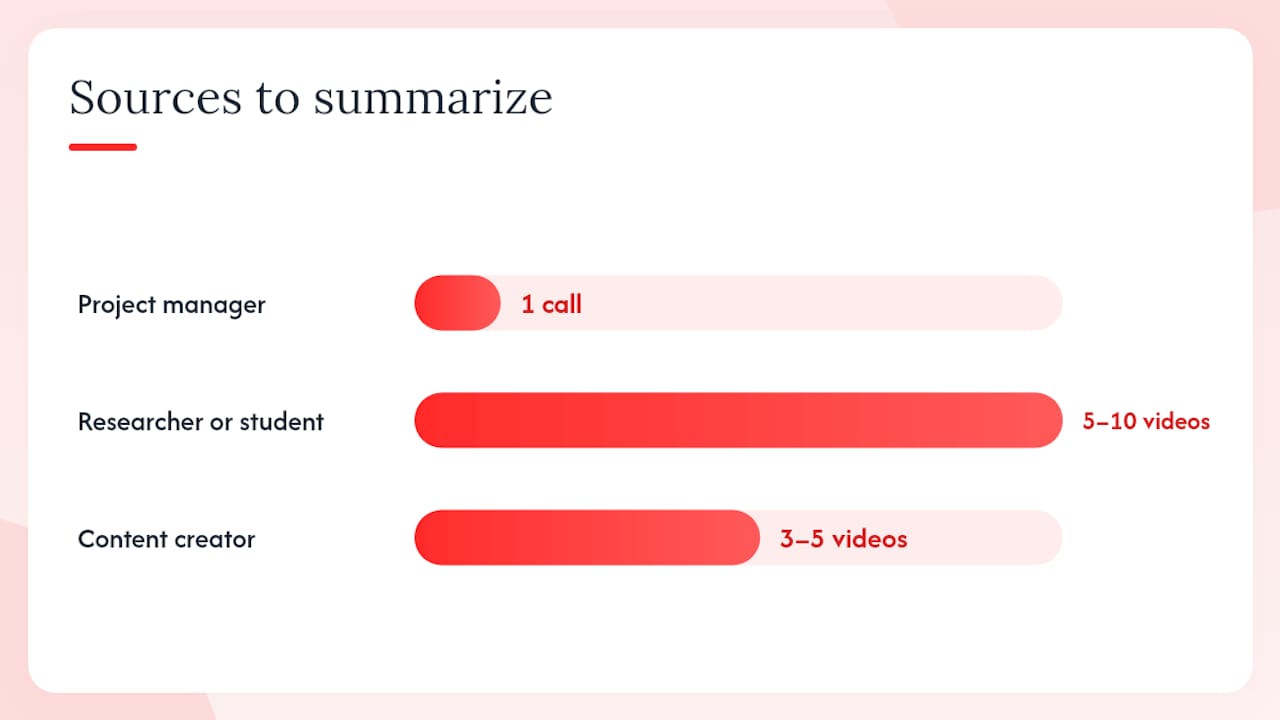
Project manager — meeting recap: Summarize the recorded call immediately after it ends. Copy the key bullets into your Notion or Trello board as action items, tagging each with the timestamp for anyone who wants context. A 45-minute call becomes a five-bullet update in under three minutes.
Researcher or student — synthesis workflow: Summarize five to ten videos on a topic, then paste all TL;DRs into Obsidian or a Google Doc. Tag each by subtopic. Search across summaries to find where sources agree or conflict, then jump to the exact timestamps to pull direct quotes. This transcript-first approach is the fastest way to build a literature-style review from video content.
Content creator or producer — prep workflow: Before scripting a video, summarize three to five reference videos in your niche. Use the key bullets to identify angles your competitors covered and gaps they missed. Export summaries as Markdown and drop them into your script folder.
Building a searchable summary library:
- Summarize every video you watch for work or study.
- Export each summary to a single notes folder (Notion, Obsidian, or plain Markdown files).
- Tag summaries by topic, speaker, or project.
- Search the library by keyword instead of re-watching videos.
- Jump to timestamps when you need the original source.
Pro Tip: Name each saved summary file with the video title and date. Six months from now, you will find it in seconds instead of hunting through watch history.
When summaries miss the point: quick fixes to try
Most problems fall into three categories: missing timestamps, thin summaries, and extension errors.
Quick fix checklist:
- Refresh the page and re-run the summary before anything else
- Switch from TL;DR to “full outline” depth if key topics are absent
- Paste the transcript manually if auto-captions are missing or in the wrong language
- Disable other active Chrome extensions temporarily if the button does not appear
Numbered diagnostic steps for persistent errors:
- Check whether the video has captions at all (Settings → Subtitles on YouTube).
- Confirm your credit balance has not reached zero.
- Copy the video URL, your browser version, and a short transcript snippet, then contact Baitless support with those three details.
- Try a different video to isolate whether the issue is video-specific or account-specific.
For power users: clear the extension’s cache from its settings panel if summaries feel stale or repeat a previous output. If you use a BYO API key, verify the key has not expired or hit its own rate limit.
Pro Tip: Conflicting extensions, especially other AI or caption tools, are the most common cause of the Baitless button not rendering. Disable them one at a time to find the culprit.
Key Takeaways
AI YouTube summaries cut viewing time to a fraction of the original by delivering a TL;DR, timestamped key moments, and exportable bullets you can act on immediately.
| Point | Details |
|---|---|
| Start free, no card needed | Baitless gives you 25 free summary credits to test the full workflow before committing. |
| Verify high-stakes claims | Click the timestamp and watch 15–30 seconds of the original before acting on any summary. |
| Transcript quality drives accuracy | Videos with clean captions produce better summaries; paste the transcript manually when captions are poor. |
| Build a searchable library | Export summaries to Notion or Obsidian, tag by topic, and search instead of re-watching. |
| Upgrade when free credits run out | Daily users who summarize five or more videos regularly get the most value from a subscription. |
A note on what Baitless is actually trying to do
The premise behind Baitless is straightforward: most YouTube videos are longer than they need to be, and your attention is worth more than the algorithm’s default. The free 25-credit tier exists so you can test that premise on your own content before spending anything.
What the product does not promise is perfection. Abstractive summaries will occasionally miss a nuance. The timestamps are navigation aids, not citations. The goal is to get you to the right moment in a video faster, not to replace the video entirely when the full context matters.
If you try it and find a summary that is genuinely off, the feedback loop matters. Baitless is a Chrome extension built around a specific problem, and the product gets sharper when users report edge cases.
Baitless cuts your YouTube watch time from the first click
Spending 90 minutes on a video to extract three useful points is a bad trade. Baitless flips that ratio: you get the TL;DR, the key moments, and the timestamps in under two minutes, then decide whether the full video is worth your time.

Install the Baitless Chrome extension, run your first summary on a video you have been putting off, and use the 25 free credits to build the habit before you ever see a pricing page. The extension works on any YouTube video with captions, outputs structured Markdown you can paste directly into Notion or Obsidian, and takes one click to run.
Useful sources
A few references worth bookmarking if you want to go deeper on AI video summarization and YouTube productivity:
- The Ultimate Guide to Using AI Video Summarizer: Save Hours and Boost Productivity in 2026 - Sulasok News
- How to Summarize YouTube Videos with AI
- Baitless — Get the point before YouTube gets your attention
Pro Tip: When evaluating any AI summarizer, prioritize sources that explain the underlying method (extractive vs. abstractive) over those that only list features. The method tells you where the accuracy limits are.