
Under a Minute: Verified YouTube Summaries for Students & Pros
Under a Minute: Verified YouTube Summaries for Students & Pros

Yes, you can get a reliable summary of almost any YouTube video without hitting play. AI summarizers pull a transcript, either from existing captions or by running speech to text, then generate a TL;DR, key points, and clickable timestamps. Paste a link into a web tool or click a Chrome extension, and you’ll usually have a usable summary in under a minute.
TL;DR:
- AI summarizers can generate reliable overviews of YouTube videos using either existing captions or transcribed speech in less than a minute.
- The best summary format varies: TL;DR for quick checks, bullet points for main claims, chapters for structured videos, and timestamps for precise points.
- Summaries tend to be most accurate with clean audio and existing captions, while accuracy decreases with noisy or heavily accented recordings.
- Detailed summaries including timestamps and full transcripts are crucial for researchers and creators citing exact quotes or verifying content.
- Tools like Baitless provide fast, timestamped summaries via Chrome extensions or web interfaces, suitable for both casual browsing and professional use.
Table of Contents
- How Does YouTube Summary Without Watching Actually Work?
- What Summary Formats Should You Choose?
- How Do You Get a Detailed Summary Step by Step?
- Who Actually Needs This and Why?
- When Are Summaries Accurate, and What Are the Privacy Rules?
- Why Choose Baitless for This?
- When Should You Trust a Summary vs. Watch the Video?
- Try Baitless on Your Next Long Video
- Sources
- FAQ
How Does YouTube Summary Without Watching Actually Work?
The process runs on a transcript, not the video itself. A tool either grabs the caption track YouTube already has, or, if there’s no caption available, it runs the audio through speech-to-text and builds one from scratch. That’s the same layer YouTube’s own Studio documentation describes when it explains how captions and processing feed into a video’s back end.
Once the transcript exists, an AI model reads it the way you’d skim an article. It picks out the argument, groups related points into sections, and drops a timestamp next to each one so you can jump straight to that moment in the video.
The workflow shows up in a few different shapes:
- Web tools where you paste a URL and get a summary on the page
- Chrome extensions that summarize the video you’re already watching, one click away
- Integrations that feed a summary into note-taking or research apps
TranscriptMagic’s summarizer advertises turnaround under 30 seconds using exactly this transcribe-then-summarize approach, and it’s built specifically to handle videos that have no captions at all.
What Summary Formats Should You Choose?
Not every job calls for the same output. A two-sentence TL;DR tells you whether a video is worth your time at all. Bullet takeaways give you the main claims without the connective tissue. A chapter breakdown mirrors how the creator structured the video, which matters for anything over 20 minutes.
Timestamped highlights are the most underused feature here. Instead of reading “the host discusses pricing strategy,” you get a timestamp that drops you into the exact minute where pricing comes up, so you can hear the quote in context rather than trust a paraphrase.
Most tools also let you export the result:
- Copy to clipboard for quick pasting into notes
- Markdown for anyone building a knowledge base
- PDF for sharing with a team or professor
- Audio playback of the summary itself, for listening on the move
Recall’s summarizer returns a structured summary, key takeaways, and a full timestamped transcript, all inside 30 seconds, which covers most of these formats in one pass.
How Do You Get a Detailed Summary Step by Step?
There are two common paths, depending on whether you’re already watching or starting from a link someone sent you.
Web tool flow:
- Copy the YouTube URL from the address bar or share menu
- Paste it into the summarizer’s input field
- Choose your output style (TL;DR, bullets, chapters, or full transcript)
- Read the result, then click any timestamp to open that moment in the video
Extension flow:
- Install the Chrome extension
- Open the YouTube video you want summarized
- Click the extension icon
- Get an instant summary that saves to your library for later
When a video has no captions, tools that transcribe from audio still work. That’s the entire point of a speech-to-text-first design: the summarizer doesn’t need YouTube’s caption track to function.
Pro Tip: For a video over 45 minutes, request a chapter-style output instead of a flat bullet list. It preserves the order of arguments, which matters if the video builds a case across sections rather than repeating one point.
Who Actually Needs This and Why?
The right summary format depends entirely on what you’re doing with the information afterward.
- Students get the most out of a TL;DR paired with a chapter outline. It mirrors how lecture videos are already structured, which makes turning a summary into exam notes almost mechanical. Tools built for academic scheduling, like Semester Flow, pair well here since you can drop summarized lecture points straight into a study calendar.
- Busy professionals lean on bullet takeaways for meeting recordings, webinars, and long-form podcasts. You get the action items without sitting through 40 minutes of preamble.
- Researchers and journalists need timestamped quotes and, often, the full transcript. A paraphrase isn’t good enough when you’re citing someone, so the ability to jump to the exact second and confirm the wording matters more than speed.
- Creators scan summaries to find repurposable moments. A timestamp that flags a strong 90-second answer inside a two-hour interview saves the scrubbing-through-footage step entirely.
Language learners fall into a slightly different bucket: summaries paired with full transcripts double as comprehension checks, which is where a resource like this guide on AI teachers in language learning becomes a useful companion tool.
When Are Summaries Accurate, and What Are the Privacy Rules?
Summaries are strongest when the audio is clean and captions already exist. A single speaker, decent microphone, minimal background noise, that’s the easy case, and accuracy holds up well.
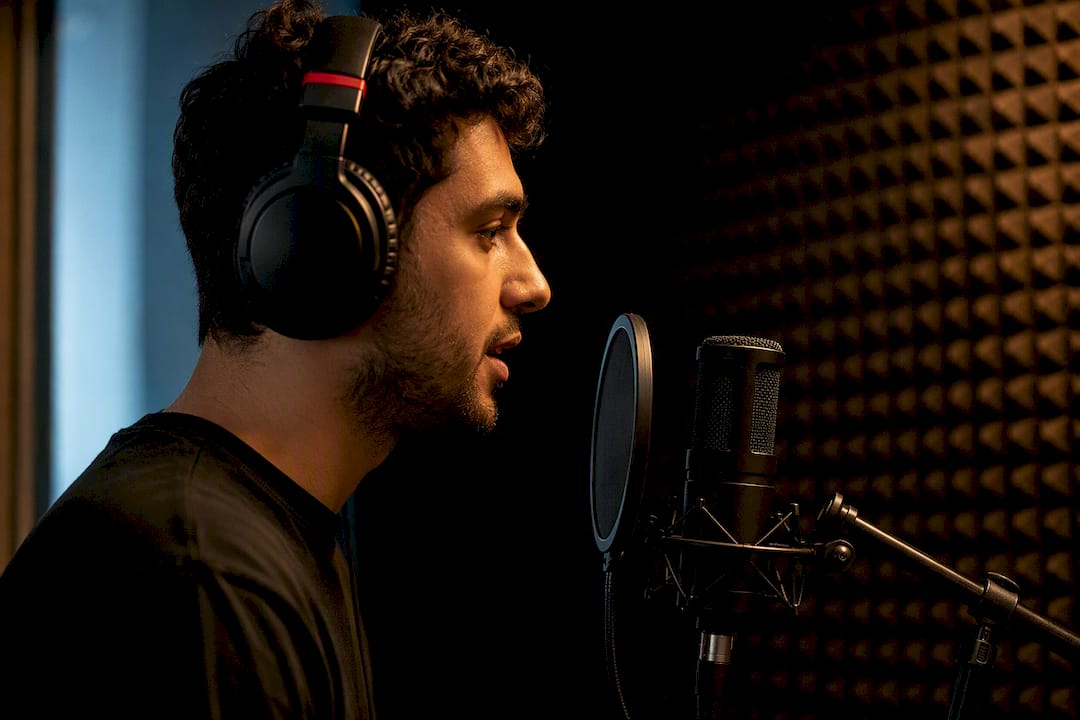
Accuracy drops with music-heavy content, overlapping speakers, heavy accents the model hasn’t seen much of, or dense technical jargon. Automatic transcription accuracy depends heavily on audio quality and caption availability, so a rough recording produces a rougher summary, not a broken one, but you should read it with more skepticism.
Live streams and private or age-restricted videos come with their own catch. YouTube’s own help documentation notes that video processing has to complete before captions or transcripts are fully available, so a stream that’s still live may not summarize cleanly until it finishes processing.
Before you rely on a summary for anything public, run a quick check:
- Scan the transcript for the section the summary references
- Jump to the timestamp and listen to the actual wording
- Cross-check any quote before you publish or cite it
On privacy: summarizers work from audio and transcripts that are already public. Avoid redistributing copyrighted transcripts wholesale, and if you’re summarizing anything private or unlisted, use a session that’s actually authenticated to view it.
Why Choose Baitless for This?
Baitless was built around the exact workflow described above: paste a link or click the extension, and get back a fast TL;DR with timestamped highlights that show you what to watch and what to skip. It transforms lengthy YouTube videos into concise summaries instead of making you sit through the whole thing to find the two minutes that matter.
What that looks like in practice:
- A Chrome extension that summarizes the video you’re already on, no copy-pasting URLs
- Timestamped highlights so you can jump straight to the part worth your time
- A clear watch-or-skip breakdown instead of a vague overview
- free summary credits to start, no card required, plus a paid plan for users who need more credits
If you want deeper technique posts on getting cleaner summaries out of noisy or caption-free videos, the transcript extraction guides on the Baitless blog cover the troubleshooting side, while the summarization technique posts go deeper into prompt and style choices.
Whether you’re a student trying to get through six lecture videos before a midterm or a professional triaging a backlog of webinars, the same extension covers both jobs. You just choose a different output style depending on what you need out the other end.
When Should You Trust a Summary vs. Watch the Video?
A summary is enough for background reading, scouting whether a video is worth your time, or doing a quick fact-check before a meeting. It stops being enough the moment you need to see a demonstration, read a chart, or catch the tone in someone’s delivery.
If you’re citing a quote anywhere public, don’t trust the summary’s paraphrase. Jump to the timestamp and listen to the exact words. That one habit separates careful research from getting burned by a plausible-sounding sentence that isn’t quite what was said.
— Sergio
Try Baitless on Your Next Long Video
Baitless is the fastest way to decide whether a video is worth your time, not just another tool that summarizes text you’ve already read. Install the Chrome extension, open a video, and you’ll have a TL;DR with timestamped highlights before the intro music finishes on the original.

Start with the 25 free summary credits on the Free plan, no card required. Try it on something with real structure, a 60-minute lecture, a panel discussion, or a long-form podcast interview, since that’s where the timestamp breakdown actually saves you time instead of just being a novelty. Once you’re running through summaries daily, the Pro plan at $7.99 per month removes the credit ceiling entirely.
Sources
For more on how captions and processing work, see YouTube’s help documentation. For technique guides on cleaner transcript extraction, browse the Baitless blog archive.
- Understand your YouTube content performance - Computer - YouTube Help
- YouTube Video Summarizer — Summarize Any YouTube Video with AI Free | TranscriptMagic
FAQ
How Do I Get a Detailed Summary of a YouTube Video?
Paste the video’s URL into a summarizer tool or click a Chrome extension while watching, and you’ll get a TL;DR, bullet points, and timestamped highlights within about a minute. The tool works by extracting or generating a transcript first, then having an AI model condense it, as TranscriptMagic explains.
Can ChatGPT Summarize YouTube Videos?
ChatGPT can summarize a transcript if you paste one in, but it can’t pull the transcript directly from a YouTube link on its own in most standard setups. Purpose-built summarizers handle that extraction step automatically, which is the main practical difference.
Where Do I Find a YouTube Video’s Summary?
If you’re using a dedicated summarizer, the summary appears right in the tool, either on the web page after you paste a link or in a panel next to the video if you’re using a Chrome extension. YouTube itself doesn’t generate a native summary; the caption and transcript data it stores is what summarizer tools read and condense, as described in YouTube’s own help documentation.
What Exactly Is a YouTube Video Summary?
A YouTube video summary is a condensed version of a video’s spoken content, typically delivered as a short TL;DR, a bulleted list of key points, or a chapter breakdown with timestamps. It’s generated from a transcript, either the video’s existing captions or one built through speech-to-text, then distilled by an AI model.
Does Baitless Work if a Video Has No Captions?
Yes. Baitless generates summaries from a transcript whether or not the creator added captions, since the underlying workflow can transcribe audio directly when no caption track exists. That’s part of why it works across lecture videos, interviews, and podcasts that never had captions turned on.