
How to Triage Your YouTube Playlist in Under an Hour
How to Triage Your YouTube Playlist in Under an Hour
Triage your playlist in one pass: scan six quick signals per video, move 10–15 items into Watch Next, export your full list for bulk fixes, then run a conservative apply only after reviewing the output files. Start right now by opening your playlist, installing Baitless for instant per-video summaries, and pulling up YouTubePlaylistOrganizer for anything over 30 videos.
Here is what you can do in the next 60 seconds:
- Open your longest playlist and sort by “Date added (oldest first)” to surface stale content immediately.
- Run Baitless on the first five titles you are unsure about — each summary takes under 10 seconds.
- Move your top 10–15 keepers into a dedicated Watch Next playlist using YouTube’s built-in editing.
- Flag anything over 30 minutes with uncertain payoff as “Maybe Later” and anything clearly off-topic for deletion.
- If the playlist has many videos, queue up YouTubePlaylistOrganizer for the bulk workflow below.
Key Takeaways
Effective YouTube playlist triage combines a 60-second per-video signal scan, a three-bucket sorting system, and a conservative bulk workflow that exports before it writes anything.
| Point | Details |
|---|---|
| Scan six signals per video | Check length, chapters, date, creator, transcript, and engagement before deciding watch, save, or skip. |
| Use three buckets | Watch Next (5–15 items max), Reference, and Maybe Later keep your queue from collapsing into a second Watch Later pile. |
| Export before any bulk apply | Run ypo export and review playlist-report.md and playlist-review.csv before granting write access. |
| Weekly 10–15 minute sessions | A short weekly triage plus a monthly 30–45 minute audit keeps playlists usable over time. |
| Baitless for uncertain videos | Use Baitless’s per-video summaries to make fast watch-vs-skip calls without watching the full video. |
Table of Contents
- What signals should you check during YouTube playlist triage?
- How to run a repeatable bulk triage workflow in 20–60 minutes
- Which tool should you use for your playlist right now?
- How do you decide what to watch now, save, or skip?
- Why backups and safety checks matter before any bulk apply
- Quick CLI reference and review file map
- The tradeoffs I actually make when time is scarce
- Baitless cuts your per-video decision time to seconds
- Sources
What signals should you check during YouTube playlist triage?
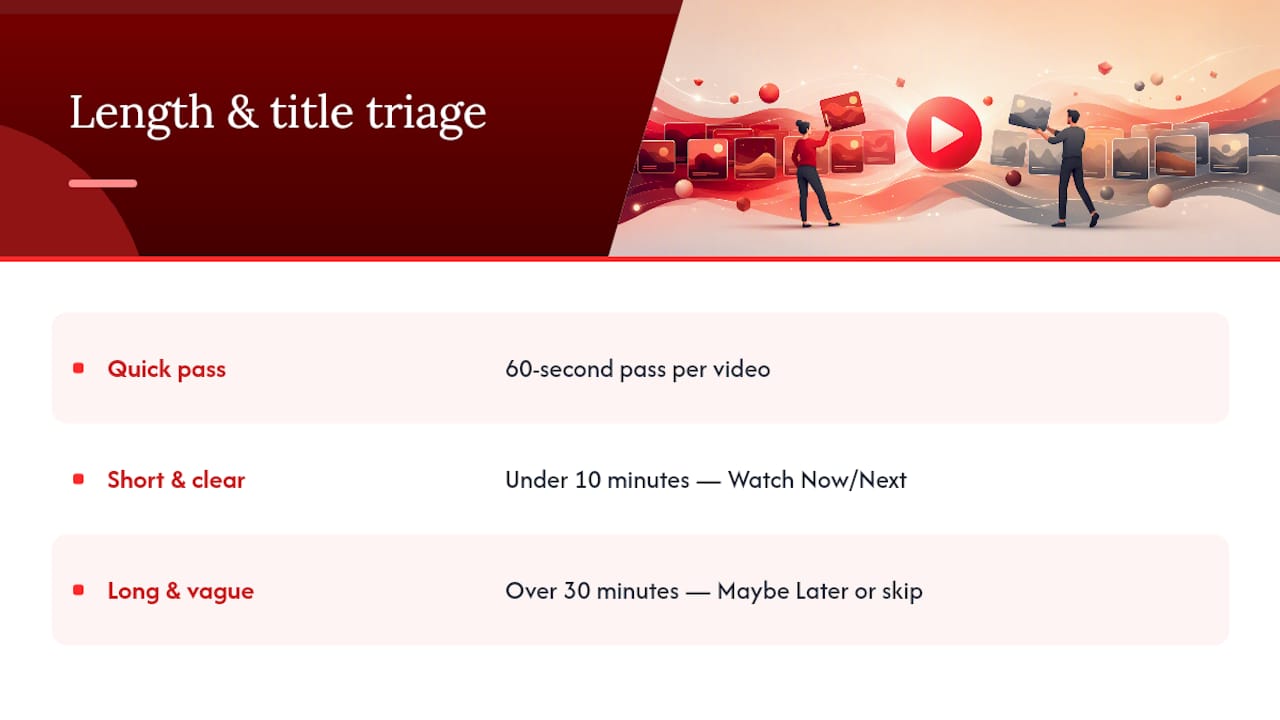
Each video gets a 60-second pass. Check these signals in order and act immediately on what you find.
Length. Under 10 minutes with a clear title? Watch now or Watch Next. Over 30 minutes with a vague title? Save to Maybe Later or skip entirely.
Chapters and timestamps. A video with YouTube chapter timestamps is far easier to skim. If chapters exist, you can jump to the relevant section without watching the whole thing. No chapters on a 45-minute video? That is a red flag for your time budget.
Upload date. Anything over two years old in a fast-moving field (AI, software, finance) warrants a credibility check before you invest time. Evergreen topics like writing craft or cooking technique age better.
Creator credibility. A channel you already trust gets a faster pass. An unfamiliar channel with under 1,000 subscribers on a technical topic deserves a quick Baitless summary before you commit.
Transcript or closed captions. Transcripts let you Ctrl+F for the exact term you need. If a video has auto-generated captions, you can often skim the transcript in YouTube’s description panel faster than watching.
Engagement signals. A high view count with a strong like ratio suggests the content delivered. A video with 200 views and no comments on a niche topic is not automatically bad, but factor it in.
Deleted or geo-restricted placeholders. Tombstone entries (videos marked “Deleted video” or “Private video”) add clutter and zero value. Delete them on sight. For geo-restricted content, note the title and search for an accessible mirror before removing.
Pro Tip: When you are genuinely unsure about a video after the six-signal scan, run it through Baitless. The summary shows you the key moments and a watch-vs-skip breakdown in seconds, which beats a 20-minute gamble every time.
How to run a repeatable bulk triage workflow in 20–60 minutes
This workflow handles playlists of any size safely. The key principle: read first, write last.
- Authenticate read-only. Run
ypo auth --read-onlyto connect YouTubePlaylistOrganizer to your account without granting write access yet. This is the safest starting point. - Export your playlist data. Run
ypo export --playlist-id YOUR_IDto pull all video metadata into local files. This is your backup. Keep it. - Analyze and generate review artifacts. Run
ypo analyzeto produce the four review files:playlist-report.md,playlist-plan.json,playlist-review.csv, and the optional HTML report. No live changes happen at this step. - Review the output files. Open each file and read what the tool suggests before touching anything.
- Run a preview apply (dry run). Run
ypo apply --dry-runto see exactly what would change. Nothing is written to YouTube at this stage. - Grant write auth and apply only after review. Run
ypo auth --writeand thenypo apply --confirmonly when you are satisfied with the plan. The apply step requires explicit confirmation and there is no built-in undo.
What to look for in each review file
playlist-report.md gives you a human-readable summary: total video count, duplicates found, deleted placeholders, and suggested category moves. Read this first.
playlist-plan.json is the machine-readable version of the same plan. You do not need to edit it, but check that the suggested moves match your intent before applying.
playlist-review.csv lists every video with its metadata in columns. Sort by duration to find your longest videos, or filter by “deleted” to see tombstones in one view.
The HTML report (when generated) gives you a clickable, browser-friendly version of the same data. Useful for sharing with a collaborator or printing for an offline review.
Before you run
ypo apply, ask yourself: “If every suggested move executes right now, am I comfortable with the result?” If the answer is anything other than yes, go back to the review files and adjust the plan. A conservative first run with category moves excluded is always the right call.
Pro Tip: On your first run, pass the --exclude-category-moves flag so only structural fixes (duplicate removal, tombstone cleanup) apply automatically. Review category suggestions manually in playlist-review.csv before including them in a second pass.
Which tool should you use for your playlist right now?
The right tool depends on how many videos you are dealing with and how much time you have.
Baitless is the right call for per-video decisions. When you are staring at a title and cannot tell whether the video is worth 40 minutes of your life, a Baitless summary gives you the key moments and a clear watch-vs-skip signal in under 10 seconds. It starts free with 25 summary credits, which covers a solid first triage session. Use it at the top of your workflow before you move anything.
YouTube’s built-in playlist editor handles small, manual fixes well. The official editing interface lets you reorder videos, update the playlist title and description, and remove individual entries without any third-party tool. For a playlist under 20 videos, this is often all you need. YouTube Studio’s mobile app adds the same controls on the go: Content → Playlists → Edit → Save.
YouTubePlaylistOrganizer is for bulk work. Duplicates, deleted placeholders, cross-playlist reorganization, and export backups all belong here. The tradeoff is setup time: authenticating, running the export, and reviewing the output files takes 20–60 minutes. For larger playlists, that investment pays off immediately. For very small playlists, it does not.
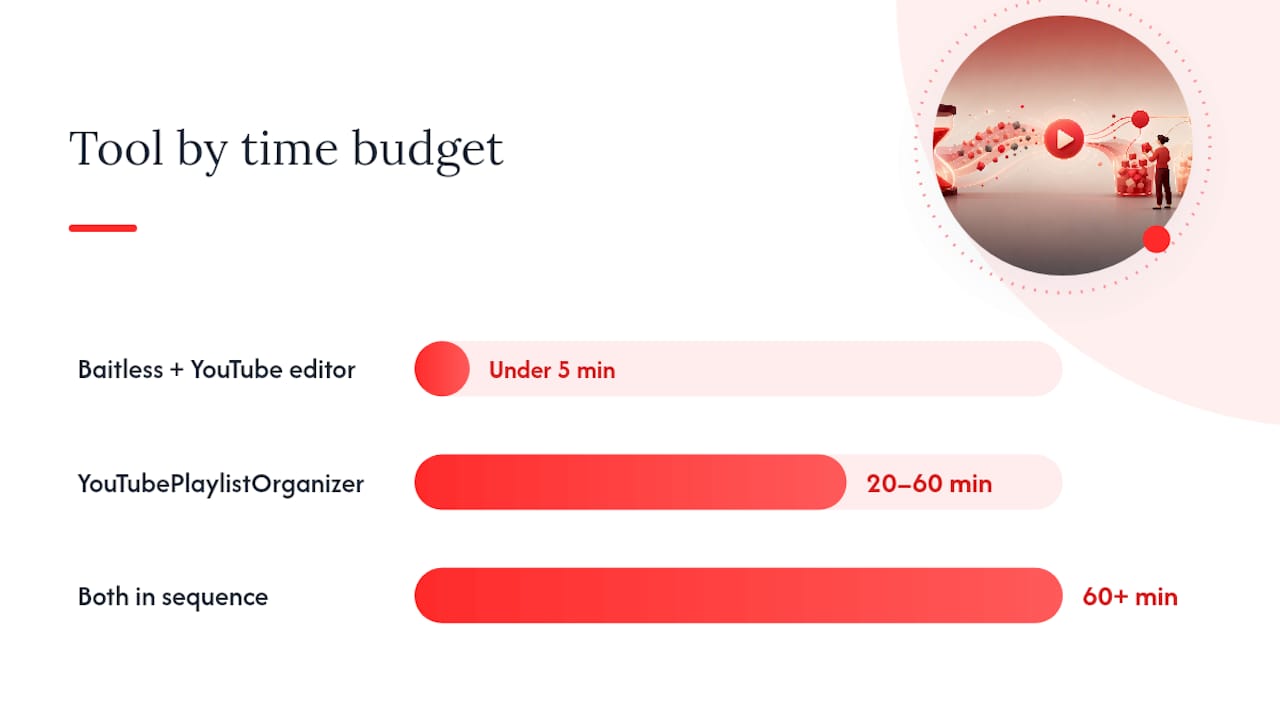
| Time budget | Best tool | Why |
|---|---|---|
| Under 5 minutes | Baitless + YouTube editor | Fast per-video decisions and quick manual removes |
| 20–60 minutes | YouTubePlaylistOrganizer | Bulk export, analyze, dry-run, and safe apply |
| 60+ minutes | Both in sequence | Summarize uncertain videos first, then bulk-clean the full list |
How do you decide what to watch now, save, or skip?
These heuristics work fast. Apply them in order and stop when you have a decision.
- Does it solve a current task? If yes, Watch Next immediately regardless of length.
- Is it the best available source on this topic? If a better video exists in the same playlist, skip this one.
- Is the creator credible for this subject? A practitioner explaining their own workflow beats a generalist overview every time.
- Does it have chapters or a transcript? If yes, bump it up. You can extract the value in half the time.
- Is the payoff uncertain AND the runtime over 20 minutes? Save it to Maybe Later with a one-sentence note on why you saved it. “Good intro to Rust for systems work” beats a blank title you will not remember next week.
- Is it a duplicate topic you already have covered? Delete the weaker version.
- Is it pure entertainment with no professional payoff? Be honest. Either schedule it deliberately or delete it.
A three-bucket structure works well in practice: Watch Next (immediate priority), Reference (keep for lookup), and Maybe Later (uncertain payoff). The Watch Next bucket is the one that matters most.
Pro Tip: Cap Watch Next at 5–15 items. The moment it grows past 15, stop adding and re-triage what is already there. A Watch Next list that hits 40 items is just a second Watch Later pile with a different name.
Why backups and safety checks matter before any bulk apply
YouTube Watch Later is private, ordered by save date, and not searchable within the playlist itself. Deleted video placeholders accumulate silently. There is no native undo for bulk operations. That combination makes an export-first habit non-negotiable.
Export both formats before touching anything:
playlist-review.csvfor a spreadsheet-friendly backup you can sort and filter.playlist-report.mdfor a human-readable record of what the playlist contained before changes.- The HTML report for a timestamped, shareable snapshot.
On the privacy side: authenticate read-only first. Read-only auth cannot write to your account even if a command misfires. Only upgrade to write auth after you have reviewed the dry-run output and confirmed the plan looks right.
API quota is a real constraint. The YouTube Data API v3 has daily quota limits. A large export on a fresh account can consume a significant portion of that quota. Run the analyze step before the apply step so you know the cost before committing.
Pro Tip: Test on a subset of 10–20 videos before running the full apply on a 500-video playlist. Export that subset, run the full workflow, verify the results, and only then scale up. Keep a timestamped copy of every export file.
Quick CLI reference and review file map
A conservative first run looks like this:
ypo auth --read-only
ypo export --playlist-id YOUR_PLAYLIST_ID
ypo analyze
ypo apply --dry-run
# Review all output files before proceeding
ypo auth --write
ypo apply --confirm --exclude-category-moves
The
--exclude-category-movesflag is your safety net on a first run. It limits the apply to structural fixes only — duplicates, tombstones, ordering — and leaves suggested category reassignments in the review files for you to approve manually. Use it every time until you trust the tool’s suggestions.
| Command | Output file | What to verify |
|---|---|---|
ypo export |
playlist-review.csv |
Total count, metadata completeness |
ypo analyze |
playlist-report.md |
Duplicate count, deleted placeholders |
ypo analyze |
playlist-plan.json |
Suggested moves match your intent |
ypo apply --dry-run |
HTML report | Exact changes before any live write |
ypo apply --confirm |
None (live write) | Confirm only after dry-run review |
The YouTubePlaylistOrganizer repository contains full documentation on each flag and the exact schema for playlist-plan.json if you need to edit the plan before applying.
The tradeoffs I actually make when time is scarce
A typical 30-minute session for me starts with the five titles I am least sure about. I run each through Baitless, get the summary, and make a hard call: Watch Next or delete. No maybes unless I write a one-sentence reason immediately.
Then I move eight to ten keepers into a named Watch Next playlist using YouTube’s editor. The built-in reordering is fast enough for this. I export the full playlist, run ypo analyze, and skim playlist-report.md for tombstones and duplicates. If the dry-run looks clean, I apply with --exclude-category-moves and call it done.
The tradeoff I make consistently: I skip anything over 25 minutes that is not directly tied to a current project. Long-form content goes to Maybe Later with a note. How-to videos with timestamps get Watch Next priority because I can extract the value in 10 minutes by jumping to the relevant chapter. Entertainment content gets a scheduled slot or gets deleted. There is no middle ground that works.
A weekly 10–15 minute triage session plus a monthly 30–45 minute audit keeps the system from collapsing. Skip the weekly session twice and the backlog doubles.
Baitless cuts your per-video decision time to seconds
Every triage session has the same bottleneck: the videos you cannot judge by title alone. Baitless solves that specific problem. Install the Chrome extension, open any YouTube video, and get a concise summary with key moments and a clear watch-vs-skip breakdown, all before you commit a single minute of watch time. The free tier includes 25 summary credits, enough to cover a full triage session on most playlists.

The workflow that works best pairs Baitless for fast per-video calls with YouTubePlaylistOrganizer for bulk structural cleanup. Use Baitless first to decide what stays, then run the bulk organizer to remove tombstones, merge duplicates, and export a clean backup. Start your first triage session now at Baitless.
Sources
- mickpletcher / youtube-playlist-organizer
- Edit playlists
- How to Save YouTube Links You Will Actually Watch | ClipNotebook Learn
- How I Create, Manage, and Bookmark YouTube Playlists That Stay Useful – TheLinuxCode
- YouTube Watch Later: how to find, organize, and back up your saved videos · Stashr