
Watch or Skip? The YouTube Decision Guide for Busy Viewers
Watch or Skip? The YouTube Decision Guide for Busy Viewers

Watch, skip, or save. That decision should take less than a minute, and most of the time it comes down to three signals: does the summary reveal something you couldn’t guess from the title, do the timestamps point to a specific segment worth your time, and does the creator’s track record hold up. If a summary is vague, has no timestamps, and the title already told you everything, skip it. If the summary flags a claim, a number, or a quote you need verified, save it and watch the clip.
YouTube itself now tests AI-generated summaries directly on watch pages, which tells you the platform agrees: reading before watching is the smarter default. Baitless, a Chrome extension, runs this same logic on any video and gives new users 25 free summary credits to test the workflow before paying for anything.
- Watch when the summary flags a primary-source claim, a number you need to verify, or content you must quote directly.
- Skip when the summary is generic, repeats the title, and includes no timestamps.
- Save when the topic matters but timing doesn’t. Queue it, read the summary later, then jump to the clip that answers your question.
Key Takeaways
A summary-first workflow, reading the TL;DR, jumping to timestamped clips, and watching in full only when verification demands it, cuts video review time dramatically without sacrificing the substance that matters.
| Point | Details |
|---|---|
| Lead with the verdict | Decide watch, skip, or save within the first minute using the TL;DR and timestamps alone. |
| Use the 90-second rule | Watch only the specific clips the summary flags before considering the full video. |
| Verify before you rely | Spot-check one or two timestamps and cross-check any quoted number against the transcript. |
| Sort saves by time and urgency | Tag saved videos by expected watch time, not just topic, to actually clear your backlog. |
| Try Baitless first | Baitless’s Chrome extension delivers TL;DR summaries, timestamps, and clip links with 25 free credits to start. |
Table of Contents
- What Does a Good AI Summary of a YouTube Video Include?
- How Do You Decide to Watch or Skip a YouTube Video Fast?
- When Is It Safe to Skip the Full YouTube Video?
- What Can AI Summaries Miss, and How Do You Verify Them?
- How Baitless Runs the Summary-First Workflow for You
- What Do Credits Cost and Is Your Data Private?
- How Should You Organize Videos You’re Saving for Later?
- Should You Read the Comments Before Watching?
- How Do You Judge Relevance and Creator Credibility Before Watching?
- How Do You Spot Clickbait Titles and Thumbnails Fast?
- What Are the Best Tools for Watching or Skipping YouTube Videos?
- A Quick Story About Trading 78 Minutes for 12
- Start Your Summary-First Workflow Today
- Sources
What Does a Good AI Summary of a YouTube Video Include?
A summary you can actually trust looks the same every time, regardless of the topic. It opens with a TL;DR, usually two or three sentences that state the video’s core argument or finding. Below that sit several key takeaways, written as specific claims, not vague themes. Then come timestamped chapter headings that map the video’s actual structure, plus verbatim key quotes pulled straight from the transcript. The best tools also flag which segments are worth a 30 to 90 second look, so you’re not guessing where the substance lives.
This structure matters because platform-level AI summaries exist specifically to help you triage before committing watch time, and a chapter breakdown with timestamps is what turns a wall of text into something navigable.
A weak summary shows its flaws fast:
- No timestamps anywhere, so you can’t jump to anything specific.
- Vague language like “discusses various strategies” instead of naming the strategies.
- A TL;DR that just restates the title in different words.
- Zero direct quotes, meaning you can’t confirm the summary actually reflects what was said.
If you see two or more of those, treat the summary as noise and decide based on the title and creator alone.
How Do You Decide to Watch or Skip a YouTube Video Fast?
Use a three-step workflow every time you hit a video that isn’t an obvious yes or no. It takes minutes, not because you’re rushing, but because most videos don’t deserve more than that.
Step 1: Read the TL;DR and key takeaways first. This alone resolves most decisions. If the takeaways don’t tell you anything new or relevant, skip and move on. If one takeaway grabs you, that’s your signal to keep going instead of committing to the full runtime.
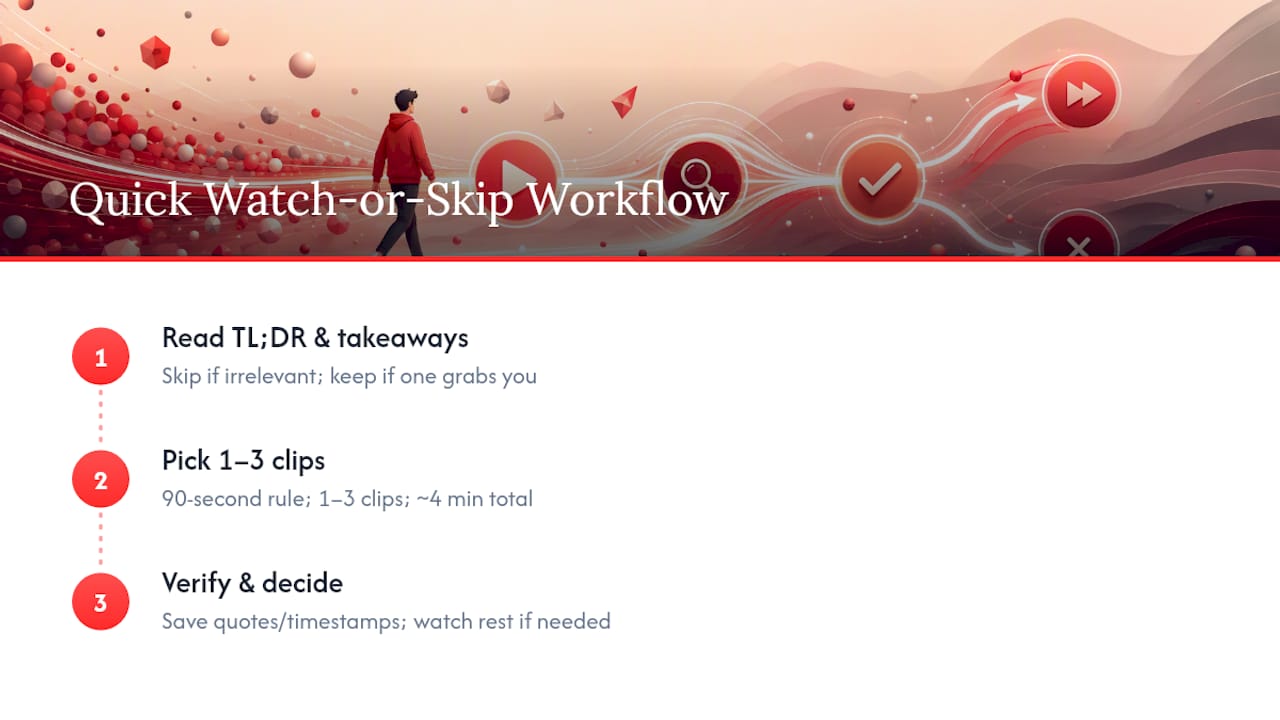
Step 2: Use the timestamps to pick one to three short clips. This is the 90-second rule: identify the exact moments the summary flagged as substantial, and watch only those. A 60-minute talk might reduce to three clips totaling four minutes. Estimate your time budget before you click play, not after.
Step 3: Watch your selected clips for verification, then decide on the full video. As you watch, drop any useful quotes or timestamps into a notes file or knowledge base. If the clips confirm the summary was accurate and the topic is dense enough to need context, watch the rest. If the clips answered your question, stop there.
Here’s the math that makes this worth doing: a typical talk takes several minutes to triage this way, including reading the summary and watching two or three targeted clips. Compare that to 60 minutes of passive watching where you retain maybe half of it. Processing a 90-minute video into a searchable summary can take roughly five minutes, which means the summary is often ready before you’d finish the video’s introduction.
Pro Tip: Before watching anything, run a quick search or ask a chat-based query against the summary text, like “does this mention pricing changes” or “does this cover the 2026 tax update.” If the answer isn’t there, you’ve confirmed the video is irrelevant without opening it.
When Is It Safe to Skip the Full YouTube Video?
Skip with confidence when the summary shows clear warning signs: no data or quotes backing up big claims, no timestamps despite the video promising specific segments, or a description that just restates the title with extra adjectives. Pure opinion content with no new argument, no fresh data, and no unique framing rarely rewards a full watch, no matter how confident the delivery sounds.
Certain categories are almost always safe to skip in full:
- Promotional videos where the entire runtime builds to a single call to action.
- Listicle-style videos (“Top 10 Tips for X”) that repackage widely available advice.
- Duplicate commentary on a story or topic that five other creators already covered identically.
Watching in full still matters in specific situations, though. Primary-source data, like an earnings call, an original study walkthrough, or an interview with the actual person involved, deserves attention because summaries compress nuance. Contested claims that could affect a real decision, legal or financial instructions with sequencing that matters, and anything you plan to quote verbatim all fall into “watch it yourself” territory. A summary is a filter, not a substitute for due diligence on decisions that carry real consequences.
What Can AI Summaries Miss, and How Do You Verify Them?
Even a strong AI YouTube summary has failure modes worth knowing before you trust one blindly. The most common are hallucinated quotes that sound plausible but were never said, compressed nuance where a caveat gets dropped in the shortening process, and timestamps that drift by a few seconds on longer videos. None of these are dealbreakers, but they mean you shouldn’t treat a summary as gospel for anything high-stakes.
A fast verification pass takes under two minutes:
- Spot-check one or two timestamps by jumping directly to them and confirming the content matches.
- Cross-check any quoted number or statistic against the actual transcript or a pinned comment.
- Glance at the video description and channel metadata for the presenter’s stated credentials or affiliation.
- Scan the top comments; corrections to factual errors usually surface within the first day of a video’s life.
For technical content, like a data analysis, a scientific claim, or a financial model, verify the specific formula, dataset, or statistic before repeating it anywhere. For narrative or opinion content, the check is different: confirm the framing is fair and that the summary didn’t flatten a counterargument the speaker actually addressed. Different AI summarization formats, whether bullet lists, timelines, or highlight reels, carry different risks of oversimplification, so match your verification effort to how much the format compresses.
How Baitless Runs the Summary-First Workflow for You
Baitless builds the entire watch-or-skip decision directly into a Chrome extension, so you never leave YouTube to get a usable summary. Open a video, click the extension, and you get a TL;DR, timestamped key takeaways, and jump links straight to the clips worth watching. No separate app, no copy-pasting a URL into another site.

New users start with 25 free summary credits, which typically cover dozens of shorter videos or a solid stretch of longer content before you’d need to upgrade. That’s enough to test the workflow on a real backlog, not just one demo video. Heavy users, researchers running through multiple sources a day, or professionals monitoring a full slate of industry channels, move to a subscription for higher volume.
Core features that matter for daily use:
- Chrome extension that works inline on any YouTube video page.
- TL;DR plus timestamped chapter breakdown for fast navigation.
- Short-clip jump links so you land exactly where the substance is.
- Searchable summary history, so past videos become a reusable knowledge base instead of disappearing.
- Exportable notes for sharing a brief with a team or dropping into your own documentation.
For teams, that searchable history doubles as shared institutional memory. One person triages a batch of videos, and colleagues search the summaries instead of rewatching anything. On privacy, Baitless processes video content to generate summaries and does not require you to hand over unrelated account data to get a result.
What Do Credits Cost and Is Your Data Private?
Free tiers on browser summarizers typically run on a credit system, where one credit roughly maps to one video summary regardless of length. Twenty-five free credits gives you enough runway to summarize a real backlog, not just kick the tires once, before deciding whether a paid tier makes sense for your volume.
On privacy, check two things before feeding a sensitive recording into any extension: whether transcription happens locally or gets sent to a cloud service, and whether the provider states a data retention policy anywhere in its terms. Most consumer-facing tools process video audio through cloud infrastructure to generate the summary, which is fine for public YouTube content but worth pausing on for anything proprietary.
A simple rule covers most situations: use AI summaries freely for triaging public content, and avoid running sensitive internal recordings through any browser extension unless you’ve confirmed a data agreement covers that use case.
How Should You Organize Videos You’re Saving for Later?
A “save for later” pile that just grows forever isn’t a system, it’s a guilt list. The fix is sorting by two variables at the point of saving: priority and expected time cost, not just topic.
Tag each saved video with a rough time estimate the moment you save it. A summary usually gives you enough to guess: “three-minute clip watch” versus “needs the full 40 minutes.” Group by that estimate so you can pull from a “quick win” queue when you have five minutes between meetings, and a “deep dive” queue for when you’ve blocked real focus time.
Priority should track urgency and shelf life, not just interest. A video about a breaking industry change loses value fast; watch or skip it within a day or two. A conceptual deep-dive on a topic you’re studying long-term can sit for weeks without losing relevance. Separate those into different lists instead of one undifferentiated pile.
Practical structure that works for most people:
- This week: time-sensitive or high-priority items, reviewed within a few days.
- Reference: evergreen material tagged by topic, revisited when the topic comes up again.
- Maybe: low-confidence saves you’re not sure deserve time; review this list monthly and purge aggressively.
Baitless’s searchable summary history effectively replaces the “reference” pile: instead of hoarding videos you might rewatch, you search summaries you’ve already generated and pull the specific clip when the topic resurfaces.
Should You Read the Comments Before Watching?
Comments and metadata are a five-second gut check you should run before committing to any video, and they catch problems a summary alone won’t. Scan the top three or four comments before you click play. If multiple people are flagging a factual error, calling out a misleading title, or noting that a claim was later retracted, that changes your watch decision immediately.
Pinned comments from the creator often matter more than the video description, especially for corrections issued after upload. If a creator pinned a comment saying “correction at 14:32,” that’s more current information than anything in the original summary or description.
Metadata worth a glance includes upload date, which tells you if content might be outdated on a fast-moving topic, and video length relative to claimed depth. A 45-minute video promising a “complete guide” to something genuinely complex probably has more substance than a 6-minute video making the same promise. Engagement ratio, likes relative to views, is a rougher signal but still useful: a video with unusually low engagement relative to view count sometimes indicates clickbait that disappointed viewers after the click.
None of this replaces reading the actual summary, but a 5 to 10 second scan of comments and metadata before you decide can save you from videos where the substance doesn’t match the packaging.
How Do You Judge Relevance and Creator Credibility Before Watching?
Relevance and credibility are two separate checks, and skipping either one leads to wasted time even when a video looks promising on the surface.
For relevance, ask a specific question before watching anything: what decision or task does this video need to inform? If you can’t name one, that’s a sign you’re browsing, not researching, and a lower bar for watching applies. If you can name the question, check whether the summary or description actually addresses it, not just adjacent language that sounds related.
For credibility, look past subscriber count, which measures popularity, not accuracy. Check whether the creator states real credentials or experience relevant to the topic, whether they cite sources for factual claims, and whether their channel has a consistent track record on the subject rather than one viral video followed by unrelated content. A finance channel that’s covered markets consistently for two years carries more weight than a channel that pivoted to finance content last month because the topic was trending.
For technical or specialized topics, credibility checks get stricter. Look for whether the creator shows their work: data sources, methodology, or citations to primary research. A creator who says “trust me” without evidence deserves more skepticism than one who links the study they’re discussing.
How Do You Spot Clickbait Titles and Thumbnails Fast?
Clickbait has recognizable patterns, and once you know them, spotting a misleading title takes about two seconds. Titles that promise a shocking reveal without naming the subject (“You Won’t Believe What Happened Next”) are almost always weaker than the thumbnail suggests. Numbers that seem oddly specific but unverifiable (“This One Trick Increased Results by 347%”) should raise a flag until the summary or description backs it up with an actual source.
Thumbnails with exaggerated facial expressions, red circles or arrows pointing at something vague, or a big red “X” over an unnamed competitor are template patterns, not signals of unique content. That doesn’t automatically mean the video is bad, but it does mean the packaging isn’t giving you real information, so lean harder on the summary.
The fastest cross-check is comparing the title’s specific claim against the summary’s actual content. If the title says “This Destroys the Competition” and the summary’s key takeaways are generic and vague, the title oversold it. If the summary contains a specific, sourced claim that matches the title’s energy, the packaging was honest.
What Are the Best Tools for Watching or Skipping YouTube Videos?
Options in this category generally split into a few types: browser extensions that summarize inline on YouTube, standalone web apps that require pasting a URL, and platform-native features YouTube is testing directly on its own watch pages.
Browser extensions tend to win on convenience because they work where you already are, without a tab switch or copy-paste step. Baitless falls into this category, built specifically around the triage workflow: TL;DR, timestamped takeaways, and short-clip jump links, all inline on the video page, with 25 free credits to start and no setup beyond installing the extension.
Standalone web apps can offer more configuration and sometimes support other platforms beyond YouTube, but they add friction: you copy a link, paste it elsewhere, wait for processing, then switch back to actually watch. For someone triaging a dozen videos a day, that extra step adds up fast.
Platform-native summaries, which YouTube is testing directly on search and watch pages, are convenient when available but currently offer less depth than dedicated tools, with fewer timestamped segments and less flexibility for exporting or searching past summaries.
For anyone judging ease of use: an inline extension with a one-click summary and clear timestamps has the shortest path from “see a video” to “know whether to watch it.” That’s the standard worth measuring any tool against, including the ones you haven’t tried yet.
A Quick Story About Trading 78 Minutes for 12
One analyst call ran 78 minutes. Reading the summary and jumping to three flagged segments took 12 minutes, and the deliverable was done before the meeting that referenced it even started. That gap between 78 and 12 is the entire argument for reading first. Try it on one video sitting in your backlog right now, using free credits before you decide it’s worth more.
Start Your Summary-First Workflow Today
Every method in this guide works better with a tool that puts it directly on the video page instead of forcing you to jump between apps. Baitless does exactly that: install the Chrome extension, click it on any YouTube video, and get a TL;DR, timestamped takeaways, and short-clip jump links in the time it would take you to watch the intro.

You get 25 free summary credits the moment you install it, enough to run the full three-step workflow on a real backlog instead of a single test video. No setup beyond adding the extension to Chrome, no learning curve past your first summary. If the free credits run out and the workflow earns its place in your routine, the subscription tier scales for daily use without changing how it works.
Pick one video from your “watch later” pile right now, one you’ve been avoiding because of the runtime, and run it through Baitless. See how many minutes you get back before you commit to the next one.
Sources
These are optional next steps. The three-step workflow above works whether or not you read another word.