
Summarize YouTube Videos Fast: AI Tools & Workflows
Summarize YouTube Videos Fast: AI Tools & Workflows

The fastest way to summarize YouTube videos is to paste the URL into an AI tool that pulls the transcript and returns a TL;DR plus clickable timestamps in seconds. No manual note-taking, no scrubbing through a two-hour video to find the one minute that matters.
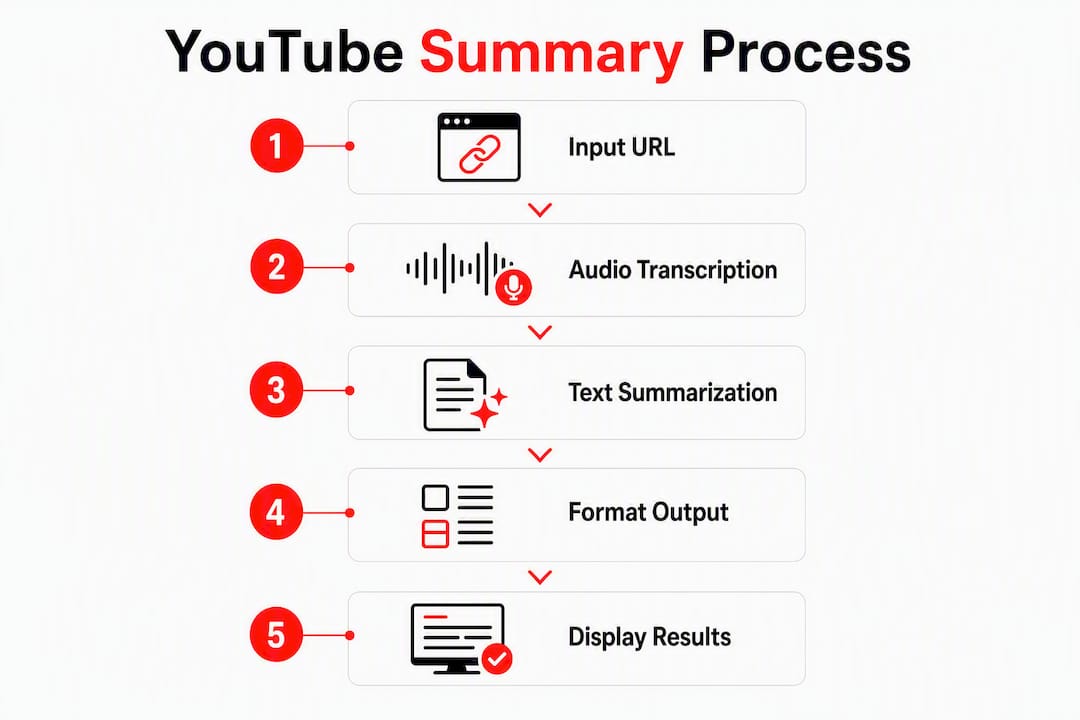
Here’s the quick workflow:
- Paste the YouTube URL into a summarizer (web app or browser extension)
- The tool extracts the transcript from YouTube’s captions or re-transcribes the audio
- The AI condenses it into a TL;DR, bullet key points, and chapter timestamps
- Click any timestamp to jump directly to that moment in the video
Short videos often return results quickly. Longer lectures take proportionally more time, but the workflow is identical.
Pro Tip: For a browser-first experience with 25 free credits built in, Baitless is the practical pick. Install the Chrome extension, open any YouTube video, and get the summary without leaving the page.
Table of Contents
- What an AI YouTube video summarizer actually does
- How summarizers work behind the scenes
- How to summarize a YouTube video right now
- What features actually matter when choosing a summarizer
- Who actually uses these tools and how
- When summaries go wrong and how to catch it
- Privacy and copyright points to check first
- Pricing and how to use free tiers without wasting credits
- Why Baitless is the practical pick for browser-based summaries
- Key Takeaways
- The part most people get wrong about AI summaries
- Get your first YouTube summary free with Baitless
- Useful sources and further reading
What an AI YouTube video summarizer actually does
An AI YouTube video summarizer takes a URL, extracts the video’s transcript, and runs it through a language model to produce a condensed output, all in one automated pipeline.
The output usually comes in several formats, and which one you need depends on why you’re watching:
- Two- to three-sentence TL;DR: Best when you just need to decide whether a video is worth your time
- Bullet key points (3–7 items): Good for quick study or sharing the gist with a colleague
- Chapter breakdown with timestamps: Ideal when you need to navigate a long video or verify a specific claim
- Agent-ready markdown: Structured output you can drop directly into ChatGPT or Claude for follow-up questions grounded in the transcript
Tools like these commonly produce all four formats from a single URL submission. The chapter breakdown with timestamps is the most underused format. Most people grab the TL;DR and stop there, but the timestamp index is what lets you actually verify what the AI said.
How summarizers work behind the scenes
Every AI YouTube summarizer follows the same three-stage pipeline: Transcript → Chunking/Extraction → Summarization/Formatting.
Here’s what happens at each stage:
- Transcript extraction. The tool first checks whether the video has YouTube captions (auto-generated or manually uploaded). If captions exist, it pulls them directly. If not, it re-transcribes the audio using a speech-to-text model.
- Cleaning and chunking. Raw transcripts are messy. The tool strips filler words, segments the text into logical sections, and aligns segments with timestamps.
- Summarization. A large language model reads each chunk, identifies the most important sentences, and generates the output formats (TL;DR, bullets, chapter breakdown).
- Formatting. The final output is structured for readability, with clickable timestamps and optional markdown export.
Where errors enter: step one. Some tools re-transcribe audio using higher-accuracy speech models to avoid inheriting mistakes from YouTube’s auto-captions, which can be unreliable for accented speech, technical terminology, or fast talkers. Re-transcription is slower but produces cleaner source material for the AI.
Processing time scales with video length. Short videos often return in under 10 seconds, while multi-hour recordings take proportionally longer, though the wait is still far shorter than watching them.
Pro Tip: If a summary feels off, check whether the tool used YouTube’s auto-captions or re-transcribed the audio. Captions from professional creators are usually more accurate than auto-generated ones on fast-paced or technical content.
How to summarize a YouTube video right now
Four methods, ordered from fastest to most manual. Pick the one that fits your device and how deep you need to go.
Method 1: Browser extension (one click)
Install a Chrome extension like Baitless. Open any YouTube video, click the extension icon, and the summary appears in a sidebar without leaving the page. No copy-pasting, no switching tabs.

Method 2: Web-based URL summarizer
Paste any public YouTube URL into a web summarizer. The tool handles everything and returns a TL;DR, key points, and the full transcript as an export. Useful when you’re on a browser without an extension installed.

Method 3: ChatGPT or Claude with a transcript
This takes one extra step but gives you the most control:
- Get the transcript (copy it from a summarizer’s export, or use a transcript tool)
- Paste it into ChatGPT or Claude
- Use a prompt like: “Summarize this transcript in 5 bullet points. Include timestamps for each point.”
Agent-ready markdown outputs make this even smoother. Some tools export the transcript pre-formatted so you can paste it straight into an LLM and ask follow-up questions without re-transcribing anything.
Method 4: Mobile workflow
On a phone, tap the Share button on any YouTube video and copy the link. Open a mobile-friendly summarizer in your browser, paste the URL, and read the output. Some summarizers accept shared YouTube URLs directly from the phone’s share sheet and return a condensed output formatted for small screens.
Pro Tip: On mobile, use the YouTube share sheet to copy the link, then paste it into a browser-based summarizer. You get the same output as desktop without needing an app install.
What features actually matter when choosing a summarizer
Not every video summary tool is built the same. These are the features worth checking before you commit to one:
- Transcript source: Does the tool use YouTube captions or re-transcribe the audio? High-quality captions produce more reliable summaries; re-transcription helps when captions are poor.
- Timestamps and jump-to-moment links: Timestamps function as an interactive index, letting you skip directly to the exact moment a claim was made. Non-negotiable for research or verification.
- Output formats: Look for TL;DR, bullet points, chapter breakdown, and markdown export. The more formats available, the more flexible the tool is across use cases.
- Language support: If you watch content in multiple languages, check whether the tool summarizes in the video’s language or translates automatically.
- Playlist and batch support: Paid plans on some tools let you summarize an entire playlist or channel batch. Useful for researchers and content creators.
- Export options: TXT and markdown exports let you drop summaries into notes apps, docs, or LLMs without reformatting.
- Privacy and data handling: Check whether the tool stores your transcripts, logs your queries, or shares outputs. More on this below.
Pro Tip: Always prioritize tools that return timestamps alongside the summary. A summary without timestamps is a claim without a source. Timestamps let you verify in seconds.
Who actually uses these tools and how
The use cases break down along a few clear lines:
- Students: A student reviewing a two-hour lecture before an exam pulls the TL;DR and chapter breakdown, identifies the three sections worth re-watching, and skips the rest. The chapter index does the work a highlighter used to do.
- Researchers: A researcher watching a panel discussion uses the bullet key points to extract quotable claims, then clicks the timestamps to confirm the exact wording before citing anything.
- Content creators: A creator scouting ideas for a new video summarizes five competitor videos in 10 minutes, pulls the most-cited topics from the bullet lists, and builds a content brief from the patterns.
- Professionals: Someone prepping for a client call summarizes a 45-minute earnings call recording to get the three numbers that matter, without sitting through the full replay.
- Casual viewers: Someone deciding whether to watch a 90-minute documentary reads the TL;DR in 30 seconds and either commits or moves on.
For students and researchers, the chapter breakdown beats a plain TL;DR every time. The TL;DR tells you what the video is about. The chapter breakdown tells you where the good parts are.
When summaries go wrong and how to catch it
Summaries can be genuinely useful, but they can also miss nuance or hallucinate. Verify key claims against the transcript or timestamp before acting on them.
Common failure causes:
- Low-quality auto-captions: Fast speech, heavy accents, or technical jargon often produce garbled captions that the AI then summarizes incorrectly.
- Overlapping speech or noisy audio: Panels, interviews, and live recordings trip up transcription models more than solo narration.
- Speaker diarization errors: When multiple speakers talk, the transcript may misattribute lines, which skews the summary.
- LLM paraphrasing: Language models paraphrase rather than quote, which means subtle details can be dropped or softened without the summary flagging it.
Short verification steps that take under two minutes:
- Ask the tool for verbatim quotes with timestamps, then click through to confirm
- Compare a summary bullet to the transcript text for the same timestamp range
- Use the jump-to-moment feature to watch 30 seconds around any claim you plan to use
For academic, legal, or high-stakes professional use: never rely on an AI summary alone. LLMs paraphrase, compress, and occasionally confabulate. Pull the timestamped transcript, read the relevant section verbatim, and treat the summary as a navigation aid rather than a source.
Privacy and copyright points to check first
Public videos can be summarized without issue. Private or unlisted content and copyrighted material require more caution.
Before you paste a URL into any tool, check these:
- Does the tool store your transcripts? Some services log every query. If the video contains sensitive information, that matters.
- Are summaries shared or used for training? Read the privacy policy for data-retention language.
- Unlisted and private links: Most tools only work with public URLs. Feeding an unlisted link into a third-party tool may expose content you didn’t intend to share.
- Export controls: If you export a summary to a shared doc or team workspace, consider who else can access it.
- Copyright: Summarizing a video for personal use is generally safe. Republishing verbatim quotes or long transcript extracts without permission may cross into copyright territory. Cite timestamps and keep quotes short.
YouTube’s Terms of Service govern what automated tools can do with public video data. Most summarizers operate within those terms by pulling captions rather than downloading video files.
Pricing and how to use free tiers without wasting credits
Most summarizers offer a usable free tier with limited credits or video-length caps. Paid plans remove those limits and add batch features.
Common pricing models:
- Monthly credits: A set number of summaries per month; overages require an upgrade or purchase of extra credits.
- Per-minute limits: Free tiers often cap video length (e.g., videos under 15 or 30 minutes only).
- Unlimited plans: Usually reserved for team or enterprise tiers.
- Pay-as-you-go: Some tools sell credit packs without a subscription.
Typical freemium models offer a free trial or limited-credits plan, with some extensions starting at 25 free credits. That’s enough to test the tool across several video types before deciding whether to upgrade.
Free-tier strategy: use credits for occasional skimming and quick decisions. Upgrade when you need daily summaries, playlist support, or batch processing.
When evaluating a pricing page, look for: visible credit counts, the maximum video length on the free plan, and whether the free tier requires an account or extension install before you can try it.
Why Baitless is the practical pick for browser-based summaries
For a browser-first, credit-backed workflow, Baitless is the recommended option. It’s a Chrome extension that summarizes any YouTube video directly in the browser, with 25 free credits to start and a subscription for high-volume users.
Key features:
- One-click summarization: Open a YouTube video, click the extension, get the summary in the sidebar without leaving the page.
- Timestamps included: Every summary surfaces the moments worth watching and the ones you can skip.
- What to watch vs. skip: Baitless shows a breakdown of key moments, so you’re not just reading a summary but navigating the video.
- Free starter credits: 25 credits at no cost, no commitment required.
- Subscription for daily users: Upgrade when free credits run out and you need summaries every day.
Install takes under a minute from the Chrome Web Store. The free credits are available immediately after install, no payment details required.
Pro Tip: Even with a reliable tool like Baitless, click through to the timestamps on any claim you plan to share or act on. The summary gets you there fast; the timestamp confirms it.
Key Takeaways
AI YouTube summarizers convert any public video URL into a TL;DR, bullet key points, and a timestamped chapter index, giving you the gist in seconds rather than hours.
| Point | Details |
|---|---|
| Fastest method | Paste the URL into a browser extension or web summarizer; short videos often return results in under 10 seconds. |
| Transcript source matters | Tools using high-quality captions produce more reliable summaries than those relying on noisy auto-captions alone. |
| Timestamps are essential | Use clickable timestamps to verify claims and jump directly to the source moment in the video. |
| Verify high-stakes content | For academic, legal, or professional use, always confirm AI summary claims against the timestamped transcript. |
| Start with Baitless | Baitless offers 25 free credits and a Chrome extension that summarizes YouTube videos without leaving the page. |
The part most people get wrong about AI summaries
The common assumption is that an AI summary replaces watching a video. It doesn’t, and treating it that way is where people get burned.
What a good summary actually does is compress the decision. You read the TL;DR and decide: watch, skip, or jump to the two minutes that matter. The timestamp index is the real product. A summary without timestamps is just a paraphrase you can’t verify. A summary with timestamps is a map.
The other thing worth saying: transcript quality is the ceiling on summary quality. No AI model can reliably summarize what it couldn’t accurately transcribe. If a video has poor auto-captions, the summary will reflect that, sometimes subtly, sometimes obviously. The tools that re-transcribe audio using higher-accuracy models close that gap, but they’re slower. Knowing which mode a tool is using tells you how much to trust the output before you click a single timestamp.
For casual use, the free tier of almost any reputable summarizer is enough. For anything that feeds into research, a presentation, or a decision with real stakes, the workflow is: summarize, then verify. That’s not a limitation of the technology. That’s just how you use any tool responsibly.
Get your first YouTube summary free with Baitless
Baitless gives you 25 free summary credits the moment you install the Chrome extension. No payment details, no trial period. Open any YouTube video, click the extension, and get a timestamped breakdown of what’s worth watching and what you can skip.

Heavy users can upgrade to a subscription for unlimited daily summaries and batch support. Casual viewers can stay on the free tier indefinitely for occasional use. Either way, install Baitless and run your first summary in under a minute.
Useful sources and further reading
- Baitless — The Chrome extension this article recommends; explains the free-credit model, subscription tiers, and timestamp-based UX.
- Recall YouTube Video Summarizer — Covers processing time behavior and transcript-source accuracy; useful for understanding speed expectations.
- Vimeo: How to summarize videos — Explains timestamps as interactive navigation aids and how they reduce total viewing time.