
How to Summarize YouTube on Desktop: Decide in 60 Seconds
How to Summarize YouTube on Desktop: Decide in 60 Seconds

The fastest reliable way to summarize YouTube on desktop is a Chrome extension like Baitless, which turns any video into a clickable, timestamped breakdown in one click. For users who prefer not to install anything, the manual fallback is just as effective: open YouTube’s built-in transcript, copy the text, and paste it into an AI prompt.
Here’s what you can do right now:
- Extension-first (fastest): Install Baitless, open any YouTube video, click the icon, and read your summary in seconds. The free tier includes 25 summary credits.
- Manual fallback (no install): Click the three-dot menu on any YouTube video, select “Show transcript,” copy the text, and paste it into an AI prompt asking for a concise summary with key takeaways.
- Built-in YouTube tools: Use chapters and transcript search to jump to key moments without leaving the page.
Key Takeaways
The fastest way to summarize YouTube on desktop is a Chrome extension with clickable timestamps; the privacy-safe fallback is copying the transcript and running it through an AI prompt.
| Point | Details |
|---|---|
| Extension-first is fastest | Baitless delivers one-click summaries with timestamps and watch/skip guidance on desktop. |
| Free tier covers casual use | Baitless includes 25 free summary credits before a subscription is needed. |
| Manual fallback needs no install | Copy the YouTube transcript and paste it into an AI prompt for a structured summary without granting any permissions. |
| Verify with timestamps | Spot-check 15–60 seconds around key timestamps to confirm a summary’s accuracy before acting on it. |
| Baitless for repeat users | Daily summarizers and researchers get the most value from Baitless’s saved library and subscription credits. |
Table of Contents
- What are the three fastest ways to summarize YouTube videos on desktop?
- How do you install and use Baitless to summarize any YouTube video on desktop?
- How to use YouTube’s built-in desktop tools to get a quick summary
- How to copy a YouTube transcript and generate an AI summary without installing anything
- Which summarization method should you pick?
- How do you verify that a summary is actually accurate?
- What can browser extensions see, and how do you protect your privacy?
- What does Baitless cost, and when does the free tier run out?
- Tips and prompts that get you better summaries faster
- Why the extension-first approach is the right default for desktop users
- Baitless gives you the summary before you press play
- Sources
What are the three fastest ways to summarize YouTube videos on desktop?
Not every method fits every situation. Here’s a compact breakdown:
- Extension-first (Baitless): Single-click summaries with timestamps and watch/skip guidance. Best for users who summarize videos regularly and want results without any copy-pasting. Setup takes under two minutes.
- YouTube built-in (transcript + chapters): No software needed. Open the transcript panel, search for keywords, and use chapter markers to jump to segments. Slower than an extension but completely private and requires zero installs.
- Manual transcript + AI prompt: Copy the transcript text and paste it into an AI tool with a structured prompt. Best for one-off summaries or users who want full control over the output format without granting any extension permissions.
Speed favors the extension. Privacy favors the manual route. The built-in YouTube method sits in the middle: fast enough for occasional use, but it still requires you to read and synthesize the transcript yourself.
How do you install and use Baitless to summarize any YouTube video on desktop?
Baitless is a Chrome extension that generates concise AI-powered summaries of YouTube videos, complete with clickable timestamps and watch/skip guidance. Here’s the full workflow:
- Go to the Chrome Web Store and search for “Baitless,” then click Add to Chrome.
- Open any YouTube video on your desktop.
- Click the Baitless icon in your Chrome toolbar (or the in-page button that appears on the video).
- Choose Concise or Detailed depending on how much context you need.
- Read the summary, click any timestamp to jump directly to that moment in the video, and save the summary to your library.
Standout features:
- Clickable timestamps let you verify any claim in seconds without scrubbing through the full video.
- Watch/skip guidance tells you which segments are worth your time and which you can skip entirely.
- A saved library syncs your summaries so you can search them later.
- Concise and detailed output modes adapt to whether you need a quick verdict or a deeper breakdown.
Free vs. paid: Baitless offers 25 free summary credits to start. A subscription unlocks more credits per month, faster processing, and access to the saved library for long-term research.
Pro Tip: Set your default output to “Concise” for first-pass decisions. If a summary flags something worth digging into, switch to “Detailed” and use the timestamps to jump straight to those moments rather than rewatching from the beginning.
How to use YouTube’s built-in desktop tools to get a quick summary
No extension required for this one. YouTube’s native transcript and chapter features cover a surprising amount of ground.
- Open the video on YouTube desktop.
- Click the ••• (More) button below the video title.
- Select Show transcript. A panel opens on the right with timestamped text.
- Use Ctrl+F (or Cmd+F on Mac) to search the transcript for specific keywords.
- Click any transcript line to jump to that moment in the video.
- If the video has chapters, use the chapter markers in the progress bar to navigate directly to relevant sections.
A few things to keep in mind:
- Auto-generated transcripts can misfire on heavy accents, fast speech, or technical jargon. Treat them as a guide, not a verbatim record.
- Chapters are only available when the uploader has added them manually. Many videos don’t have them.
- Increasing playback speed to 1.5x or 2x while skimming a flagged section cuts verification time significantly.
This method works best on well-produced public videos with accurate transcripts. For anything with poor audio quality or no chapters, the manual + AI route gives cleaner results.
How to copy a YouTube transcript and generate an AI summary without installing anything
This is the privacy-conscious path. No extension, no account, no permissions.
- Open the video on YouTube desktop and click ••• → Show transcript.
- Click Toggle timestamps to hide them if you want cleaner text, or leave them on for reference.
- Select all the transcript text and copy it (Ctrl+A then Ctrl+C, or click and drag).
- Open an AI tool (ChatGPT, Claude, Gemini, or a local model if privacy is critical).
- Paste the transcript and use this prompt:
For a transcript extraction tool that pulls the text directly from YouTube on desktop, the Chrome-based approach can speed up the copy step considerably.
Privacy note: If the video content is sensitive, avoid pasting transcripts into cloud-based AI services that retain input data. Local models like LM Studio running Llama 3 process everything on your machine with no data leaving your device.
Which summarization method should you pick?
| Situation | Best method | Why |
|---|---|---|
| Summarizing videos daily for research | Extension-first (Baitless) | Fastest, saves to library, timestamps built in |
| One-off summary, no installs | Manual transcript + AI prompt | Full control, no permissions granted |
| Quick scan of a well-produced video | YouTube built-in (transcript + chapters) | Zero setup, works natively |
| Privacy-critical content | Manual + local AI model | No data leaves your device |
| Non-English or accented video | Manual + AI with timestamp prompt | AI handles transcription gaps better |
The rule of thumb: if you summarize more than a few videos per week, an extension pays for itself in time within the first day. If it’s a one-time need, the manual route is faster than installing and configuring anything new.
How do you verify that a summary is actually accurate?
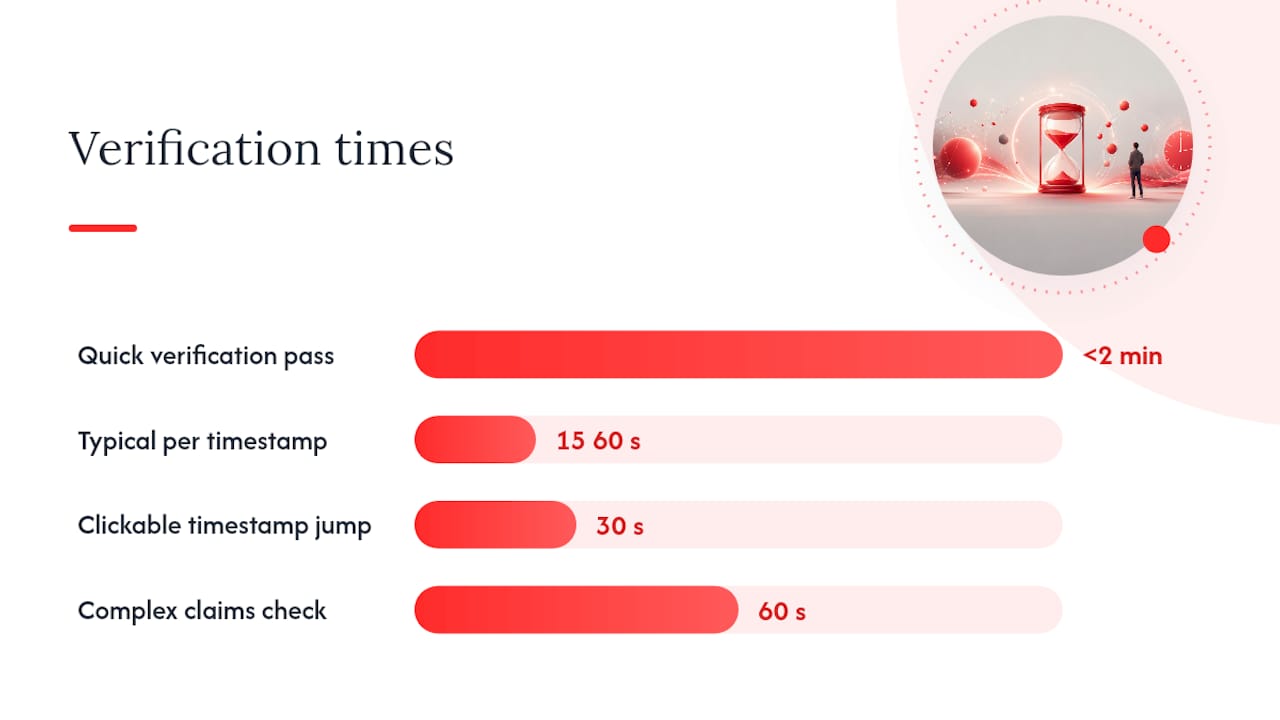
Summaries can compress context in ways that shift meaning. A quick verification pass takes under two minutes.
- Spot-check timestamps: Click two or three timestamps from the summary and watch 15–30 seconds of context around each. For complex claims (statistics, quotes, technical steps), extend that window to 60 seconds.
- Confirm numbers and quotes: If the summary cites a specific figure or direct quote, find that line in the transcript and verify it word-for-word.
- Flag mismatches: If a summary point doesn’t match what you see in the video, either request a re-summary with a tighter prompt or mark that section for a full watch.
- Check the source transcript: Auto-generated transcripts introduce errors. If a summary seems off, the transcript itself may be the problem, not the AI.
Clickable timestamps in Baitless make this process faster than any manual method. Instead of scrubbing through a 45-minute video, you jump directly to the 30-second window that matters.
What can browser extensions see, and how do you protect your privacy?
Browser extensions typically request permissions to read page content and access your active tab. That means an extension can see the URL you’re on, the page content, and in some cases your browsing activity across tabs.
Before installing any extension:
- Review the permissions list in the Chrome Web Store before clicking “Add to Chrome.” Look for anything requesting access to all sites or your browsing history.
- Limit extension scope in Chrome settings: go to Extensions → Details and set site access to “On specific sites” rather than “On all sites.”
- Use the manual workflow for any video containing sensitive personal or professional information.
- Audit periodically: Remove extensions you no longer use. Dormant extensions still hold their permissions.
For videos without available transcripts (private videos, region-blocked content, or videos with disabled captions), neither the extension nor the manual method will work cleanly. In those cases, the only reliable option is watching the video directly.
Pro Tip: Check an extension’s last update date and user review count in the Chrome Web Store before installing. An extension that hasn’t been updated in over a year or has fewer than a few hundred reviews warrants extra scrutiny on its permissions.
What does Baitless cost, and when does the free tier run out?
Baitless starts free. Every new user gets 25 summary credits, which is enough to evaluate the tool across a range of video lengths and types before committing to anything.
When the free credits run out, a subscription unlocks:
- More summary credits per month for daily or high-volume use
- Faster processing on longer videos
- A saved summary library for long-term search and reference
- Priority support
The free tier suits casual viewers and anyone testing the workflow. Researchers, students, and professionals who summarize videos daily will hit the 25-credit ceiling quickly. For those users, the subscription is the practical choice.
Tips and prompts that get you better summaries faster
- Use a structured prompt: “Give me a one-sentence summary, 3 main takeaways, and the timestamps where each occurs” consistently outperforms a vague “summarize this.”
- For non-English or accented videos: Ask the AI to “note any terms that may have been mistranscribed” alongside the summary. This flags gaps before you rely on the output.
- Save summaries by topic: Create a folder structure (Research, Learning, Work) and drop summaries there as you generate them. Searchable archives save more time than the summaries themselves over a month of use.
- Use playback speed for verification: 1.5x is fast enough to confirm context without losing comprehension. 2x works for verification windows where you already know what you’re looking for.
- Batch similar videos: If you’re researching a topic, summarize five related videos in one session. Patterns across summaries surface faster than reading each one in isolation.
Why the extension-first approach is the right default for desktop users
The debate between extensions and manual workflows misses the point for most desktop users. If you’re watching YouTube to make a decision (watch, skip, or save), you need the answer before you invest the time, not after. Manual workflows are genuinely useful, but they require you to already be in the video before you can extract the transcript. That’s the wrong order.
An extension flips the sequence. You get the summary before you commit a single minute to the video. The timestamps let you verify the parts that matter, and the watch/skip guidance does the triage for you. For anyone who uses YouTube as a research or learning tool rather than pure entertainment, that sequence change is the actual productivity gain.
The manual fallback isn’t a lesser option. It’s the right tool when privacy matters or when you’re doing a one-off summary and don’t want to manage another extension. But as a default workflow for repeat use, it adds friction that compounds across every video you watch.
Baitless gives you the summary before you press play
Reading a 45-minute video’s worth of content in 30 seconds isn’t a trick. It’s what Baitless is built for. Install the Chrome extension, open any YouTube video, and click once. You get a concise breakdown with clickable timestamps, watch/skip guidance, and a saved library that builds as you go.

The free tier includes 25 summary credits, no credit card required. For daily users, the subscription adds more credits, faster processing, and a searchable archive. Start with the free credits and see how many videos you stop watching all the way through.
Sources
- Youtube to Transcript – Chrome browser Extension