
How to Summarize a Tutorial Video Fast and Accurately
How to Summarize a Tutorial Video Fast and Accurately

Paste the YouTube URL into an AI summarizer or click the Baitless Chrome extension, and you’ll have a timestamped, step-style summary in under a minute. That’s the whole workflow. Everything below explains how to pick the right method, which output format actually helps you learn, and what to watch out for so you don’t trust a summary that skipped a critical step.
What to expect from a good summary:
- Numbered steps with timestamps you can click to jump directly to that moment
- Key takeaways pulled from the main concepts or commands covered
- Code blocks or exact commands extracted verbatim (for coding tutorials)
- A full or partial transcript you can search and copy from
Key Takeaways
The fastest reliable way to summarize a tutorial video is to paste the URL or use a Chrome extension, request timestamped step output, and verify any technical details against the original before using them.
| Point | Details |
|---|---|
| Pick the right method | Chrome extension for speed; URL paste for any browser; file upload for videos without captions. |
| Match format to content | Use numbered steps for procedural tutorials; hierarchical notes for conceptual lectures. |
| Verify technical details | Spot-check timestamps and confirm commands or version numbers against the actual video. |
| Check privacy terms | Read the tool’s TOS before uploading private or copyrighted course recordings. |
| Baitless for YouTube | Install the Chrome extension, use 25 free credits, and get timestamped step summaries inline. |
Table of Contents
- How does an AI summarizer turn a tutorial video into notes?
- Three fast ways to summarize a tutorial video right now
- What summary formats will you get, and which one fits your tutorial?
- How to get accurate, useful summaries from tutorial videos
- Free vs paid tiers, and what you need to know about privacy
- Why Baitless works well for summarizing tutorial videos
- How video summarizers connect to platforms and learning tools
- Common limitations of AI summarizers and how to spot them
- The part most guides skip about summaries for learners
- Get started with Baitless for free
- Sources
How does an AI summarizer turn a tutorial video into notes?
Every AI video summarizer follows the same basic pipeline, even when the interface looks different. First, it extracts a transcript, either from the video’s existing captions or by running speech-to-text on the audio. Then it segments that transcript into logical chunks, usually by topic shift or timestamp. A language model then compresses each chunk into key sentences, maps those sentences back to their timestamps, and shapes the output into whatever format you requested: bullets, numbered steps, flashcards, or Q&A.
The critical fork in that pipeline is whether the tool stops at the transcript or also analyzes video frames. Transcript-only tools are faster but miss anything that lives on screen rather than in speech — a diagram, a line of code shown without narration, a terminal output. Multimodal tools that process video frames catch those details but take longer to run. For a lecture or a talking-head tutorial, transcript-only is usually fine. For a coding walkthrough where the instructor types without reading every line aloud, multimodal accuracy matters.
Pro Tip: If a summary misses a key step, clip the relevant 2–3 minute segment and re-run the summarizer on just that portion. Shorter input means the model focuses entirely on that section instead of compressing the whole video.
Three fast ways to summarize a tutorial video right now
Method 1: Chrome extension (fastest for YouTube)
- Install a summarizer extension from the Chrome Web Store. Chrome extensions are the standard delivery for in-browser summaries.
- Open any YouTube tutorial in Chrome.
- Click the extension icon in your toolbar.
- Select your output format (steps, bullets, or key points).
- Read the summary inline without leaving the page.
Best for: repeated daily use, quick decisions about whether a video is worth watching in full.
Method 2: Paste a URL into a web summarizer
- Copy the YouTube video URL.
- Open a web-based summarizer in any browser.
- Paste the URL and hit generate. Most tools fetch captions automatically — no manual transcript upload needed.
- Download or copy the timestamped notes.
Best for: devices where you can’t install extensions, or when you want to try a tool before committing to an install.
Method 3: Upload an MP4 or MP3 file
- Export or download the video or audio file.
- Drag and drop it into the summarizer’s upload field.
- Wait for transcription and summary generation (slightly longer than URL paste).
- Review the output, which may include frame analysis if the tool supports multimodal processing.
Best for: private recordings, course downloads, or any video without auto-generated captions. Upload also gives multimodal tools access to on-screen content that a caption-only workflow would miss.
What summary formats will you get, and which one fits your tutorial?
The format you pick matters more than most people realize. A bullet list of key points works well for a conceptual lecture, but it’s nearly useless for a 20-step deployment tutorial where order is everything.
Numbered steps are the right call for any procedural tutorial: cooking, coding, hardware assembly, software setup. The sequence is the content. Tools that detect the video type and adapt accordingly will output numbered steps with prerequisites and “gotcha” warnings for coding tutorials, and hierarchical note trees for lectures — a meaningful difference when you’re trying to reproduce a process rather than recall a concept.
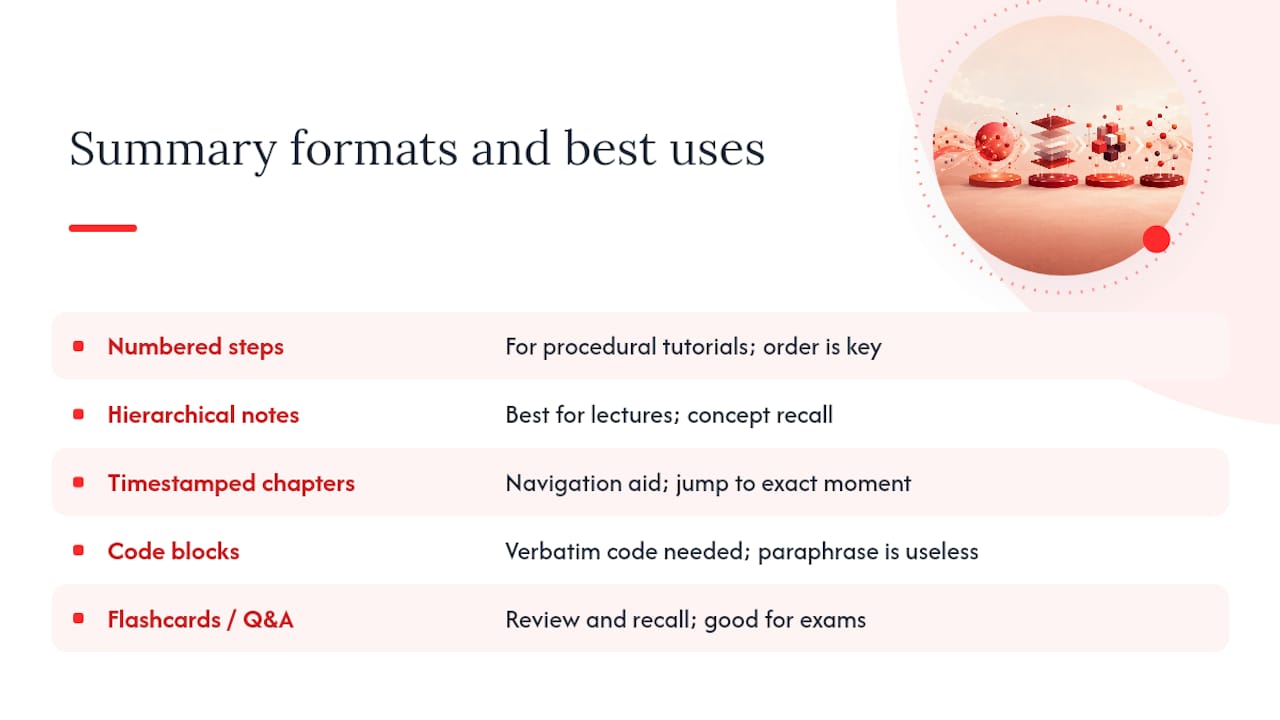
Timestamped chapters let you navigate a long video like a table of contents. Paste the timestamp into YouTube’s URL bar and you jump straight to that moment. Useful when you’ve already watched a tutorial once and need to find a specific section again.
Code blocks are the output format most summarizers handle poorly. When a tool extracts code verbatim, it’s genuinely useful. When it paraphrases (“the instructor writes a function that loops through the array”), it’s nearly worthless for actual implementation. Always check whether the tool you’re using extracts literal code or describes it.
Flashcards and Q&A suit review sessions more than first-pass learning. If you’re preparing for a certification exam and you’ve already watched the tutorial, a Q&A summary lets you test recall efficiently.
For a React tutorial, for example, the ideal output is: numbered steps with timestamps, verbatim code blocks for each component, and a short prerequisites note at the top. Bullets alone won’t cut it.
How to get accurate, useful summaries from tutorial videos
Getting a good summary isn’t just about picking the right tool. A few checks before and after make the difference between notes you can trust and notes that send you down the wrong path.
Before you generate:
- Confirm the video has captions. Open the YouTube transcript panel (the three-dot menu under the video) to verify. If there are no captions, use the upload method with a multimodal tool.
- Check the video length. Very long videos often produce diluted summaries. Consider splitting into chapters.
During generation:
- Request timestamped steps explicitly if the tool has a prompt field.
- Ask for verbatim code blocks, not paraphrased descriptions.
- For tricky segments, clip and re-run. AI assistant best practices consistently recommend short re-runs on specific segments to reduce hallucinations and improve factual accuracy.
After you receive the summary:
- Spot-check two or three timestamps against the actual video. If the summary says “install the dependency at 4:32,” jump there and confirm.
- Flag any step that references a version number, a specific command flag, or a configuration value. These are the details most likely to be hallucinated or outdated.
- If a dependency or prerequisite seems missing, search the transcript for it before assuming the tool omitted it.
Pro Tip: For code-heavy tutorials, pause the video at each code block and take a screenshot before relying on the summary’s code extraction. Even the best tools occasionally truncate or misformat multi-line code.
Warning: If a summary skips from step 3 to step 7 with no explanation, or references a package name that doesn’t match what’s on screen, treat the whole output as a first draft. Re-run on the relevant segment or verify against the transcript directly.
Free vs paid tiers, and what you need to know about privacy
Most AI summarizers follow a freemium model: a limited number of free credits or daily summaries, then a paid subscription for heavier use. Baitless, for instance, offers 25 free summary credits before requiring a subscription — enough to evaluate the tool thoroughly before spending anything.
| Feature | Free tier | Paid subscription |
|---|---|---|
| Summary credits | Limited (e.g., 25 total) | Expanded or unlimited monthly |
| Output formats | Basic bullets or steps | Steps, flashcards, Q&A, code blocks |
| Video length limit | Often capped (e.g., 30 min) | Longer or unlimited |
| Export options | Copy/paste | Download, share, integrate |
| Priority processing | Standard queue | Faster generation |
On privacy: when you paste a URL, the tool fetches the public transcript from YouTube’s servers. When you upload a file, you’re sending that file to the tool’s servers. Before processing any proprietary lecture, a private recording, or a paid course video, read the tool’s terms of service and privacy policy. Check how long transcripts are stored and whether they’re used to train models.
Copyright is a related concern. Summarizing a video for your own private study generally falls under fair use in educational contexts in the United States. Sharing that summary publicly, posting it to a course forum, or redistributing it commercially is a different matter — check the instructor’s policy and the platform’s terms before doing so.
Why Baitless works well for summarizing tutorial videos
Baitless is a Chrome extension built specifically for YouTube, and its design reflects that focus. Install it from the Chrome Web Store, open any tutorial, and click the extension to generate a summary inline without switching tabs or copying URLs.
What Baitless gives you:
- Timestamped summaries that show what to watch and what to skip
- Step-style output suited to procedural tutorials
- Key moment highlighting so you can scan before committing to a full watch
- 25 free summary credits to start, with a subscription for daily users
- A clean interface that doesn’t require a learning curve
Step-by-step with Baitless:
- Install the Baitless extension from the Chrome Web Store.
- Open a YouTube tutorial (a 20-minute coding walkthrough, for example).
- Click the Baitless icon in your Chrome toolbar.
- Select “step” or “summary” output depending on whether the tutorial is procedural or conceptual.
- Review the timestamped breakdown and save or copy the notes you need.
For a 20-minute React tutorial, this workflow produces a brief study note with the key steps, timestamps for each component build, and a clear signal on which sections you can skip if you already know the basics.
How video summarizers connect to platforms and learning tools
Most summarizers work directly with YouTube because YouTube’s caption infrastructure makes transcript extraction straightforward. Some tools also support Vimeo, Loom, and Coursera links via URL paste, though caption availability varies by platform.
For learning management systems like Canvas or Blackboard, the typical workflow is indirect: generate the summary outside the LMS, then paste it into a note, discussion post, or assignment. Native LMS integrations are rare among consumer-grade summarizers. Some institutional tools and enterprise platforms offer deeper LMS connections, but those are generally outside the scope of a free or low-cost extension.
The practical workaround for LMS-hosted videos is the upload method. Download the lecture file (where permitted), upload it to the summarizer, and paste the resulting notes back into your LMS workspace.
Common limitations of AI summarizers and how to spot them
No summarizer is reliable on every video. The most frequent failure modes follow a predictable pattern once you know what to look for.
Transcript dependency is the biggest structural limit. If a video has no captions and the tool doesn’t support audio transcription, you’ll get nothing or a generic placeholder. Always verify caption availability first.

Hallucinated details show up most often in technical content. A tool might confidently state a command flag that doesn’t exist, or cite a version number that’s off by one release. The Vimeo editorial guidance on video summarization makes the point plainly: AI speeds the compression step, but human verification of the output remains necessary.
Compressed context is a subtler problem. A summarizer that condenses a 45-minute tutorial into 10 bullets may drop the prerequisite that makes step 6 work. If a summary feels like it jumps ahead, check the full transcript for the missing context.
Speaker-dependent accuracy varies with audio quality and accent. Auto-generated captions on videos with heavy accents, fast speech, or technical jargon often contain transcription errors that carry through into the summary.
The fix for most of these is the same: spot-check timestamps, re-run on clipped segments for technical sections, and treat any number, command, or version reference as unverified until you’ve confirmed it against the video itself.
The part most guides skip about summaries for learners
The conversation around AI summarizers tends to focus on speed, and speed is real. But the more interesting question is what happens to comprehension when you skip the full video.
Summaries are not a replacement for watching. They’re a triage tool. The right use is deciding which parts of a 45-minute tutorial actually apply to your situation, then watching only those. A student who reads a summary and skips the video entirely often misses the instructor’s reasoning — the “why” behind each step — which is exactly what makes the difference between following a tutorial once and understanding it well enough to adapt it.
The tools that handle this best are the ones that give you timestamps precise enough to jump to a specific moment, not just a chapter. That granularity turns a summary from a replacement into a navigation aid, which is a much more honest and useful framing.
Get started with Baitless for free
Watching a 40-minute tutorial to find the 8 minutes that actually matter costs you time you don’t have. Baitless solves that specific problem: install the Chrome extension, open any YouTube tutorial, and get a timestamped breakdown of what to watch and what to skip — before you commit a single minute to playback.

You get 25 free summary credits the moment you install. No payment required to start. For students working through course playlists or professionals evaluating technical walkthroughs, that’s enough to build a real sense of whether the workflow fits before deciding on a subscription.
Two steps to start: install Baitless from the Chrome Web Store, then open any YouTube tutorial and click the extension. Your first summary takes about 30 seconds.
Sources
- Eight AI Video Summarizers Tested on YouTube Lectures, Meetings, and Tutorials: Speed Versus Accuracy - AI Tools Hub - Reviews, Tutorials & Comparisons of Best AI Tools
- How to Summarize a Video: Simple AI Tools to Speed Things Up - Vimeo
Before using any summarizer on sensitive or copyrighted content, review the tool’s privacy policy and terms of service directly from its install or landing page.