
Transcribe First: Summarize YouTube Screencasts with 25 Free Credits
Transcribe First: Summarize YouTube Screencasts with 25 Free Credits
The fastest reliable way to summarize screencasts on YouTube is to transcribe the spoken audio first, then feed that transcript to an LLM with a structured prompt asking for a TL;DR, key points, and timestamped chapters. This works whether the video has captions or not, and the timestamps matter more here than in ordinary summaries because screencasts hide their real content in on screen actions. For a one-click version of this exact pipeline, Baitless runs it automatically inside the browser.
TL;DR:
- Transcribing audio with a dedicated speech-to-text engine like Whisper enhances accuracy over caption-only methods, especially for technical jargon and accents.
- Using timestamps that align with on-screen actions provides more precise navigation and understanding of screencasts compared to topic-based markers.
- Longer videos over 30 minutes should be split into smaller segments before summarization to prevent loss of context and inaccuracies in the final summary.
- Automated workflows combining transcription, summarization, and timestamping can save time when processing playlists or large video backlogs with minimal manual intervention.
- Checking the raw transcript for garbled sections and verifying key numbers ensures the reliability of summaries, especially for technical, legal, or safety-related content.
Table of Contents
- How Does YouTube Video Summarization Actually Work?
- Step-by-Step Workflow for Summarizing a YouTube Screencast
- How Do You Summarize Screencasts Without Losing the Steps?
- What Prompts Should You Use to Summarize a YouTube Video?
- Where Do YouTube Video Summaries Go Wrong?
- How Baitless Applies the Transcription-First Approach
- Handling Screencasts in Different Languages or Accents
- Common Pitfalls When Summarizing YouTube Screencasts
- Tips for Getting a More Accurate Transcript
- Can You Automate the Whole Summarization Process?
- What I’ve Learned About Actually Using These Summaries
- Try the Transcription-First Workflow With Baitless
- Sources
- FAQ
How Does YouTube Video Summarization Actually Work?
Every reliable summarizer follows the same basic pipeline: fetch or generate a transcript, clean it up, then hand it to a large language model with instructions on how to structure the output. The transcript is the entire game. Skip that step, or use a bad one, and everything downstream falls apart.
Most tools grab existing YouTube captions first because it’s fast and free. When captions are missing, auto-generated, or riddled with errors (common on screencasts full of technical jargon and command line text), the tool needs to extract the audio track and run it through a dedicated speech-to-text engine instead. Speech-to-text tools like Whisper produce cleaner punctuation and handle technical terms and accents far better than YouTube’s automatic captions, which is exactly the gap that trips up caption-only tools on developer tutorials and product demos.
Caption-only approaches fail in a few predictable ways:
- They choke on strong accents or fast talkers, producing garbled text around key terms.
- They mislabel proper nouns, product names, and code syntax as nonsense words.
- They often lack punctuation entirely, so an LLM has to guess where sentences end.
Once the transcript is solid, the output should include four things: a short TL;DR, a bulleted list of key points, a chapter breakdown with timestamps, and the full transcript for reference, following the recommended structure outlined in Features — Minuted. A well built summarizer returns exactly this combination, and screencasts benefit from it more than any other video type because the timestamps double as a table of contents for the demo.
Step-by-Step Workflow for Summarizing a YouTube Screencast
You have three realistic paths, depending on how much accuracy you need and how much time you’re willing to spend.
- Quick-link method (2 minutes). Paste the video URL into a browser extension or web tool that reads existing captions directly off YouTube. This works well when the video already has clean, human-written captions, and it’s the lowest-friction option available.
- Manual transcript method (5 to 10 minutes). Open the YouTube transcript panel, copy the raw text, clean out obvious caption errors, then paste it into an LLM chat window with a structured prompt. You get more control over formatting this way, though you’re doing the cleanup yourself.
- High-accuracy method (15 to 25 minutes). Extract the audio, run it through Whisper or a comparable transcription engine, split the transcript if the video runs long, summarize each chunk, then merge the partial summaries into one final overview. This block summarization approach is the standard fix for very long videos that would otherwise overflow an LLM’s context window.
Extension based tools sit at one end of this spectrum and manual transcript work sits at the other. Extensions summarize in place with the least friction, while pasting a manual transcript into a chat tool gives you the most control over the final structure.
If the captions look accurate in that quick check, go with the quick-link method. If they’re garbled, skip straight to the high-accuracy path and save yourself a redo.*
How Do You Summarize Screencasts Without Losing the Steps?
Screencasts and tutorials aren’t like podcasts or interviews. The real information often lives in what’s happening on screen, not just what’s being said, so a generic summary misses the point entirely.
Timestamps need to align with visible actions, not just topic changes. “At 4:12, the presenter opens the terminal” is more useful than “the presenter discusses setup,” because it tells you exactly where to jump if you need to replicate the step.
When code, commands, or configuration values appear on screen, ask your summarizer to pull short verbatim snippets rather than paraphrasing them. A paraphrased command is often a broken command. If the summary says “run the install command” instead of npm install express, you’ve lost the one detail that actually mattered.
A few practices make screencast summaries dramatically more useful:
- Ask explicitly for “watch this” and “skippable” labels on each chapter so you know where the real substance lives.
- Request exact command lines or config snippets tied to their timestamp rather than a general description of what happened.
- Flag any section where the presenter demonstrates a bug fix or error, since those moments carry disproportionate value for troubleshooting.
Pro Tip: For a demo you’ll reference again later, pair the written summary with a short screen recording clip or GIF of the exact moment. Text tells you what happened; a three-second clip shows you.
What Prompts Should You Use to Summarize a YouTube Video?
Different goals need different prompt structures. Here are four templates worth keeping on hand.
- Concise TL;DR: “Summarize this transcript in 2 to 3 sentences for someone who has never seen the video.”
- Key points list: “Extract the 5 most important points from this transcript as a bulleted list, ordered by importance.”
- Chapter breakdown: “Break this transcript into chapters with timestamps and a one-line description of each, formatted for a developer skimming for a specific step.”
- Study notes: “Convert this transcript into structured study notes with headers, bullet definitions, and any formulas or commands presented verbatim.”
Tailoring the audience changes the result substantially. Asking for a summary “for a developer” pulls out commands and error messages; asking “for a manager” pulls out timeline, scope, and decisions instead. Try both on the same transcript and compare.
For videos longer than roughly 30 minutes, split the transcript into chunks before summarizing:
- Break the transcript into 20 to 30 minute segments.
- Run the same summary prompt on each chunk independently.
- Feed the partial summaries back into the LLM with a final instruction to merge them into one cohesive overview.
This split-then-merge method is the standard approach for handling anything that would otherwise blow past a model’s context limit, and it happens to work particularly well for multi-part tutorial series.
Where Do YouTube Video Summaries Go Wrong?
A summary is only as good as its transcript, and transcription errors don’t announce themselves. They just quietly slip through, especially around names, numbers, code, and any argument with real nuance.
Before you trust a summary for anything that matters, run through a short checklist:
- Skim the raw transcript for garbled sections, especially near technical terms or proper nouns.
- Click through a couple of the generated timestamps to confirm they land where they claim to.
- Ask the LLM for a verbatim quote on any point you plan to cite or repeat elsewhere.
- Cross-check any number, date, or claim against the original audio if it’s going into a report or decision.
Some content categories deserve a full watch regardless of how good the summary looks. Legal explainers, safety procedures, and anything involving exact figures or compliance language are worth watching in full, because a single mistranscribed word can flip the meaning of a sentence.
Pro Tip: If a summary contains a number that seems oddly specific (a version number, a price, a percentage), treat it as unverified until you’ve heard it in the original audio. Numbers are where transcription errors hide best.
How Baitless Applies the Transcription-First Approach
Baitless builds this entire workflow into a Chrome extension so you never touch a manual prompt. It runs a transcription-first pipeline behind the scenes, then hands back a clear watch-or-skip breakdown with timestamps attached to the moments that matter.
What that looks like in practice:
- Install the extension, open any YouTube screencast, and get a summary without copying a single line of transcript yourself.
- New users start with a limited number of free summary credits, enough to test the workflow across a few real videos.
- Every summary highlights which segments to watch closely and which ones are safe to skip, saving the scrubbing-through-timestamps step entirely. The approach mirrors everything covered above: transcribe first, structure second, and never bury the timestamps.
Handling Screencasts in Different Languages or Accents
Transcription quality drops the moment a video moves away from clear, standard-accent English, and screencasts are especially exposed because so many come from international developer communities and global product teams.
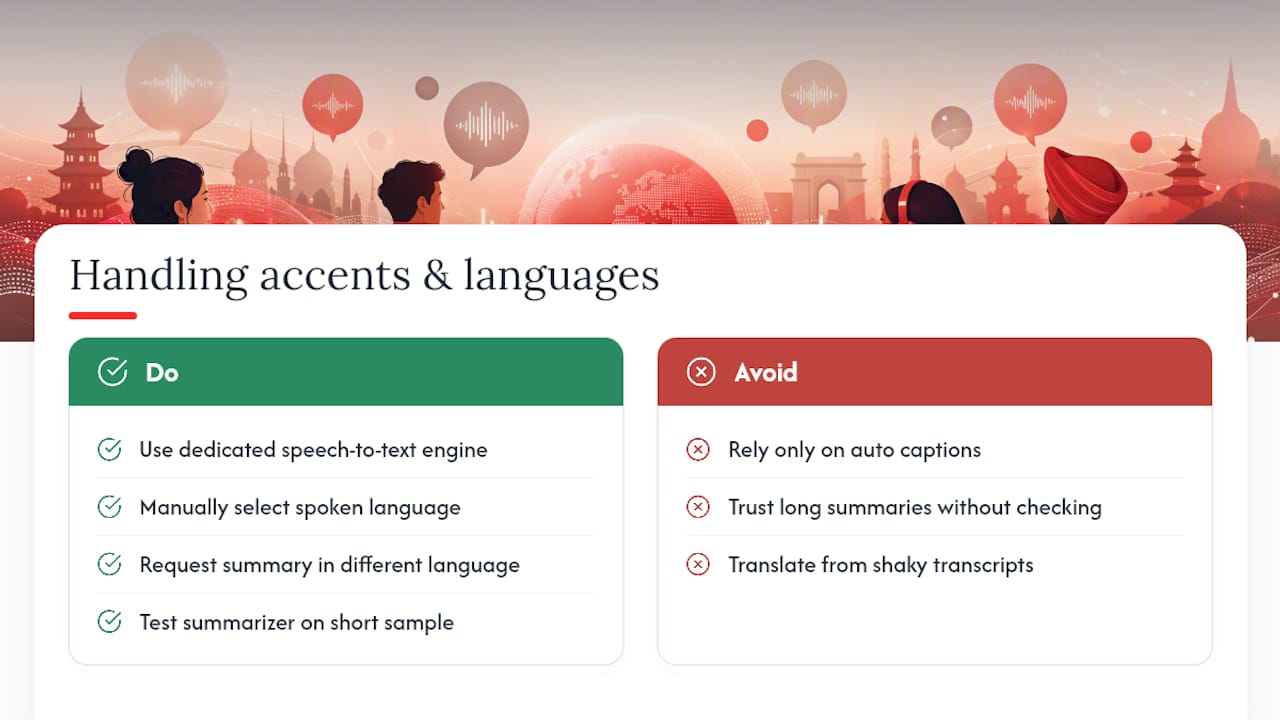
Auto-generated YouTube captions struggle hardest with three things: heavy accents, code-switching between languages mid-sentence, and technical vocabulary that doesn’t exist in a caption engine’s default dictionary. A screencast where a presenter narrates in Hindi-accented English while reading French variable names is close to a worst-case scenario for caption-only tools.
A dedicated speech-to-text engine handles this meaningfully better than default YouTube captions, particularly when it supports language auto-detection or lets you manually flag the spoken language before transcribing. If your summarizer offers a language selection option, use it, even when the interface defaults to auto-detect. Manual selection consistently outperforms guesswork on mixed-accent audio.
For screencasts recorded in a non-English language, request the summary output in a different language than the transcript. Most modern LLMs handle this translation step cleanly as long as the underlying transcript is accurate. Where things break down is when a shaky transcript feeds into a translation request. The errors compound instead of canceling out.
If you regularly watch screencasts in a specific non-English language or a strong regional accent, test your summarizer on one short sample video first. A five-minute check saves you from trusting a garbled summary of a 45-minute deep dive.
Common Pitfalls When Summarizing YouTube Screencasts
The single biggest mistake is trusting a caption-only summary for a screencast that has no real captions, just YouTube’s auto-generated guesswork. If the video shows a red “CC” with no manual captions ever added, treat any summary from it as a rough draft, not a final answer.
A second common failure: asking for a summary before checking video length. Feeding a 90-minute conference recording into a single prompt without splitting it first often produces a summary that’s vague at best, and outright wrong toward the back half where the model starts losing track of earlier context.
Watch for these specific failure patterns:
- The summary reads suspiciously generic, using phrases like “the presenter discusses various topics” instead of specifics. That’s a sign the transcript itself was too garbled for the LLM to extract real content.
- Timestamps that don’t match what’s actually happening at that point in the video, usually caused by caption drift on longer recordings.
- Code snippets or commands that look almost right but have a subtle typo, since LLMs sometimes “autocorrect” unfamiliar syntax into something that reads more naturally but is technically wrong.
- A summary that skips the ending entirely, which usually means the transcript got cut off or the video needed splitting.
If a summary feels off, the fix is almost never a better prompt. It’s a better transcript. Go back to the source audio before you spend more time tweaking your instructions to the LLM.
Tips for Getting a More Accurate Transcript
Audio quality determines transcript quality more than any other single factor, and screencasts have a specific weakness here: many creators record with a laptop’s built in microphone while their computer fan spins up mid-demo.
A few practical levers actually move the needle:
- Background noise (fans, notifications, keyboard clatter) confuses speech-to-text engines more than a moderate accent does. If you’re recording your own screencasts, a $30 USB microphone outperforms almost any built-in laptop mic.
- Overlapping speech, common in recorded panel discussions or paired-programming videos, is one of the hardest things for any transcription engine to untangle. Expect lower accuracy on multi-speaker screencasts.
- Speaker clarity matters more than speed. A presenter who mumbles through variable names at normal pace causes more transcription errors than one who talks fast but enunciates clearly.
- Music or sound effects layered under narration, common in polished tutorial channels, can bleed into the transcript as phantom words. If accuracy matters, mute any background music before transcribing.
When you’re on the consuming end and can’t control the recording quality, your best lever is choosing a transcription engine built for messy audio rather than clean, studio-quality speech. That’s the entire reason Whisper-class transcription tools outperform raw YouTube captions on real-world screencasts: they were trained on exactly this kind of imperfect audio.
Can You Automate the Whole Summarization Process?
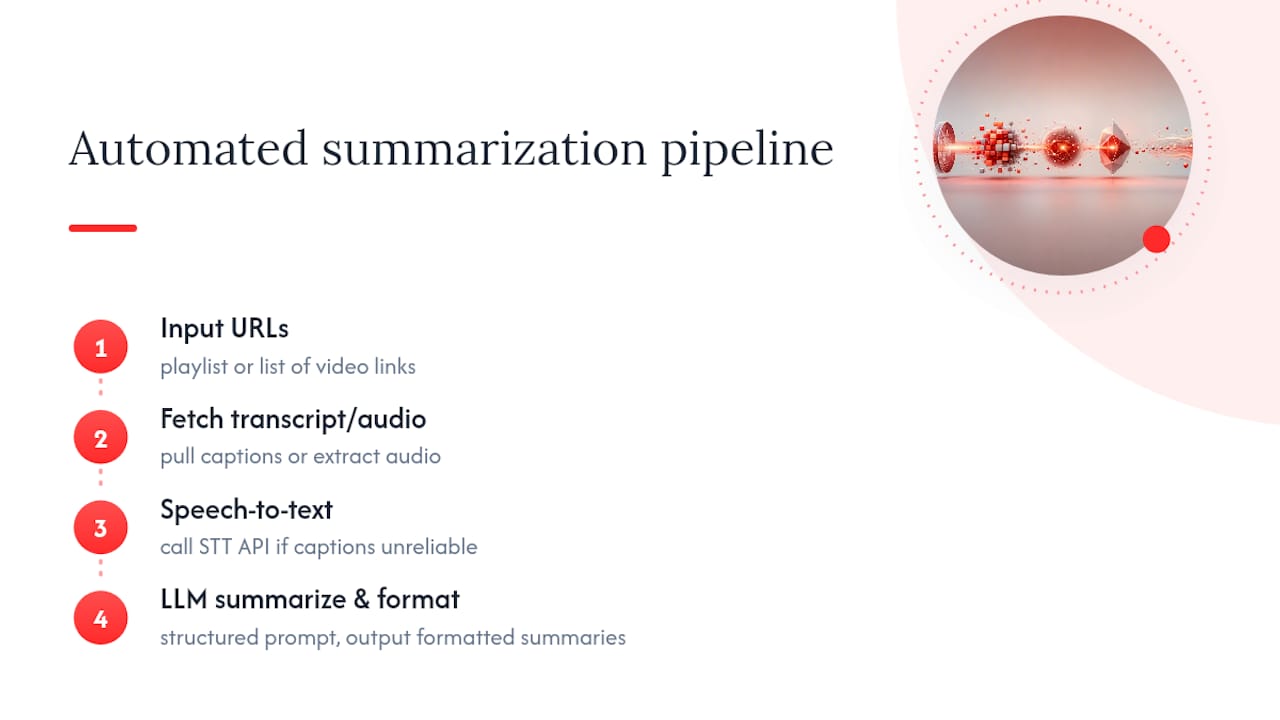
Yes, and it’s worth doing if you regularly work through playlists, course libraries, or a backlog of conference talks. The full pipeline (fetch video, transcribe, summarize, format) can run as a script with almost no manual steps once it’s set up.
A basic automated setup chains together three pieces: a script that pulls a transcript or extracts audio from a given URL, a call to a speech-to-text API when captions are missing or unreliable, and a call to an LLM API with your structured prompt template baked in. Feed it a list of URLs, get back a folder of formatted summaries.
For less technical setups, no-code automation platforms can watch a specific YouTube playlist or channel and trigger a summarization workflow automatically whenever a new video is published, then drop the result into a notes app or spreadsheet. This is especially useful for teams tracking a competitor’s product updates or a specific creator’s tutorial series.
The tradeoff is maintenance. APIs change, rate limits apply, and a fully custom script needs someone to fix it when a video format shifts or an API deprecates a parameter.
What I’ve Learned About Actually Using These Summaries
My routine for a packed playlist or conference archive is a one-minute triage: read the TL;DR, skim the chapter list, and decide right there whether the video earns a full watch. Most don’t. A surprising number of “must-watch” tutorials turn out to be five useful minutes wrapped in forty minutes of setup and rambling.
I lean on the TL;DR for anything exploratory, deciding whether a topic deserves my time at all. I switch to watching the full demo the moment code, configuration, or a live troubleshooting sequence shows up, because that’s exactly where paraphrased summaries lose the details that matter. The screencast-focused summary guides on Baitless’s blog go deeper into this split if you want more examples.
— Sergio
Try the Transcription-First Workflow With Baitless
Everything in this guide, the transcribe-first pipeline, the timestamped chapters, the watch-or-skip labeling, is exactly what Baitless runs automatically the moment you open a YouTube screencast in Chrome. Instead of copying transcripts or writing prompts by hand, you get the structured summary in one click, with clear guidance on which parts of a video actually deserve your time.

New users start with 25 free summary credits and no card required, enough to test the workflow across a real batch of tutorials or conference talks before deciding if it’s worth adding to your routine. If you go through those credits and want daily access, the Pro plan runs $7.99 per month with expanded summary credits for heavier use. Install the extension, open a screencast you’ve been putting off, and see the breakdown for yourself.
Sources
This guide draws on step-by-step transcription workflows from Vocap’s AI summarization guide, output format standards from Recall’s YouTube summarizer, and extension behavior documented on the Chrome Web Store.
- Summarize a YouTube Video with AI (2026): Step-by-Step
- Free YouTube Video Summarizer & Transcript Generator | Recall
FAQ
How Do I Get YouTube to Summarize a Video?
YouTube doesn’t generate summaries natively for most videos. You need a separate tool, either a browser extension, a web app, or a manual transcript-plus-LLM prompt, to produce a structured summary.
What Does Screencast Mean on YouTube Live?
A screencast is a recorded or live-streamed capture of someone’s screen, typically narrated, used for tutorials, product demos, and software walkthroughs rather than face-to-face video.
How Do You Summarize a YouTube Video Online?
Paste the video URL into a web-based summarizer or browser extension that pulls the transcript and generates a TL;DR with key points, or copy the transcript manually and paste it into an LLM with a structured prompt. Baitless handles this automatically as a one-click Chrome extension.
Can ChatGPT Give a Summary of YouTube Videos?
ChatGPT can summarize a YouTube video if you provide it the transcript directly, since it can’t access YouTube or watch video on its own. Paste the transcript text and ask for a TL;DR, key points, or chapter breakdown.
What’s the Best Way to Summarize a Long Screencast?
Split the transcript into 20 to 30 minute chunks, summarize each chunk with the same prompt, then merge the partial summaries into one final overview. This split-then-merge approach keeps the summary accurate on videos that would otherwise overwhelm an LLM’s context window.