
How to Summarize Long Videos Without Watching Them
How to Summarize Long Videos Without Watching Them

Paste a YouTube link or upload the file, and the tool transcribes the audio (or pulls existing captions) and returns a TL;DR, bullet takeaways, or timestamped chapters in seconds to minutes. That’s the entire workflow to summarize long videos: input, transcript, output.
Most tools give you a choice of formats once the transcript exists:
- A short TL;DR paragraph
- Bullet-point takeaways
- Timestamped chapter breakdowns
- Flashcards or Q&A pairs for study
Processing speed depends on the method. Caption-based tools can return a summary almost instantly, while transcription-first tools that process raw audio typically need a few minutes for an hour of footage. Before you trust any summary for a fact that matters, open the timestamped transcript and check the exact quote or number against what the AI wrote. That one habit catches the majority of summarization errors before they cost you anything.
Key Takeaways
The fastest way to summarize long videos reliably is to generate a transcript first, choose the format that matches your goal, and verify key claims against the timestamped transcript before acting on them.
| Point | Details |
|---|---|
| Match format to goal | Use TL;DR for a quick decision, chapters for navigation, flashcards for studying, and quotes for citation. |
| Verify before you trust | Spot-check timestamps and quotes against the transcript, especially for numbers and dates. |
| Choose transcription-first for tricky audio | Whisper-based tools handle accents and technical terms better than caption-only summarizers. |
| Guard sensitive uploads | Check retention policies and prefer no-storage or on-device options for proprietary content. |
| Try Baitless for YouTube | The Chrome extension gives 25 free summary credits for in-page TL;DR and chapter summaries. |
Where to See These Formats in Action
- Recall for long-video handling and fast timestamped transcripts.
- VexaScribe for transcription-first accuracy on large uploads.
- Musely for multiple format and length options.
- TranscriptMagic for one-click chapter breakdowns.
Check each tool’s own privacy and retention documentation before uploading anything sensitive.
Table of Contents
- What AI Video Summarizers Actually Do
- How to Summarize a Video Step by Step
- Which Summary Format Fits Your Use Case?
- How Do You Check If a Summary Is Accurate?
- Is It Safe to Upload Videos to Summarization Tools?
- How Baitless Fits Into This Workflow
- The Part Nobody Tells You About Video Summaries
- Try Baitless on Your Next Long Video
- Sources
What AI Video Summarizers Actually Do
An AI video summarizer takes a transcript, whether pulled from YouTube’s captions or generated fresh from the audio, and runs it through a language model that condenses the content into a shorter, structured output. The output format matters more than most people realize.
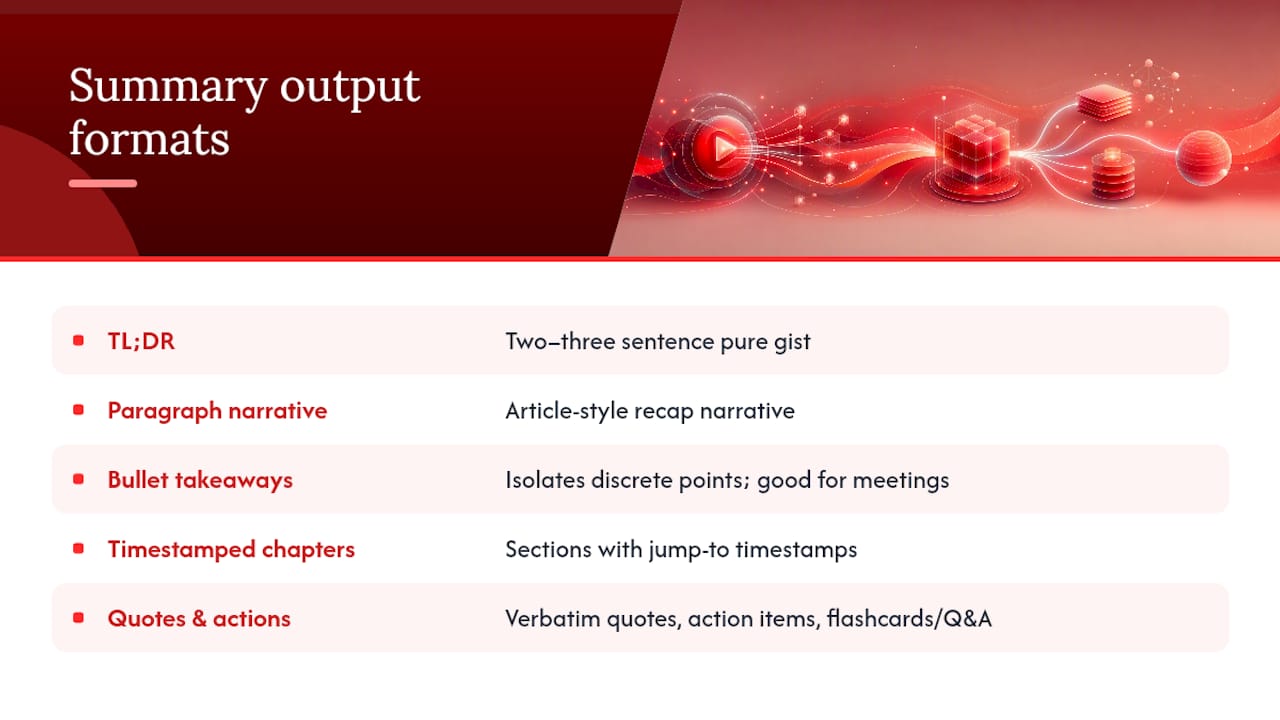
A TL;DR gives you two or three sentences of pure gist. A paragraph narrative reads like an article recap. Bullet takeaways isolate discrete points, which works well for meetings or lectures with multiple topics. Timestamped chapters break the video into sections you can jump to directly. Some tools also pull verbatim quotes, generate action items from spoken commitments, or build flashcards and Q&A pairs for exam prep.
Input paths vary by tool: paste a URL, upload a file directly, or run a browser extension that works while you’re already on the YouTube page. Transcript sourcing splits into two camps: tools that read YouTube’s existing captions (fast but inherits caption errors) and tools that transcribe the audio themselves, often on-device or on a server, which tends to hold up better against accents or technical jargon.
Freemium models dominate this category. Most services cap free use at a set number of credits per month, then unlock longer videos, more formats, or batch processing behind a subscription.
Pro Tip: If a video has dense proper nouns, brand names, or technical terms, favor a tool that transcribes audio directly rather than one that relies solely on auto-captions. Captions mangle unfamiliar words far more often than a dedicated speech model does.
How to Summarize a Video Step by Step
Getting a reliable summary out of a two-hour lecture or a rambling podcast episode takes three steps, not thirty.
- Choose your input method. Paste the URL if the video has captions or is publicly accessible. Upload the file directly if you need to summarize a private recording, a Zoom export, or a video without any subtitles. Check the tool’s length cap first. VexaScribe supports uploads up to 5 GB and 10 hours, while Recall handles videos up to 10 hours when a transcript already exists.
- Pick your format and length tier. Musely offers tiers ranging from roughly 100 to 1,500 words, so a quick scan and a study-ready digest come from the same source video with a different setting.
- Verify and export. Open the timestamped transcript, spot-check two or three claims against the actual audio, then export to your notes app or document.
For videos longer than three or four hours, some tools split the file into segments automatically and summarize each chunk before merging them. If yours doesn’t, break the video into logical halves yourself (before and after a stated break, or by topic shift) and summarize each piece separately. Batch processing helps if you’re clearing a backlog of saved videos: queue several at once and review outputs in one sitting rather than one at a time.
Which Summary Format Fits Your Use Case?
The right output format depends entirely on why you’re watching in the first place.
- Students get the most out of a TL;DR paired with flashcards, or a chapter breakdown that mirrors how the lecture was structured, useful for revisiting a specific concept before an exam.
- Professionals sitting through recorded meetings or webinars do better with bullet takeaways plus a short list of action items, skipping straight to what needs a response.
- Researchers and journalists need timestamped chapters and verbatim quotes so they can cite the source accurately rather than paraphrase from memory.
- Podcast and lecture listeners benefit from a full chapter breakdown alongside the complete transcript, since these formats run long and touch multiple subtopics that a single TL;DR would flatten.
Matching format to intent saves real time. Pulling a bullet list from a two-hour conference keynote to find three action items takes ten seconds; reading a full paragraph summary of a compact ten-minute product demo just adds an unnecessary layer between you and the source.
How Do You Check If a Summary Is Accurate?
Summaries fail for a handful of predictable reasons: poor audio quality, overlapping speakers talking over each other, heavy accents that confuse caption generation, or the model itself over-condensing and dropping a qualifier that changes the meaning of a claim.
Run this checklist before you rely on any summary for something important:
- Open the timestamped transcript and jump to the section backing the claim you care about.
- Listen to a short clip around any statistic, quote, or date the summary highlights.
- Compare quoted text word-for-word against the transcript rather than trusting paraphrase.
- Re-run the summary with a different format or length tier if something feels off. A different pass sometimes catches what the first missed.
Transcription-first tools like VexaScribe, built on Whisper Large-v3, generally outperform caption-based tools on accented speech or dense technical vocabulary. Caption-based approaches work fine for clean, single-speaker English content where the built-in subtitles were already accurate.
Pro Tip: Treat any summarized number, date, or direct quote as a draft until you’ve confirmed it against the transcript. Treat the general gist and structure as reliable enough to act on immediately.
Is It Safe to Upload Videos to Summarization Tools?
Where your video content actually goes depends on whether the tool processes it in your browser or ships it to a server.

Extension-based tools that work in-page often pull captions directly from YouTube without uploading the video file anywhere, which limits what leaves your machine. Server-based tools that transcribe uploaded files need to send that file somewhere for processing, and retention policies vary widely between services.
Before uploading anything proprietary, unreleased, or confidential:
- Read the tool’s export and retention policy, not just its privacy headline.
- Prefer options that delete files immediately after processing rather than storing them indefinitely.
- Export your summary right away and delete the source upload if the tool allows manual removal.
- For genuinely sensitive material, stick to local or on-device transcription rather than cloud-based processing.
How Baitless Fits Into This Workflow
Baitless is a Chrome extension built specifically for the extension-first workflow described above. It turns lengthy YouTube videos into concise summaries directly on the page you’re already watching, highlighting the key moments and flagging what to skip.
- Free tier includes 25 summary credits, enough to test the format options on real videos before committing to anything.
- A low-cost subscription unlocks higher volume for people summarizing videos daily.
- The in-page design means no copy-pasting URLs into a separate tab. Click the extension, get a TL;DR or chapter breakdown, and export what you need.
Extensions that operate directly in the browser tend to offer the fastest path for YouTube specifically, since they use the page context to pull captions and generate a summary without extra manual steps.
That in-page approach is exactly what makes Baitless suited to the “watch, skip, or save” decision busy viewers face dozens of times a day.
The Part Nobody Tells You About Video Summaries
Most guides on this topic treat summarization as a solved problem: paste a link, get perfect bullet points, move on. That’s not quite honest. Every summarizer, no matter how good the underlying model, is only as reliable as the transcript feeding it. A muffled recording or three people talking over each other will produce a confident-sounding summary that gets a key detail wrong, and the tool will never tell you it’s unsure.
The conventional advice skips this entirely and treats verification as optional. It isn’t. The habit of checking a timestamped transcript against a summary’s key claims takes fifteen seconds and separates people who use these tools well from people who get burned by one wrong quote in a work email.
What I’d prioritize first isn’t finding the “smartest” summarizer. It’s picking one with a transcript you can actually inspect, and building the two-minute verification habit before you ever act on a summarized number or claim. Speed without a way to double-check it is just a faster way to be confidently wrong.
— Sergio
Try Baitless on Your Next Long Video
Baitless gives you 25 free summary credits to start, no card required. Install the Chrome extension, open any long YouTube video, and click the icon to generate a TL;DR or a full chapter breakdown right on the page, no separate app, no copy-pasting URLs.

Once you’ve tried both formats, export whichever one fits what you’re doing: a quick TL;DR before deciding whether to watch, or a timestamped chapter list to save for later. Head to Baitless to install the extension and run your first summary in under a minute.
Sources
- Free YouTube Video Summarizer & Transcript Generator | Recall
- Video Summarizer — AI Summary from YouTube or Upload | VexaScribe
- YouTube Summarizer: Key Points in 30s - Musely
- YouTube Video Summarizer — Summarize Any YouTube Video with AI Free | TranscriptMagic