
Skip YouTube's Boring Parts Instantly With Heatmaps, Keys, or Baitless
Skip YouTube’s Boring Parts Instantly With Heatmaps, Keys, or Baitless

The quickest fixes are the ones already built into the player: check the Most Replayed heatmap on the progress bar, jump between Chapters, or tap into the Jump Ahead prompt when it shows up. When those aren’t enough, double-tap or scrub manually, try a community-tagging extension, or run the video through Baitless for an instant summary with clickable timestamps. Most of these are free and native; Jump Ahead and extensions require opt-in or installation.
TL;DR:
- YouTube’s Most Replayed heatmap quickly shows where viewers tend to skim or replay, guiding you to the most engaging parts of a video.
- Chapters and description timestamps enable direct jumps to specific segments, especially when the video lacks the heatmap or has no official chapters.
- Jump Ahead relies on user engagement data, so it is unavailable for new, low-view, or live videos, and requires opt-in testing in select regions.
- Manual controls like double-tapping on mobile or using arrow keys on desktop can effectively skip over uninteresting parts with minimal time loss.
- Baitless offers a summary of long videos in advance, helping you decide whether they are worth watching without scrubbing through the footage.
Table of Contents
- How YouTube’s Native Features Actually Work
- Manual Controls: Exact Steps to Jump Ahead Reliably
- Community Tagging and Extensions: What They Actually Do
- What Baitless Does and When to Use It
- Reading Metadata and Comments Before You Even Press Play
- Stacking Playback Speed With Skipping for Maximum Efficiency
- Watching Smarter Without Shortchanging Creators
- Where These Steps Come From
- Skip the Scrubbing Entirely With Baitless
- Sources
- FAQ
How YouTube’s Native Features Actually Work
YouTube already ships three tools that handle most boring-parts problems without installing anything.
The Most Replayed heatmap sits right on the progress bar as a wavy gray line, a feature explained in detail in Understanding Analytics for Better Growth. Peaks mean a lot of viewers replayed that moment; valleys mean most people scrubbed right past it. It’s visible on every video with enough view history, no subscription needed, and it’s the single fastest way to see where a video actually gets good before you commit to watching it start to finish, according to Android Authority’s breakdown of the feature.
Chapters are timestamps creators add manually, shown as labeled segments under the progress bar or in a list icon near the video title. On mobile, tap that list icon to see all chapter titles at once and jump straight to the one you want. On desktop, hover over the progress bar to see chapter names pop up. If a video has no visible chapters, check the description. Many creators list timestamps there even when they skip the official chapter tool.
Jump Ahead is the newest and least predictable of the three. It’s an experimental AI feature that studies aggregated viewing behavior to spot segments people commonly skip, then surfaces a one-tap bubble offering to jump past them, as detailed in How-To Geek’s report on the rollout. Several factors limit it:
- It needs a forward-skip action to trigger. Just watching passively won’t summon it.
- It leans on an engagement heatmap, so brand-new uploads and low-view videos rarely qualify.
- Live streams don’t have the viewing history the feature depends on, so it never appears there.
- Availability has been tied to opt-in testing and Premium rollouts in select regions, not a universal switch every account has.
Manual Controls: Exact Steps to Jump Ahead Reliably
When native features aren’t available, muscle memory does the job just as well.
- On mobile: Double-tap the right side of the screen to skip forward in small jumps, or double-tap and hold to fast-scrub. Watch the heatmap while you drag the scrub bar. Its peaks tell you where to release your thumb.
- On desktop: Use the right and left arrow keys for 5-second skips, or press L and J for larger 10-second jumps forward and back. K pauses and resumes without losing your spot. Click and drag the scrub bar for precise seeking, watching for a Jump Ahead prompt if you skip forward inside a low-engagement stretch.
- On TV or a remote: Look for a small white dot appearing on the progress bar as you seek. That marks a suggested jump point. Press select or OK on the remote once the dot appears to accept it.
Small, deliberate seeks beat one giant jump. Overshoot and you’ll end up rewinding anyway, which wastes more time than watching an extra ten seconds would have.
Pro Tip: Turn on captions before you scrub. A quick glance at the caption text as you skip tells you instantly whether you landed in the right spot, without needing to un-mute and listen.
Community Tagging and Extensions: What They Actually Do
Beyond YouTube’s own tools, a layer of community-driven and third-party options has grown around the exact same problem: finding the good parts faster.
Community tagging systems work off crowdsourced timestamps. Viewers mark where a sponsor read starts and ends, or where a tutorial drags, and that data gets pulled into playback so segments can be auto-skipped. Browser extensions built for this take a similar approach but automate it further, offering auto-jump on load, pre-marked skip zones, or a condensed set of highlight clips instead of the full runtime. Results vary a lot depending on how many people have watched and tagged that specific video.
Sponsor segments are one of the most common targets for this because they’re often the single most-skipped part of a video, and standard ad blockers don’t touch them since they’re baked into the footage itself, not served as separate ads. Some open-source projects go further, analyzing footage directly to auto-generate highlight reels and recap pages, which shows the underlying technique is genuinely feasible, not just a marketing claim, per one public highlight-generation project on GitHub.
Before installing any extension, check three things:
- What permissions it requests. Anything asking for broad access to “read and change all your data on all websites” deserves a second look.
- How recently it’s been updated and how many reviews it has.
- Whether the source code is public, since open-source tools are easier to audit for what they actually do.
These tools shine on popular, well-watched content where tagging data already exists. They’re close to useless on a video uploaded an hour ago or one with a tiny audience, for the same reason Jump Ahead struggles there: no viewing history means no data to work from.
What Baitless Does and When to Use It
Baitless takes a different angle on the same problem: instead of marking skip zones inside a video, it summarizes the whole thing before you watch a second of it.
The Chrome extension pulls a long YouTube video and returns a short summary with the key moments flagged, so you can decide to watch, skip, or save it before committing your time. The free tier includes summary credits for casual use, and a subscription tier is available for more frequent users. Using it is simple:
- Install the Baitless extension and open any YouTube video.
- Request a summary. It breaks the video into what matters and what doesn’t.
- Jump to the flagged timestamps directly, or save the highlights for later.
Baitless works best on long-form content where boring-parts tools alone still leave you scrubbing for a while: hour-long tutorials, recorded lectures, or livestream replays where a heatmap might flag five different “interesting” zones and you’d rather just read what happened in two of them. For a 4-minute video, the native player is faster. For a 90-minute one, a summary usually beats scrubbing.
Reading Metadata and Comments Before You Even Press Play
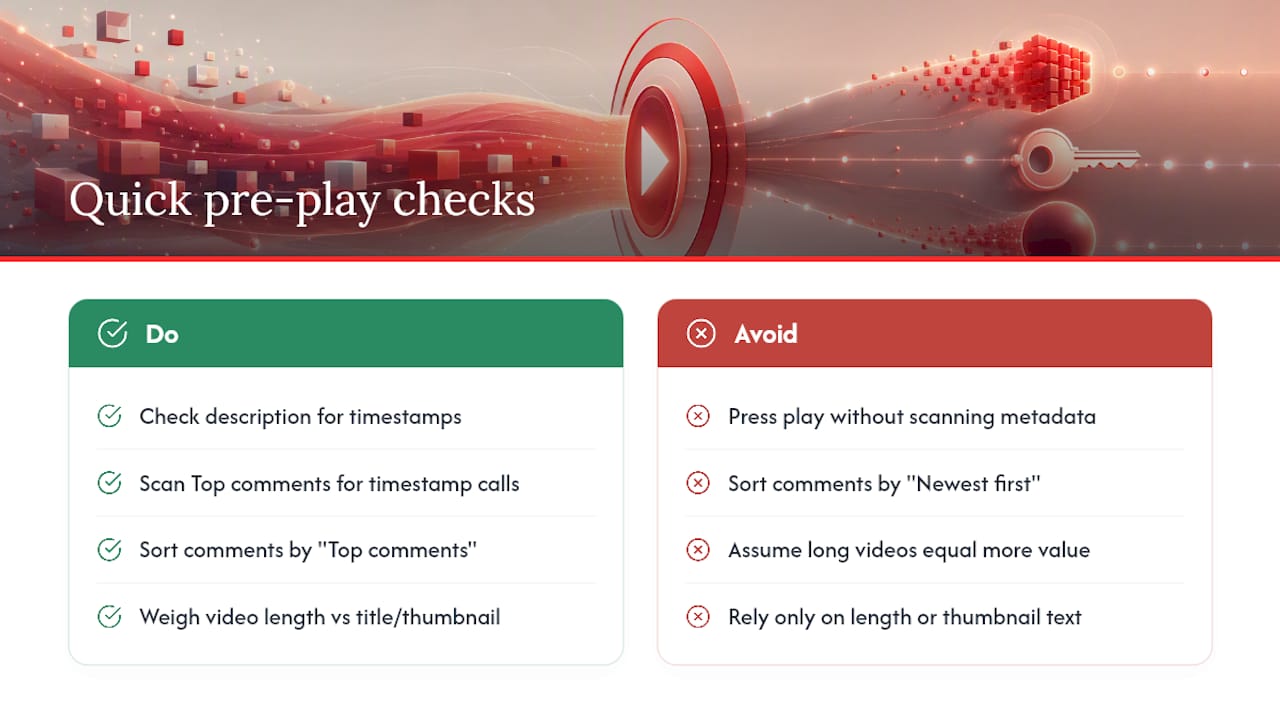
Sometimes the fastest skip decision happens before you hit play at all.
The video description often has a built-in table of contents, even on videos without official chapters, listing exact timestamps for each segment. Scroll there first if the video runs long. The comments section is another underrated signal. On any video with real engagement, someone has usually already posted “skip to X:XX for the actual demo” or flagged where a sponsor read starts. Sort by “Top comments” rather than “Newest first” since the most useful timestamp call-outs tend to rise to the top through likes.
Video length itself is a clue worth weighing. A 45-minute video with a short, punchy title and no chapters is more likely to be padded than a 12-minute one with a clearly labeled structure. Thumbnail text and the title’s phrasing (“full breakdown,” “in-depth,” “everything you need”) often signal how much filler to expect before the payoff. None of this replaces the heatmap or Jump Ahead, but combined with a fast scan of the comments, it lets you make a skip decision in the time it takes to read a paragraph.
Stacking Playback Speed With Skipping for Maximum Efficiency
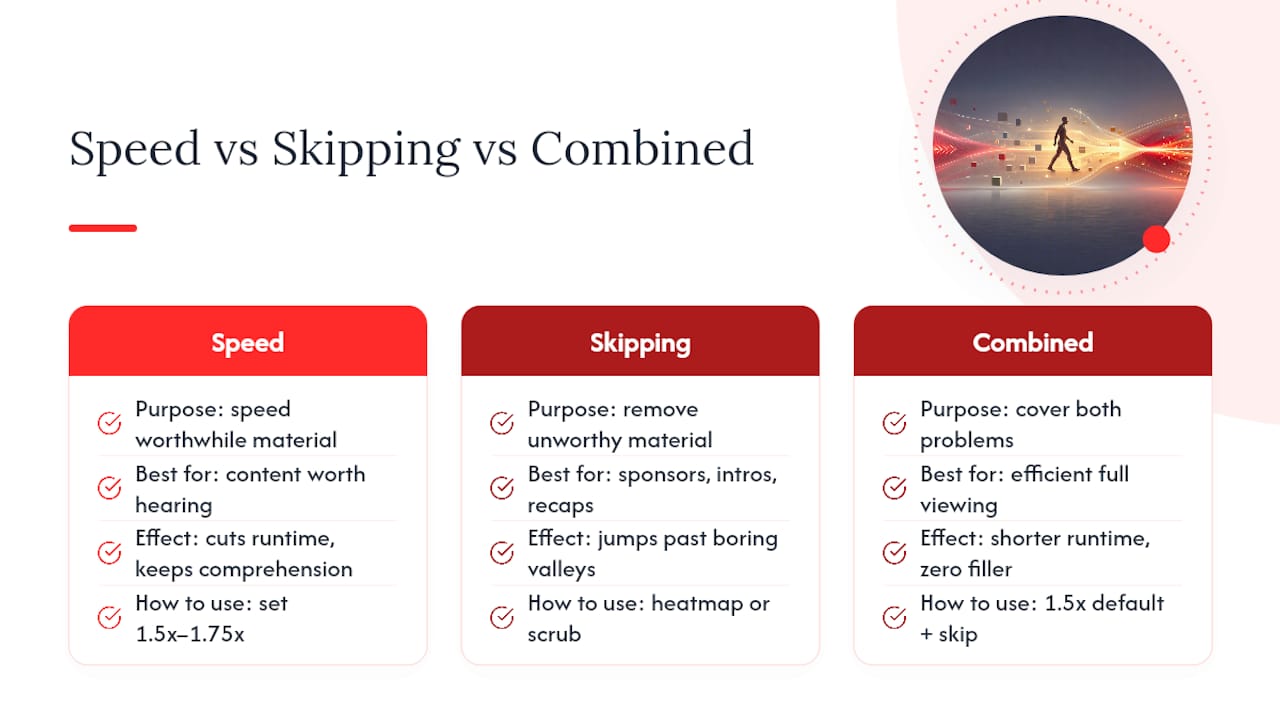
Speed and skipping solve different problems, and using only one leaves time on the table.
Playback speed handles the material that’s genuinely worth hearing but doesn’t need your full attention pace. Bumping a tutorial or lecture to 1.5x or even 1.75x, available from the gear icon on desktop or the speed control on mobile, cuts total runtime without losing comprehension for most spoken content. Skipping handles the material that isn’t worth hearing at all: sponsor reads, rambling intros, repeated recaps.
The two stack cleanly. Watch at 1.5x by default, then use the Most Replayed heatmap or manual scrubbing to jump past valleys entirely rather than just speed-listening through them. The mistake most people make is picking one method and sticking with it. Speed alone still forces you to sit through boring stretches, just faster. Skipping alone still leaves you at normal pace through the good parts. Combined, they cover both problems.
Watching Smarter Without Shortchanging Creators
Here’s the part most skip-tool guides skip over: creators depend on those sponsor reads for revenue, and skipping every single one on every video you watch eventually hurts the channels you actually want to keep existing.
A fairer approach is to whitelist the handful of creators you genuinely support and let one sponsor segment per video play through, then use skip tools freely on repeat ads, long-winded intros, or channels you’re only watching once. Reserve the aggressive skipping for long tutorials and lecture-style content where the value is buried, not for the small creator whose sponsor deal is paying their rent.
— Sergio
Where These Steps Come From
The mechanics above aren’t guesswork. They’re pulled from a mix of official documentation and hands-on tech reporting:
- YouTube’s own support thread on player updates covers the rollout of Most Replayed and chapter behavior directly from the platform.
- How-To Geek’s coverage of Jump Ahead and Android Authority’s hands-on walkthrough document exact triggers and eligibility limits from real testing.
Skip the Scrubbing Entirely With Baitless
Baitless is the option for readers who’d rather skip the scrubbing altogether: instead of hunting for heatmap peaks or hoping Jump Ahead shows up, you get a summary that tells you upfront whether a video is even worth your time. That’s the real advantage over manual methods. You’re not reacting to a video in progress, you’re deciding before you’ve spent a single minute on it.
It fits naturally into everything covered above: run a long tutorial or lecture through it first, get the flagged key moments, then use the native heatmap or manual skipping for any fine-tuning once you’re actually watching. The free tier offers a number of summary credits sufficient to test on several videos in your watch-later list. Users who regularly process many videos can move to a subscription plan for ongoing use. Install Baitless and run your next long video through it before you press play.
Sources
- Jump Ahead is the best YouTube Premium feature you’re not using
- YouTube Is Using AI to Help Users Skip the Boring Parts of Videos
- YouTube support thread: video player updates — Most Replayed, video chapters, single-loop, more
FAQ
How Do I Skip Sections on YouTube?
Use the Most Replayed heatmap on the progress bar to spot the busiest parts, jump through labeled Chapters if the video has them, or double-tap and scrub manually on mobile and desktop.
What Is the 7-Second Rule on YouTube?
There’s no official platform rule by that name. It’s a general audience-engagement guideline used by some creators, based on the idea that viewers decide whether to keep watching within the first several seconds of a video.
What Happened to YouTube’s Skip Button?
YouTube never removed a general skip button. What changed is that features like Jump Ahead and the Most Replayed heatmap now surface smarter, data-driven skip suggestions instead of a single static button.
Why Isn’t Jump Ahead Working on YouTube?
It usually means the video doesn’t have enough viewing history yet. New uploads, low-view videos, and live streams typically won’t show the Jump Ahead prompt because the feature needs an existing engagement heatmap to work from.