
Skim YouTube Videos Fast: Timestamped Takeaways in Seconds
Skim YouTube Videos Fast: Timestamped Takeaways in Seconds

Yes, you can skim YouTube videos instead of watching them start to finish. AI summarizers now pull the transcript, isolate the key moments, and hand you a timestamped breakdown in about 30 to 60 seconds. The fastest route is a one-click Chrome extension like Baitless, which turns any video into bullet takeaways and clickable timestamps you can jump straight to, backed by 25 free summary credits to test before you commit to anything.
TL;DR:
- Most AI summarizers accurately generate timestamps, transcripts, and key points within 30 seconds to a minute for videos up to 10 hours long.
- Extractive summaries pull exact quotes, while abstractive summaries rephrase content, which may impact accuracy for quoting purposes.
- Checking the original transcript or timestamp is essential for verifying technical details, numbers, or quotes before use.
- Free tools like Baitless offer 25 credits and features such as clickable timestamps and selective playback for quick, everyday skimming.
- Manual playback controls and hybrid methods remain useful for shorter videos or when precise navigation is needed without relying solely on summaries.
Table of Contents
- What AI YouTube Summarizers Actually Give You
- How Do These Tools Turn a Video Into a Summary?
- Three Ways to Skim a Video Right Now
- When Should You Double-Check an AI Summary?
- Baitless in Practice: What the Free Tier Gets You
- When to Rely on a Skim and When to Watch the Whole Thing
- Get Started With Baitless in Under a Minute
- Where to Verify Playback Controls and Tool Policies
- Sources
What AI YouTube Summarizers Actually Give You
A good summarizer does more than shrink a video into three sentences. Most tools now offer several output styles depending on what you need in the moment: a quick TL;DR for triage, structured bullets for scanning, chapter breakdowns for long lectures or interviews, and even Q&A style flashcards for exam prep. Musely, for instance, documents length tiers ranging from a short TL;DR up to roughly 1,500 words of study notes, letting you pick the depth that matches the task.
The features that actually save time on a daily basis:
- Clickable timestamps that jump you to the exact second a claim or point was made
- Selective playback, so you only play the highlighted seconds instead of scrubbing manually
- A full transcript you can copy, export, or drop into your own notes
- Clear free-tier limits and a stated max video length, so you know before you start whether the tool can handle a three-hour podcast or only short clips
Transcript export matters more than people expect. If you’re building a newsletter or a social post from a video, having exact wording tied to an exact timestamp means you can quote accurately instead of paraphrasing from memory.
How Do These Tools Turn a Video Into a Summary?
The pipeline behind almost every AI summarizer follows the same basic shape. First, the tool fetches YouTube’s existing captions or runs its own automatic speech recognition (ASR) if captions aren’t available. Then it segments that text by time, feeds it to a language model, and the model produces a summary with timestamps reattached to each key point. Recall follows this transcript-first approach and notes that some tools can handle videos up to 10 hours long, as long as captions exist to work from.
There are two ways the model can summarize once it has the transcript:
- Extractive summarization pulls exact sentences straight from the transcript, which keeps quotes accurate but can feel choppy
- Abstractive summarization rewrites the content in new language, which reads more naturally but carries a higher risk of subtly changing what was actually said
Transcript quality drives everything downstream. Background noise, overlapping speakers, or heavy accents can throw off ASR accuracy, and any error at the transcription stage gets carried straight into the summary.
Turnaround speed is where these tools genuinely shine. Musely reports returning key points in about 30 seconds, and Recall claims a similar window for standard-length videos. That means a 90-minute video can go from unopened tab to a scannable outline before your coffee finishes brewing.
Three Ways to Skim a Video Right Now
Pick the workflow that fits your situation:
- Extension workflow. Install a summarizer extension, click it while the video is open, and read the takeaways it generates. Click any timestamp to jump directly to that moment, and use selective playback to hear only the flagged segments instead of the whole thing.
- Web tool workflow. Paste the video URL into a browser-based summarizer, choose your preferred format and length, and get both a summary and full transcript back in under a minute.
- Manual fallback. When you don’t have a summarizer handy, use YouTube’s native playback speed (up to 2x) and its click-and-hold fast-forward feature, or install a browser add-on that adds custom skip buttons and keyboard seeking for more precise navigation.
The extension route wins for casual discovery and everyday browsing. The web tool route is better when you need a downloadable transcript for research or citation. Manual controls are your backup when you’re on a device without extensions installed, or when a video is too short to bother summarizing.
Pro Tip: Combine methods. Use an AI summary to decide if a video is worth your time, then switch to selective playback to actually hear the two or three segments that matter, rather than reading the whole transcript.

When Should You Double-Check an AI Summary?
Summaries are fast, not infallible. Know where the cracks tend to show up before you quote or act on one:
- ASR struggles with low-quality audio, heavy accents, or multiple people talking over each other, and any transcription error flows straight into the summary
- Abstractive summarization rewrites language for readability, which means a paraphrased “quote” may not match what was actually said. Always confirm exact wording against the transcript before quoting it publicly
- Technical specs, numbers, dates, and statistics deserve a direct check at the linked timestamp. Never repeat a figure from a summary without hearing it in context
- Before uploading anything sensitive, check what permissions the tool requests. Chrome Web Store policy governs how extensions can use and store data, so it’s worth a quick look at what an extension actually accesses
Baitless in Practice: What the Free Tier Gets You
Baitless follows the same transcript-first approach described above, but it’s built specifically for speed inside the browser you’re already using. Open a video, click the extension, and it returns concise bullet takeaways with clickable timestamps and selective playback built in, no separate tab or copy-pasting a URL required.
The freemium structure is simple: 25 free summary credits to start, then a subscription for people who summarize daily and burn through the free tier fast.
On your first run, run this quick checklist:
- Confirm the timestamps actually line up with the moments they describe
- Try selective playback on one video to feel the time savings versus reading alone
- Save a summary you’ll want to reference again later
| What you get | Why it matters |
|---|---|
| Bullet takeaways | Scan the whole video’s core points in under a minute |
| Clickable timestamps | Jump straight to the exact moment without scrubbing |
| Selective playback | Hear only the flagged segments, skip the rest |
| 25 free credits | Test the workflow before deciding to subscribe |
When to Rely on a Skim and When to Watch the Whole Thing
Skims are built for discovery, triage, and early-stage research, not for final sign-off on anything that matters. Use a timestamped summary to decide fast whether a video deserves your full attention, then jump only to the segments that actually answer your question instead of watching start to finish out of obligation.
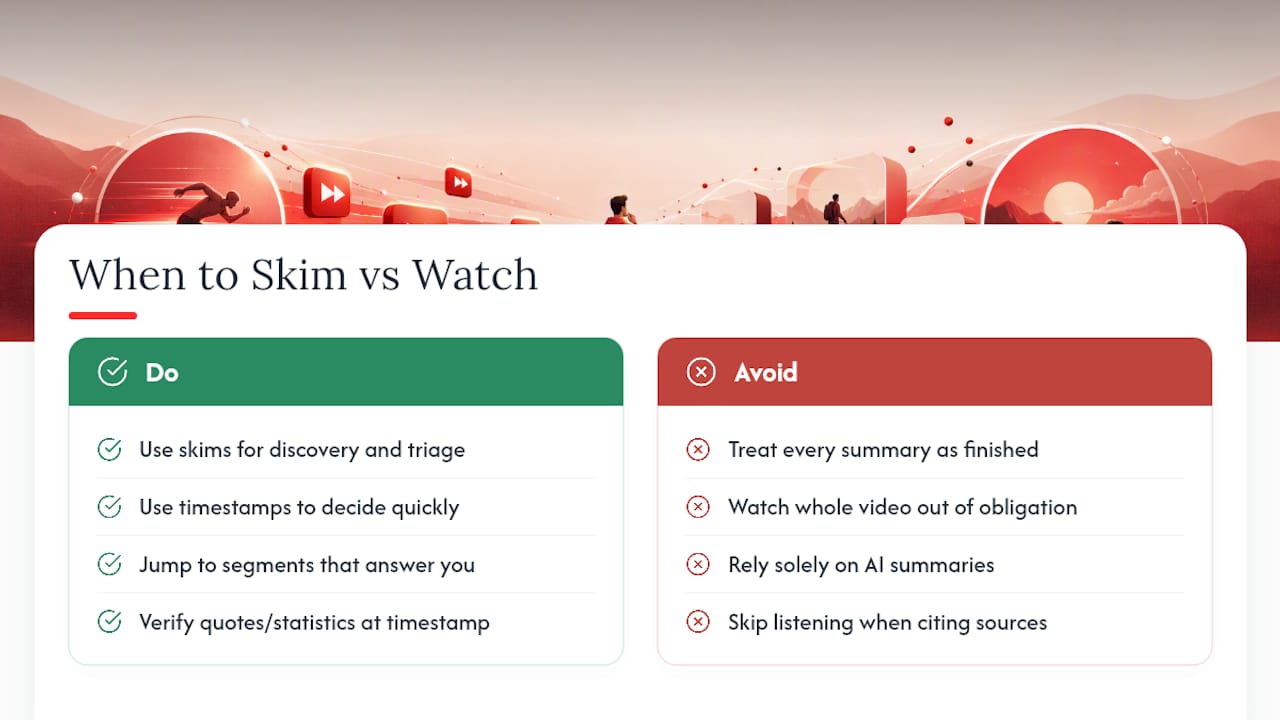
Where people get this wrong is treating every summary as a finished product. A summary is a map, not the territory. If you’re citing a claim, quoting a guest, or repeating a statistic in your own work, go to the timestamp and listen. That’s a two-minute habit that protects you from repeating an AI’s misreading of someone else’s words.
Build a personal library of saved summaries for videos you return to often, whether that’s a recurring podcast, a lecture series, or competitor content you track. Over time, that library becomes faster to search than YouTube itself.
— Sergio
Get Started With Baitless in Under a Minute
Skip the download queue and the settings maze. Baitless is the extension that turns your next long YouTube video into something you can act on in seconds instead of sitting through in real time. Visit Baitless to add the extension, paste a link, or click while a video is already open, and try all 25 free summary credits right away.

Your first run shows you the full picture: a bullet takeaway format, clickable timestamps you can jump to instantly, and selective playback so you only hear what actually matters. If you’re summarizing daily, whether you’re a student prepping for exams, a researcher tracking sources, or a professional who just can’t afford to watch another 40 minute video in full, the subscription tier unlocks higher credit volume once your free 25 run out. Add the extension at Baitless and skim your next video before this paragraph would have finished playing.
Where to Verify Playback Controls and Tool Policies
For manual playback controls, YouTube’s own help center covers speed adjustment and fast-forward behavior in detail. If you’re evaluating an extension’s data practices, Chrome’s developer policy documentation explains what permissions actually mean. For a look at transcript-first summarization in action, Recall’s product page breaks down how captions get converted into structured output.
Sources
- Speed up or slow down YouTube videos - Computer - YouTube Help
- YouTube Fast Forward & Rewind – Get this Extension for 🦊 Firefox
- YouTube Summarizer: Key Points in 30s - Musely