
Three Step Check to Share YouTube Summaries for Busy Professionals
Three Step Check to Share YouTube Summaries for Busy Professionals

The fastest way to share a YouTube summary is a browser extension for one-click, in-context sharing; a paste-URL web app when you need a public link and no install; and a transcript-plus-AI workflow when you need exact quotes. For most people who summarize videos daily, an extension like Baitless wins on speed. For a one-off summary you’re sending to someone outside your team, a paste-URL tool is usually simpler.
TL;DR:
- Browser extensions like Baitless are ideal for frequent summarization, offering quick, in-context summaries with minimal privacy concerns.
- Paste-URL web apps suit occasional use or external sharing, generating public links within 30 seconds without requiring software installation.
- Sharing effective summaries should include timestamped links and a clear next step notification to improve trust and actionability.
- Always verify AI-generated quotes against transcripts or the original video, especially when sharing with stakeholders or for fact-based reports.
- Using a single, habitual sharing tool with a verification step maximizes efficiency and trust in fast-paced professional environments.
Table of Contents
- What Are the Best Ways to Generate and Share Youtube Summaries?
- How Do You Share a Youtube Summary Using a Browser Extension?
- How Do Paste-a-Link Web Apps Work for Summarizing?
- What Are the Best Formats and Link Types for Sharing?
- What Should a Shared Summary Include to Be Useful?
- What Should You Check Before Sharing Someone Else’s Video Summary?
- How Does Baitless Solve the Share-Summary Problem?
- Why Most Advice on Sharing Summaries Misses the Point
- Try Baitless to Summarize and Share YouTube Videos
- Sources
What Are the Best Ways to Generate and Share Youtube Summaries?
Each method trades off speed, install friction, and precision differently, and picking the wrong one for the moment is the most common mistake people make.
Browser extensions work directly inside the YouTube tab you’re already watching. Tools like YouTube Summary with ChatGPT & Claude generate a summary without leaving the page and often include a built-in share or export button. This is the right call if you summarize several videos a week and want the process to feel invisible.
Paste-a-link web apps ask for nothing but the URL. Sites such as YouTube Summary generate a public shareable link for each summary, which makes them ideal when you’re sending something to a client, a classmate, or anyone who won’t install software just to read your recap.
Transcript-to-AI workflows give you the raw text first, then let you shape the summary yourself. This route takes longer but gives you full control over quotes, phrasing, and structure. It’s the best choice when accuracy matters more than speed, like pulling a verifiable quote for a report.
Saved libraries round things out. Platforms like Recall store summaries with time-stamped transcripts so a team can search and reuse past work instead of resummarizing the same interview twice.
- Extension: fastest, best for daily use, minor privacy tradeoff since it reads page content
- Paste-URL app: zero install, public link, slower turnaround
- Transcript + AI: most editable, best for direct quotes
- Saved library: best for teams that reuse or search old summaries
How Do You Share a Youtube Summary Using a Browser Extension?
This is the quickest path if you’re summarizing more than a couple of videos a week.
- Install the extension from the Chrome Web Store and accept the permissions it requests. Expect a prompt asking to read and modify data on the YouTube domain. Listings like the YouTube Summary extension on Edge Addons spell out exactly what’s being accessed before you approve anything, so read that screen instead of clicking through it.
- Open the video and click the extension icon. Choose your depth: a one-line TL;DR, a bulleted key-points list, or a full chapter breakdown.
- Use the built-in share link or export button to copy the summary, and add a timestamp if you want the recipient to jump straight to the moment that matters.
If the summary comes back thin, check for missing captions first. That’s the most common failure point on older or auto-generated-only videos.
Pro Tip: Save your export as Markdown instead of plain text if you’re pasting into Notion, Obsidian, or a wiki. The formatting survives the copy.
How Do Paste-a-Link Web Apps Work for Summarizing?
No install, no permissions screen. Just three steps.
- Paste the YouTube URL into the web app’s input field. Most tools transcribe the video and generate a summary in under 30 seconds for a typical clip, according to TranscriptMagic.
- Pick your output style, TL;DR, bulleted key points, or chapter breakdown, and export as TXT, Markdown, or PDF depending on where it’s headed next.
- Grab the public summary URL the tool generates, or copy the text directly into an email or message.
This route beats an extension when you’re summarizing occasionally, sending the result to someone outside your organization, or working from a locked-down browser where extensions aren’t allowed.
What Are the Best Formats and Link Types for Sharing?
The format you choose should match how the recipient will actually use the summary, not just how fast you can generate it.
- Public summary URL: one click, no download, works well for casual sharing over Slack or a group chat.
- Timestamped YouTube links: append
&t=12m34sto jump straight to a moment. This is the single most useful thing you can hand someone who’s skeptical of a summary’s accuracy. - Snippet template for email or Slack: a two-line TL;DR, three bullet points, and one timestamped link to the key moment. Keeps the message skimmable without stripping out the substance.
- Export attachments: TXT, Markdown, or PDF exports work best when a summary needs to live permanently in a knowledge base rather than a chat thread. Several tools, including Typist, support this directly, and platforms like Semester Flow sync AI-generated docs straight into shared drives, which is handy if the summary needs to land in a team folder without a manual upload step.
Match the format to the audience: a Slack thread wants brevity, a knowledge base wants the export.
What Should a Shared Summary Include to Be Useful?
A good summary answers the question “should I watch this?” before the recipient has spent a minute reading it.
- Start with a one or two sentence TL;DR that states the core takeaway.
- Follow with three to five timestamped bullets covering the main points, in order.
- Link back to the original video and, if you have it, the full transcript or export.
- Add a short accuracy note: this is AI-generated, verify direct quotes against the source.
- Close with a suggested next action: watch minute 14 to 19, skip the intro, or read the full transcript if you need exact wording.
Pro Tip: If you’re sharing with someone who’ll act on the summary (a manager, a client, a teammate), the “suggested next action” line does more work than the summary itself. It tells them what to do, not just what was said.
What Should You Check Before Sharing Someone Else’s Video Summary?
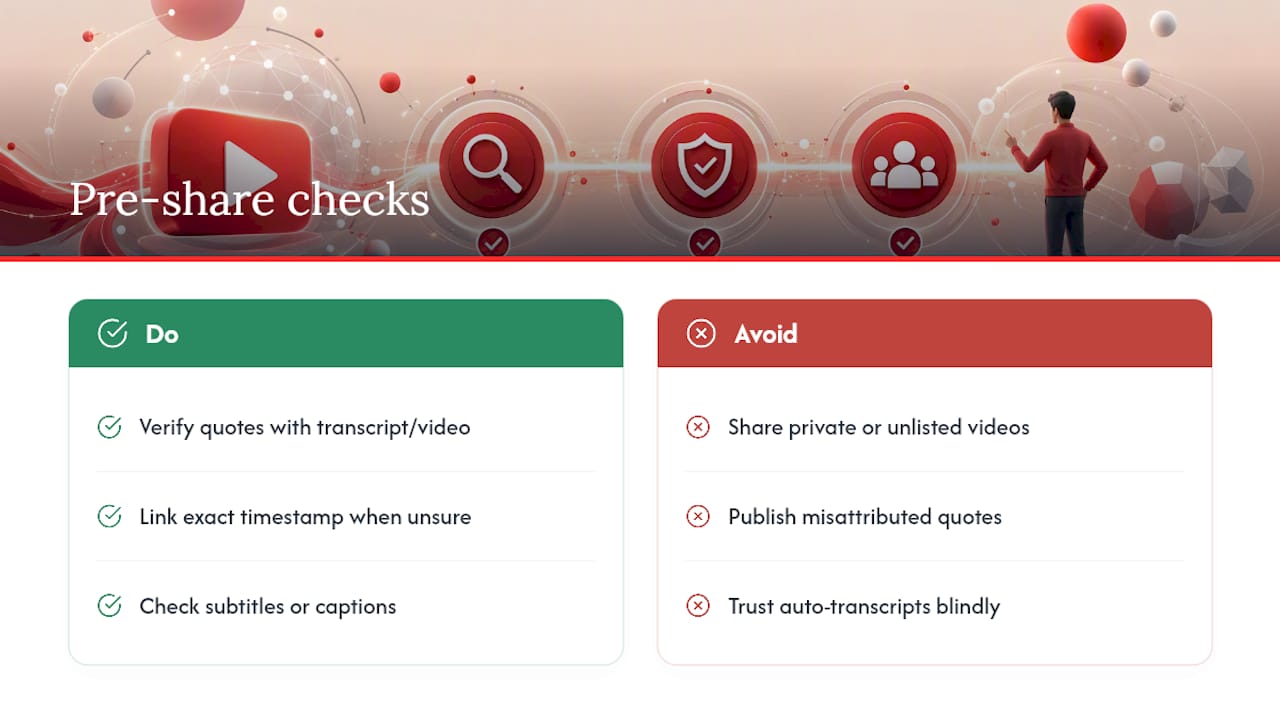
Verify any direct quote against the transcript or the video itself before you publish it as fact. AI-generated summaries occasionally misattribute a line or compress two separate statements into one, and transcripts materially improve quote accuracy precisely because they preserve the original wording.
Be cautious with private or unlisted videos. Summarizing and redistributing content that wasn’t meant for public view can cross both the platform’s terms of service and the creator’s rights, even if your intent is harmless.
Poor audio and missing captions reduce accuracy, and some tools fall back to automatic transcription when captions aren’t available, which helps but isn’t flawless, per Recall’s summarizer documentation. When you’re not fully sure a claim is right, link the exact timestamp so the recipient can check the source themselves instead of taking your word for it.
How Does Baitless Solve the Share-Summary Problem?
Baitless turns a long YouTube video into a summary you can act on in seconds, right inside the browser you’re already using. It highlights what’s actually worth your time and flags what to skip, instead of just compressing the transcript into shorter paragraphs.
Every summary comes with a public shareable URL, a time-stamped transcript, and export options in TXT, Markdown, or PDF, so it fits into whatever workflow you already have, whether that’s a Slack thread or a saved knowledge base. Casual users get 25 free summary credits to start. Once you’re summarizing daily, the subscription tier removes that ceiling for a modest monthly cost.
For deeper technical detail on how transcript extraction and summarization actually work, Baitless covers the mechanics in its transcript summarization guides.
Why Most Advice on Sharing Summaries Misses the Point
Most guides treat “how to summarize” and “how to share” as the same problem. They’re not. Generating a decent summary is table stakes now, half a dozen tools do it competently. The part people get wrong is what happens after the summary exists: nobody adds a verification path, so the recipient either trusts a paraphrase blindly or ignores it entirely.

The fix is boring but effective: a timestamped link earns more trust than a longer summary ever will. If you’re sending a recap to a manager or a client, the two extra seconds it takes to append a timestamp is the difference between “here’s what I think was said” and “here’s exactly where you can check.”
I’d also push back on the instinct to install a new tool for every use case. Pick one extension for your regular workflow, keep a paste-URL app bookmarked for the rare external share, and stop there. The busiest professionals I’d trust with this advice aren’t the ones juggling five summarizer tabs. They’re the ones who made one tool a habit and built a two-line verification step into how they share it.
— Sergio
Try Baitless to Summarize and Share YouTube Videos
Baitless gets you from a two-hour video to a shareable, verifiable summary faster than any manual note-taking process, and the free tier means you can test that claim yourself before paying anything.

Install the extension, open any YouTube video, and generate your first summary using one of your 25 free credits. Prefer not to install anything yet? Paste the URL into the web version instead and get the same output.
Once you have a summary, run the same three-step check every time: confirm the timestamps line up with the moments they claim to cover, verify any direct quote against the transcript, then share the public link or export it as Markdown for your notes. Start with Baitless on your next long video and see how much of it you actually needed to watch.
Sources
- YouTube Summary with ChatGPT & Claude
- Free YouTube Video Summarizer & Transcript Generator | Recall
- TranscriptMagic — YouTube Video Summarizer