
Save Time on Videos With AI Summaries That Skip the Fluff
Save Time on Videos With AI Summaries That Skip the Fluff

Use a timestamped AI summary first, then watch only the clips that matter. That single move is how busy professionals, students, and researchers save time on videos without missing the parts that actually matter.
Here’s the two-minute version:
- Run the video through an AI summarizer that preserves timestamps.
- Scan the TL;DR and key takeaways before touching the play button.
- Jump straight to the two or three clips tied to what you actually need.
- Save or share the timestamped links instead of the whole video.
A 2026 Springer Nature study found students under time pressure consistently reached for summaries over full lectures, and scored better on quizzes when they paired a summary with short targeted viewing. Baitless builds that exact workflow into a Chrome extension, and the free tier includes 25 summary credits, so you can test the approach on your next hour-long video before deciding whether it’s worth a subscription.
Pro Tip: Don’t delete the video tab after reading the summary. Keep it open in the background so jumping to a timestamp takes one click, not a new search.
Key Takeaways
Reading a timestamped AI summary first and watching only the clips it points to cuts video review time from tens of minutes to a handful.
| Point | Details |
|---|---|
| Lead with the summary | Read the TL;DR and key takeaways before pressing play on anything. |
| Use the 4-step workflow | Generate, scan, jump to timestamps, then save or share the clip links. |
| Verify before you cite | Spot-check timestamps and watch clips behind quotes, numbers, or diagrams. |
| Know the failure points | Heavy accents, overlapping speakers, and undescribed visuals weaken summaries. |
| Start with Baitless | The Chrome extension generates timestamped summaries automatically, with 25 free credits to test the workflow. |
Research Behind This Guide
- Automatically generated video lecture summaries improved quiz scores in a controlled student study.
- Springer Nature’s 2026 study on abstractive lecture summarization measured learning gains from video-plus-summary.
Table of Contents
- How to Save Time on Videos: A 4-Step Workflow
- How Do AI Video Summaries Actually Work?
- When Should You Trust an AI Summary vs. Watch the Clip?
- What Are the Best Ways to Get Timestamped Summaries Today?
- Why Baitless Fits This Workflow Best
- Try Baitless Before Your Next Long Video
- Sources
How to Save Time on Videos: A 4-Step Workflow
Cutting a 40-minute video down to 4 minutes of relevant viewing isn’t about watching faster. It’s about deciding what deserves your eyes before you press play. Here’s the sequence that works:
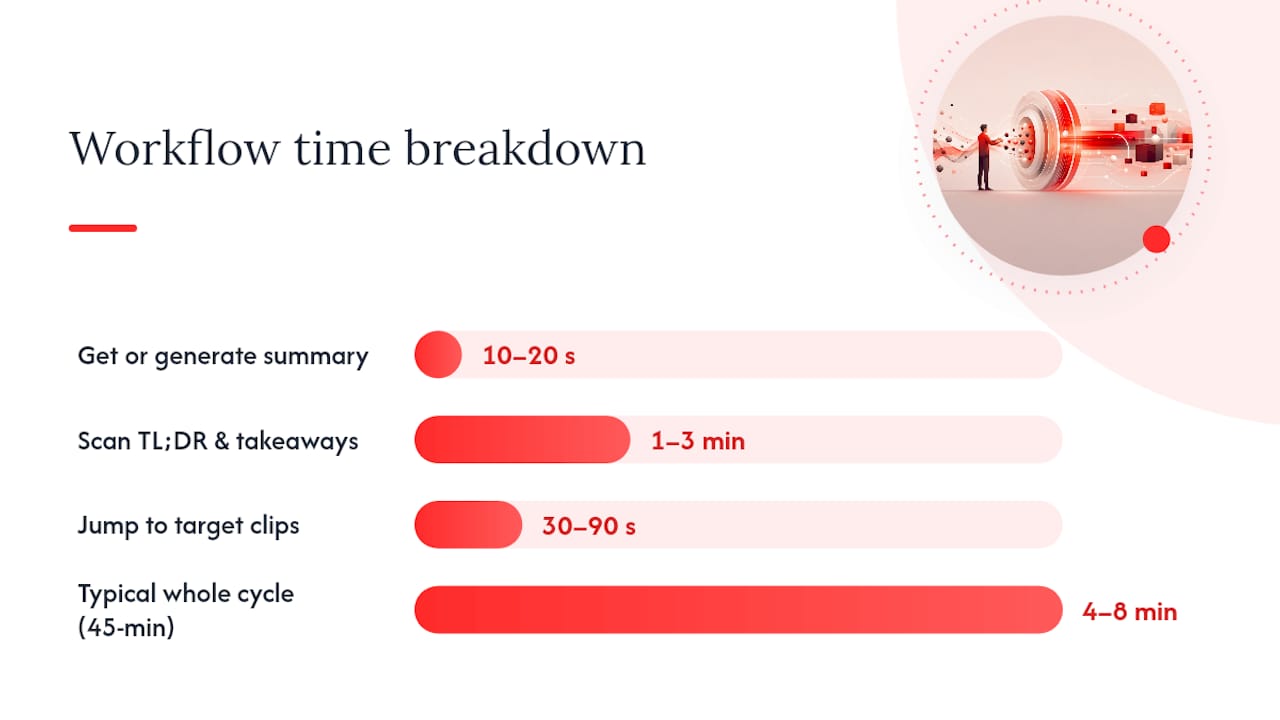
- Get or generate a summary with timestamps. Use a browser extension, a built-in chapter list, or a transcript pasted into an AI tool. Budget 10 to 20 seconds if the summary already exists.
- Scan the TL;DR and key takeaways. This is the highest-leverage step in the entire process. Give it 1 to 3 minutes, longer for dense technical or academic content.
- Jump to the specific clips tied to what you need. Most targeted clips run 30 to 90 seconds. A tutorial demo might need two minutes; a single data point might need fifteen seconds.
- Save or share the timestamp links. Drop them in your notes app, a Slack message, or a shared doc instead of forwarding the full video.
The whole cycle, for a typical 45-minute video, usually lands between 4 and 8 minutes of active attention. That’s not a rounding error. It’s the difference between watching one long video and covering four or five in the same block of time.
Content type changes how you triage. A recorded lecture usually rewards reading the summary’s key-takeaways section closely, since exam-relevant details tend to cluster there. A product webinar rewards jumping straight to the demo timestamps and skipping the introductions and audience Q&A. A tutorial rewards scanning for the exact step you’re stuck on, then watching just that segment at regular speed rather than skimming.
Pro Tip: For webinars specifically, check the summary for a Q&A timestamp marker first. That’s usually where the unscripted, most useful information shows up, and it’s the section generic recaps skip most often.
How Do AI Video Summaries Actually Work?
The pipeline behind a timestamped summary has three moving parts, and understanding them tells you exactly where to double check a claim before repeating it in a meeting.
First, automatic speech recognition (ASR) converts the audio into a raw transcript. Second, that transcript gets split into chunks, each one tagged with the timestamp of where it started in the original video. Third, an LLM or abstractive summarizer reads those chunks and writes condensed, human-readable summaries, then maps each summary point back to its chunk’s original timestamp.
That’s why timestamps survive the whole process. Every chunk carries its start time as metadata from the moment the transcript gets split, so when the summarizer condenses ten minutes of talking into two sentences, those two sentences still point back to the exact moment they came from.
- ASR transcript: raw text with timing data attached to each word or phrase.
- Chunking: breaking the transcript into segments while preserving start times.
- Summarization: an LLM condenses each chunk into a readable point.
- Timestamp alignment: each summary point is linked back to its source moment.
A 2026 study published in Springer Nature’s Technology, Knowledge and Learning journal found that pairing video with an AI-generated abstractive summary produced a measurable jump in post-quiz scores compared to video or summary alone. The researchers also noted that summary quality tracked closely with transcript quality. Poor chunk sizing or messy speaker overlap in the original audio degraded the summary downstream, which is a limitation worth remembering the next time a summary reads a little vague.
When Should You Trust an AI Summary vs. Watch the Clip?
Treat the summary as your map, not your destination. It tells you where to look. It doesn’t replace looking.
Run through this quick verification pass on anything you’re about to cite, forward, or act on:
- Read the transcript headings or chapter markers to confirm the summary matches the video’s actual structure.
- Watch the specific clip behind any quoted number, technical claim, or direct quote.
- Spot check one or two random timestamps against the summary text to catch drift.
- Confirm figures or claims against on-screen slides or captions, since audio-only summarization can’t “see” a chart.
Common failure points are predictable once you know them: heavy accents and overlapping speakers throw off transcription accuracy, and any diagram or slide that isn’t narrated out loud simply doesn’t make it into the summary at all, according to methodology notes from lecture-summarization research.
A summary is a triage tool, not a substitute for the source. That distinction holds especially firm for legal advice, medical claims, or a code walkthrough where the exact syntax on screen is the entire point.
Pro Tip: If a summary feels suspiciously clean on a topic with a lot of nuance, that’s usually a sign the source had visual content the AI couldn’t hear. Go watch that segment.
What Are the Best Ways to Get Timestamped Summaries Today?
You have three realistic paths, and they scale with how often you actually need this.
A Chrome extension is the fastest route for regular use. Baitless generates a timestamped summary the moment you open a video, with no copy-pasting required. Built-in YouTube chapters and auto-transcripts work for a quick manual pass, though they hand you raw text without the condensed key-takeaways layer. A DIY prompt recipe covers the gap when neither option is available: paste the transcript into an LLM with something like, “Summarize this transcript into a TL;DR, 5 to 7 key takeaways, and a list of important moments with their timestamps.” This mirrors the chapter-and-TL;DR structure practical guides recommend for turning long recordings into shareable recaps.
- Install a summarization extension for videos you watch often.
- Use built-in transcripts for one-off videos.
- Fall back to a manual transcript-plus-prompt when a video has no captions and no extension coverage.
On privacy: browser extensions typically process the video’s public transcript, not your personal browsing data, but sensitive or internal recordings deserve a closer look at a tool’s data policy before you upload them anywhere.
Pro Tip: For confidential recordings, check whether the summarizer processes locally in-browser or sends the transcript to a server. That distinction matters more than most privacy policies make obvious.
Why Baitless Fits This Workflow Best
Baitless was built around exactly the sequence covered above. Install the extension, open a YouTube video, and get a timestamped summary automatically, with jump links that drop you straight into the moment you need.
- Automatic summaries with preserved timestamps for every key point.
- One-click jump links instead of manual scrubbing through the timeline.
- Shareable snippets for sending a colleague the two minutes that matter, not the whole hour.
- Works directly in Chrome, no separate app or transcript upload required.
The free tier includes 25 summary credits, enough to test the workflow across a real week of videos. Daily users move to an affordable subscription once those credits run out. Given that industry estimates put AI summarization time savings at up to 25% on review-heavy workflows, even occasional use pays for itself fast.
A quick note on staying disciplined under deadlines
When I have ten minutes before a meeting, I read the summary, note two timestamps, and watch only those clips. I still watch the full video for complex demos or unfamiliar methods where the sequence itself is the lesson.
Try Baitless Before Your Next Long Video
The workflow in this guide only works if the tool behind it is fast, and that’s the whole point of Baitless. Install the extension, open any YouTube video, and get a timestamped summary in seconds instead of scrubbing through the timeline manually.

The 25 free summary credits cover roughly the same testing window most readers need to decide if this workflow sticks. No commitment, no card required to start. Once you’ve run it against a few lectures, webinars, or tutorials, upgrading to a subscription is a one-click decision, not a leap of faith. Add the Baitless Chrome extension now and get your first summary before this article’s next paragraph would have finished loading in a normal video.
Sources
- Making Lectures Accessible: AI-Based Abstractive Summarisation for Video Content | Technology, Knowledge and Learning | Springer Nature Link
- Automatically Generated Summaries of Video Lectures May Enhance Students’ Learning Experience