
Find YouTube Key Moments in Two Minutes for Creators & Viewers
Find YouTube Key Moments in Two Minutes for Creators & Viewers
The fastest way to find key moments on YouTube is to open the video’s chapter bar or transcript and jump straight to the timestamp you need, no full watch required, similar to a detailed Barbie Easter Eggs guide that uses timestamps to point viewers to specific scenes. Viewers can click chapter markers, search a transcript, or use a browser extension that seeks to exact lines. Creators build these key moments by adding timestamps to the description or letting AI tools like Baitless detect and export the best clips automatically.
TL;DR:
- Using chapters, transcripts, or browser extensions allows viewers to locate key moments in videos without full viewing, saving time and effort.
- Properly formatted timestamps and descriptive titles help creators improve navigation and aid Google in surfacing relevant segments in search results.
- Automated detection tools, including transcript-based and multimodal options, assist creators in identifying key moments at scale, though with varying accuracy.
- Clipping high-retention moments with strong hooks and consistent tagging boosts engagement and helps maximize video reach across platforms.
- Viewer-focused tools like Baitless can summarize long videos and identify valuable segments, facilitating faster consumption and efficient content repurposing.
Table of Contents
- What Are Key Moments on YouTube, and How Does Google Use Them?
- How Do You Locate Important Scenes as a Viewer?
- How Do You Add Timestamps and Chapters to Your Video?
- Which Tools Automatically Detect Key Moments for You?
- How Do You Turn Detected Moments Into Views?
- Why Fast Key-Moment Tools Actually Matter
- Try Baitless to Skip the Scrubbing Entirely
- Sources
What Are Key Moments on YouTube, and How Does Google Use Them?
A key moment is a labeled timestamp inside a video, whether that’s a chapter title in the player’s progress bar, a clickable timestamp list in the description, or a snippet Google pulls into search results. YouTube displays chapters as gray segments on the scrubber once a creator formats the description correctly, and clicking any segment jumps the playhead there instantly.
Behind the scenes, Google’s video structured data guidance describes a keyMoment property that helps search engines match specific timestamps to specific queries. That’s why searching a phrase sometimes returns a video result with a jump link straight to the relevant second, not just the homepage of a 40-minute upload.
Not every video benefits equally. Chapters do the most work on:
- Long-form tutorials with distinct steps
- Interviews or podcasts with topic shifts
- Lectures, product reviews, or webinars with a clear agenda
A five-minute vlog rarely needs them. A 90-minute panel discussion almost always does.
How Do You Locate Important Scenes as a Viewer?
You don’t need to watch a two-hour video to find the ten seconds you actually care about. Three tools handle almost every situation.
- Use the chapter bar or description timestamps. If the creator added them, you’ll see labeled segments under the video or a list of clickable times in the description. One click, and you’re there.
- Open the transcript and search it. Click the three-dot menu below the video, select “Show transcript,” then use your browser’s find function (Ctrl+F or Cmd+F) to search for a word or phrase. Clicking any line jumps the video to that exact second.
- Try a transcript-search extension. Tools built for this, like the Find in Video browser extension, let you search inside any captioned video and copy timestamps without opening the native transcript panel first.
If Google itself surfaces a key moment in search results, clicking that timestamp opens the video and seeks to the exact second, no manual scrubbing needed.
Pro Tip: When a video has no chapters and no useful transcript formatting, search for a distinctive phrase the speaker likely said out loud rather than a topic word. Transcripts catch spoken language far more reliably than visual context.
How Do You Add Timestamps and Chapters to Your Video?
YouTube auto-generates chapter markers once your description follows a strict format. Get the format wrong and nothing shows up in the player.
The rules that trip people up most: your first timestamp must start at exactly 0:00, you need at least three timestamps, and each chapter must run at least 10 seconds. Timestamps have to appear on their own lines, in ascending order, formatted as 0:00 or 1:23:45 for longer videos.
Here’s the actual workflow:
- Sign into YouTube Studio and open Content
- Select the video you want to edit
- Open the description field and add your timestamp list, starting at 0:00
- Give each chapter a short, descriptive title, not a vague label like “Part 2”
- Save the changes and reload the video’s public page to confirm the chapter bar appears
A few habits separate clean chapters from broken ones. Write titles that describe what’s actually said, since descriptive, keyword-aware chapter titles also help Google index multiple entry points into the same video. Keep captions synced so screen-reader users get the same navigation benefit. Some creators also repost the timestamp list in a pinned comment as a backup.
Pro Tip: If chapters aren’t showing up after you save, check for a stray space before the timestamp or a missing 0:00 entry. Those two errors cause more failed chapter bars than anything else.
Which Tools Automatically Detect Key Moments for You?
Manual timestamping works, but it doesn’t scale if you’re publishing several long videos a week. That’s the gap automatic detection fills.
Official detection is limited. YouTube itself doesn’t reliably auto-chapter most uploads. Third-party tools fill the gap in two ways: transcript-only detectors that scan spoken language for topic shifts, and multimodal tools that also analyze on-screen visuals and audio cues. MomentClip’s approach works essentially like Ctrl+F for video, indexing the transcript so you can query it directly instead of scrubbing manually.
A typical automated workflow looks like this:
- Paste the video URL into the tool
- The tool extracts the transcript
- It detects topic or scene shifts and ranks candidate moments
- You get a list of timestamps with surrounding context, ready to review or export
The trade-off matters. Transcript-only tools are fast and cheap to run, but they miss anything communicated purely visually, like a chart, a facial reaction, or an on-screen demo with no narration. Multimodal tools that also analyze frames catch that content, but usually take longer to process a full video. One demo project, Momentum, pairs scene detection with transcript indexing specifically to let you search by what’s shown on screen, not just what’s said.
Pick your tool by your goal: transcript search for a quick quote hunt, a full detection pipeline feeding a clip generator when you’re repurposing for Shorts or TikTok.
How Do You Turn Detected Moments Into Views?
Finding a good moment is only half the job. Getting it in front of people is the other half.
- Pick moments with a hook, not just information. Look for a strong opening line, a complete idea that stands alone, a quotable statement, or a spike on your audience retention graph in Studio.
- Trim it tight. Cut to the moment, add a caption for silent autoplay viewers, and format vertically for Shorts, Reels, or TikTok.
- Check retention data before mass posting. A moment that spikes retention in Studio analytics is a far safer repurposing bet than one you simply liked while editing.
- Schedule for consistency. One strong clip a week beats five mediocre ones dumped the same day.
Pro Tip: Cross-reference your chapter titles with the exact phrases your audience searches for. Keyword-aware, consistent chapter titles do double duty, they help viewers navigate and help Google surface your video for more queries.
Why Fast Key-Moment Tools Actually Matter
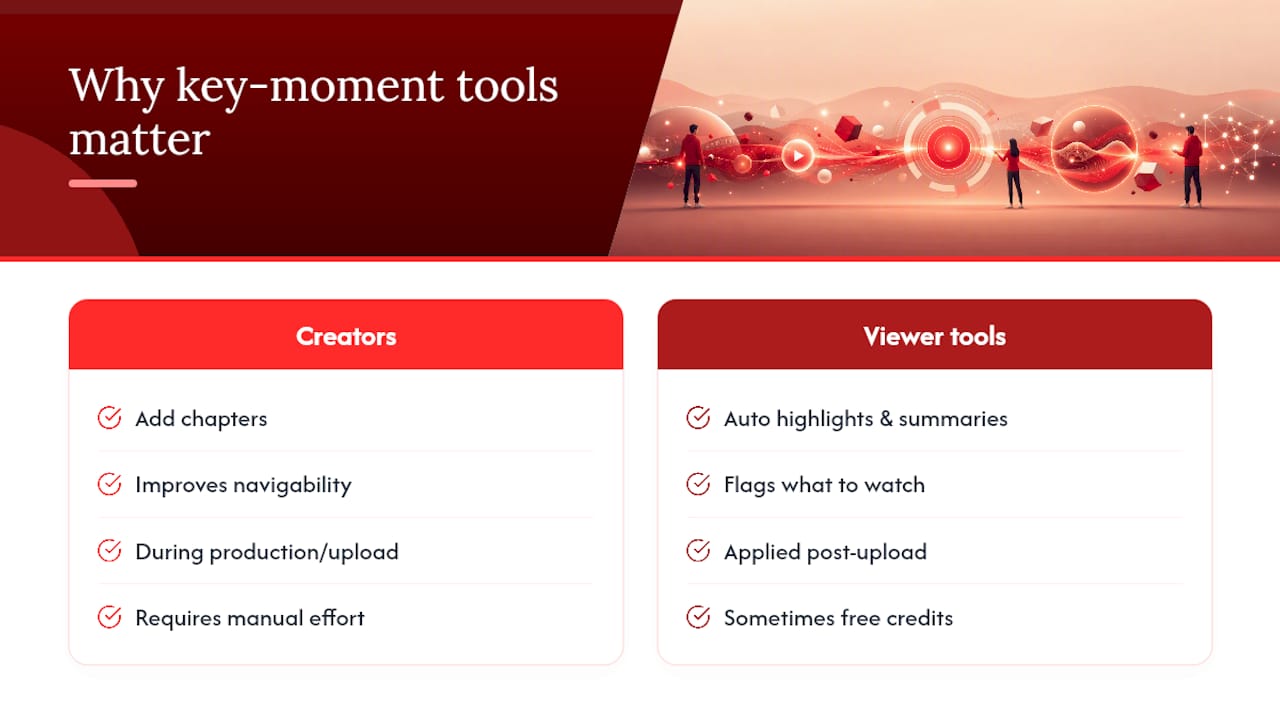
I’ve spent enough time inside YouTube Studio dashboards and transcript exports to notice a pattern: creators obsess over production value and almost ignore navigability, even though navigability is what determines whether a viewer sticks around past the first two minutes. A perfectly shot video with no chapters and a wall-of-text description is functionally the same as a locked filing cabinet.
Some tools approach this from the viewer’s side of that same problem, turning videos into summaries that flag what to watch and what to skip, sometimes backed by free starter credits. That’s not a replacement for good chaptering, it’s the other half of the equation: what happens when a video doesn’t have good chapters.
— Sergio
Try Baitless to Skip the Scrubbing Entirely
If you’re a viewer drowning in long uploads, or a creator who wants to know which moments in your own back catalog are worth clipping, Baitless turns the guesswork into a two-minute read instead of a two-hour watch. The Chrome extension generates a concise summary of any YouTube video and flags the moments actually worth your attention, no manual transcript searching required.

Some services offer a free tier with a limited number of summary credits suitable for casual use, and paid plans for users needing higher volumes. For deeper workflow ideas, Baitless’s guide on finding highlights on YouTube walks through more repurposing angles, and the transcript extraction tag covers copying timestamps for your own projects. Install the extension, paste in a video you’ve been avoiding, and see what you’d have missed by watching the whole thing.
Sources
- YouTube Help — Add chapters to your video
- Video structured data | Google Search Central
- Find in Video — Search YouTube (browser extension listing)
- How to timestamp YouTube videos and create Key Moments — Yoast
- MomentClip — Ctrl+F for YouTube videos