
How to Find Highlights on YouTube in Seconds
How to Find Highlights on YouTube in Seconds

YouTube highlights show up in three places: chapter labels on the timeline, small markers along the progress bar, and, for a limited slice of users, an AI-generated Highlights carousel in search results. To find highlights on YouTube fast, hover over the progress bar first, then check the description and pinned or top comments for timestamps, then search the transcript if one exists.
Not every video has this. Millions of uploads carry zero timestamps, no chapters, and no transcript worth reading, according to extension documentation for timestamp-parsing tools. That’s exactly when an automated summarizer earns its keep, since it can build highlights from the audio itself instead of waiting on the creator.
- Hover the progress bar for a preview thumbnail and chapter markers.
- Scroll the description and top comments for “0:00”, “1:23” style timestamps.
- Open the transcript panel (three dots below the video, “Show transcript”) and search by keyword.
- If none of that works, run the video through a summarizer that transcribes audio directly.
Key Takeaways
Highlights on YouTube depend on creator effort or automated processing. Neither the platform nor its search features guarantee they’ll exist on every video.
| Point | Details |
|---|---|
| Check the player first | Hover the progress bar, look for chapter divisions, and scan the description and comments for timestamps. |
| Use the transcript | Open “Show transcript” and search by keyword to jump straight to a specific moment. |
| Creators must build highlights | Chapters and stream markers require manual creator input; YouTube doesn’t generate them automatically. |
| Automated tools fill the gap | Transcript-based summarizers work even without creator captions, unlike timestamp-parsing extensions alone. |
| Baitless handles the missing cases | Its Chrome extension generates timestamped highlights and a TL;DR, with 25 free credits and a subscription for daily use. |
Table of Contents
- How to Find Highlights on YouTube in a Video You’re Watching
- How Do Creators Add Highlights to Their Videos?
- Automated Tools for Videos With No Timestamps
- Why Highlights Sometimes Won’t Load (and Quick Fixes)
- Naming and Organizing Your Own Highlight Clips
- YouTube’s Built-In Highlights vs. Third-Party Tools
- How Creators Learn Which Moments Viewers Actually Care About
- When Highlights Are Enough, and When They’re Not
- Try Baitless to Generate Highlights Instantly
- Frequently Asked Questions
- Sources
How to Find Highlights on YouTube in a Video You’re Watching
Most videos with any structure at all use chapters. You’ll spot them as a segmented timeline with small vertical divisions, and the section titles appear when you tap the gear icon or expand the description panel. Click any chapter title and the video jumps straight there. It’s the single fastest way to skip a 40-minute tutorial and land on the seven minutes you actually need.
Here’s the full sequence, in order of how most people actually find highlights:
- Check the timeline for chapter divisions. If the progress bar has visible segment breaks, chapters exist. Click a segment to jump.
- Hover without clicking. A tooltip preview appears over the progress bar on desktop, showing a thumbnail and sometimes a label for that moment.
- Look for the Highlights tab or AI overview. YouTube has been testing AI-generated overviews and a Highlights carousel directly in search results, though access is limited and tied to specific rollouts rather than available to every account.
- Open the transcript. Click the three-dot menu under the video, select “Show transcript,” then use Ctrl+F (or Cmd+F) to search for a word or phrase. Clicking any line in the transcript jumps the video to that second.
- Read the description and comments. Creators and viewers often manually list timestamps like “12:45 — the part everyone asks about.” Clicking a properly formatted timestamp link jumps you there automatically, since YouTube auto-converts
t=links and MM:SS text into clickable jumps.
Pro Tip: You can build your own jump link by adding &t=125s to any YouTube URL, where 125 is the second mark. Paste that into a note or a message and it opens right at that moment, no editing required.
The transcript search trick is the one most people skip, and it’s often the most reliable. Chapters require creator effort. Comments require someone else’s effort. A transcript exists on nearly every video with captions, whether auto-generated or uploaded, which makes it your best fallback when the timeline looks blank.
How Do Creators Add Highlights to Their Videos?
YouTube doesn’t generate highlights on its own. If a creator never adds chapters or markers, no highlight system kicks in to fill the gap, no matter how popular the video gets. Highlights are a feature creators have to build in, not something that appears automatically once a video crosses some view threshold.
For live streams, the process runs through stream markers. Here’s how it works, based on YouTube’s own support documentation:
- Add stream markers while live. During a live broadcast, click the marker icon in YouTube Studio to flag a moment as it happens (a big play, a key announcement, a funny bit).
- Open YouTube Studio after the stream ends. Go to the video, then find the Create Highlight tool.
- Trim around the marked moments. The editor lets you select a shorter segment built around those markers to publish as a standalone highlight clip.
- Publish the highlight separately or keep it attached. Creators can post it as its own video or leave it as a segment reference on the original.
For regular uploads, chapters work differently: edit the description after publishing and add timestamps in HH:MM:SS - Title format, one per line, starting at 0:00. YouTube reads that formatting and builds the chapter bar automatically. Consistent labeling (not “part 2” but an actual description like “setup walkthrough”) makes chapters far more useful for search and for viewers scanning fast.
Automated Tools for Videos With No Timestamps
A huge share of YouTube’s catalog has no chapters, no marked comments, and no transcript worth reading manually. That’s the gap automated tools fill, and they split into two rough categories.
Timestamp-parsing extensions scan the description and top comments, then render small markers right on the player’s progress bar so you can see where community-flagged moments sit. They’re fast and lightweight because they’re just surfacing text that already exists, using browser extensions built for exactly this. The catch: if nobody left a timestamp in the first place, the extension has nothing to show.
AI summarizers go a level deeper. They transcribe the actual audio, then extract a TL;DR, key points, and a chapter-style breakdown, which means they work even on videos where creators never uploaded captions. Accuracy varies by language and audio quality, and some tools charge per video or limit free use.
This is where Baitless fits. It’s a Chrome extension built specifically to turn a two-hour video into a scannable breakdown of what to watch and what to skip, with jump links to the moments that matter. The free tier includes a limited number of summary credits, enough for casual use, and a subscription tier covers daily viewers who need summaries constantly rather than occasionally.

Why Highlights Sometimes Won’t Load (and Quick Fixes)
Before assuming something’s broken, check the obvious cause first: the video simply has no timestamps. That’s the most common reason highlights don’t show up, not a bug.
- No creator timestamps. Nothing in the description or comments means no clickable markers, full stop.
- Captions disabled or missing. Tools relying on caption files fail here; tools that transcribe audio directly still work.
- Private or unlisted videos. Some summarizers and extensions can’t access restricted content at all.
- Extension conflicts. Two timestamp tools running at once can override each other’s markers or freeze the player.
Pro Tip: If markers vanish or the page feels sluggish, disable other YouTube extensions one at a time before reinstalling anything. It’s usually a conflict, not a broken tool.
Before installing any new extension, glance at its permissions. Anything asking for full access to “read and change all your data on all websites” for a tool that only needs YouTube access is worth skipping.
Naming and Organizing Your Own Highlight Clips
Once you start clipping your own highlights, whether for research, content creation, or just a personal library of “watch this part again” moments, sloppy naming turns into a mess fast. A folder full of files called “clip1,” “clip2,” and “final_final” is useless six months later.
Build names around three things: source, topic, and timestamp. Something like EarningsCall_Q3_Guidance_14-22 tells you instantly what it is without opening it. If you’re saving links instead of downloaded files, the same logic applies to bookmarks: a browser folder named by project or topic, not by date, holds up better over time because you rarely remember when you saved something, but you almost always remember what it was about.
For timestamp links specifically, keep a simple running document, a spreadsheet, a notes app, whatever you already use, with three columns: video title, link with the t= parameter baked in, and a one-line reason you saved it. That third column matters more than people expect. Six weeks later, “13:40 for the tax deduction example” is far more useful than a bare link with no context.
If you’re organizing highlights for a team or a shared project, tag by use case rather than by video. “Client-ready examples,” “internal training,” and “competitor research” as folder names will get used. Folders named after individual video titles won’t, because nobody remembers which video had the thing they need.
Batch your clipping sessions too. Watching a video once and clipping five moments as you go beats going back three separate times to grab one moment each. It also keeps your naming consistent, since you’re in the same mental context for the whole batch instead of guessing what past-you meant by “important part” a week later.
YouTube’s Built-In Highlights vs. Third-Party Tools
YouTube’s native highlight features (chapters, stream markers, the experimental Highlights carousel) depend entirely on the creator or on a staged platform rollout. Chapters only exist if someone typed timestamps into the description. The AI-generated overview and Highlights carousel YouTube has been testing show promise, but rollout has been limited and inconsistent across accounts, so you can’t count on it appearing for every video or every viewer.
Third-party tools solve a different problem: they generate highlights for videos that never had any built in. Timestamp extensions surface what’s already buried in comments. Transcript-based summarizers go further and build a breakdown from scratch, working off the audio track itself rather than waiting for a caption file, which is why they hold up even on older uploads and livestream replays that lack clean captions.
The practical difference comes down to dependency. Native YouTube features depend on the creator doing the work upfront or on a feature test reaching your account. Third-party tools depend on the tool’s own processing, which means more consistent access but variable accuracy depending on audio clarity and language. Neither approach is universally better. Chapters a creator built by hand will almost always be more precise than an AI guess, because the creator knows their own content. But for the mountain of videos with zero creator effort put into structure, a summarizer is often the only option that produces anything useful at all.
How Creators Learn Which Moments Viewers Actually Care About
YouTube Studio’s audience retention graph is the most direct signal creators have for figuring out what people consider a highlight. Sharp spikes in the graph, sudden jumps upward after a dip, usually mean viewers rewound to rewatch something. Sustained drop-offs mean the opposite: that section lost people.
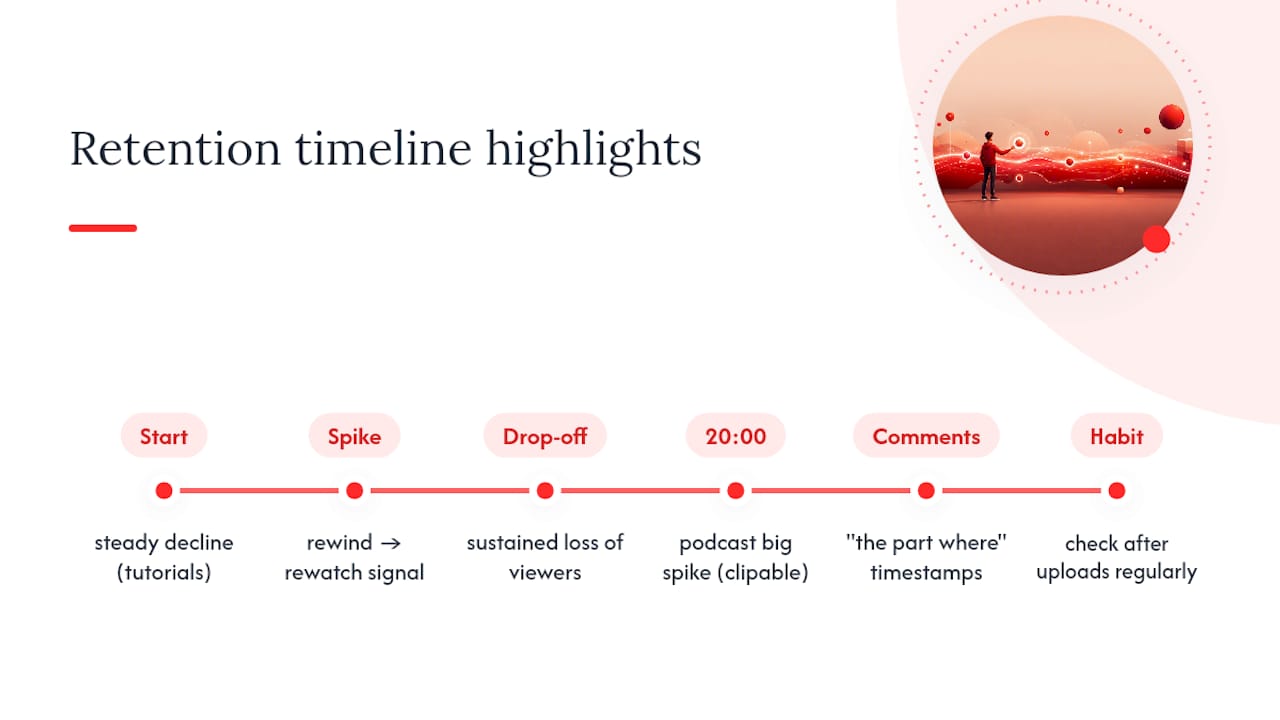
Retention data reads differently depending on video type. A tutorial with a steady decline probably has a pacing problem early on. A podcast-style video with one big spike near the 20-minute mark is telling you that’s the clip worth cutting for social media or worth chaptering separately, since that’s the section people cared enough to revisit.
Comments matter here too, even outside the timestamp-hunting habit some viewers have. If dozens of comments reference “the part where,” creators have a built-in signal for where the next highlight or chapter marker should go. Cross-referencing that against the retention graph confirms whether the audience’s stated favorite moment matches their actual rewatch behavior, and sometimes it doesn’t, which is its own useful data point.
Creators who treat retention analytics as an ongoing habit, checking after every upload rather than once a quarter, tend to get sharper at predicting which moments will spike before they even publish. That instinct doesn’t replace the data, but it starts to run ahead of it.
When Highlights Are Enough, and When They’re Not
Highlights are great for quick validation: deciding whether a video’s worth your time, pulling a specific number or quote, or skimming five tutorials before picking one to watch fully. Note-taking and research benefit the same way.
Full playback still wins when tone, sequence, or nuance changes the meaning. A summary can flatten a caveat or miss sarcasm. Speed helps most when accuracy isn’t on the line.
Try Baitless to Generate Highlights Instantly
Baitless is the option when the video you’re staring at has no chapters, no timestamps in the comments, and no patience left in you to scrub through it manually. Instead of hunting for markers that might not exist, you get a timestamped breakdown, a short TL;DR, and jump links straight to the moments worth your time, generated in seconds from the video itself.

The free tier gives you 25 summary credits, plenty for occasional use without committing to anything. If you’re pulling summaries daily, whether for research, content review, or just keeping up with a crowded subscription feed, the subscription tier removes the credit ceiling entirely. Install the Baitless extension and run it on the next long video sitting unwatched in your tabs. That’s the fastest way to find out if it fits how you actually watch YouTube.
Frequently Asked Questions
Does every YouTube video have highlights or chapters? No. Chapters and timestamps only appear if the creator added them, or if a viewer left them in the comments. Plenty of videos have neither.
What’s the fastest way to find highlights on YouTube without extra tools? Hover the progress bar for chapter markers, then check the description and top comments for timestamps, then search the transcript if those come up empty.
Can I jump to a specific second in any YouTube video?
Yes. Add &t= followed by the number of seconds (or 1h2m3s format) to the end of any YouTube URL, and it opens right at that mark.
Why doesn’t YouTube’s Highlights tab show up for me? YouTube’s AI-generated overviews and Highlights carousel are still in limited testing and not available to every account.
What should I do if a video has no captions at all? Use a summarizer that transcribes audio directly rather than relying on caption files, since those tools can still generate a breakdown when no captions exist.
Sources
- Create a highlight - YouTube Help
- YouTube Search gets its own AI overviews, but access is limited | PCMag
- YouTube Video Summarizer — Summarize Any YouTube Video with AI Free | TranscriptMagic
- Free YouTube Video Summarizer & Transcript Generator | Recall