
25 Free Credits: Efficient Video Research for Busy Pros & Students
25 Free Credits: Efficient Video Research for Busy Pros & Students

The fastest way to research a YouTube video is to pull the transcript and feed it to an AI with a targeted prompt, or use a one-click summarizer like Baitless that returns a TL;DR, key bullets, and clickable timestamps in under a minute. Save the full watch for videos where tone, visuals, or exact phrasing genuinely matter.
TL;DR:
- Using transcript extractors combined with AI prompts provides a quick, reliable way to summarize videos without watching them.
- One-click tools like Baitless instantly generate chaptered summaries, timestamps, and key points, saving hours on long videos.
- For citation purposes, manually verify quotes at the exact transcript moments, especially when captions are auto-generated or unclear.
- Chunking long videos into sections and summarizing each improves accuracy and preserves nuance for detailed research.
- Baitless offers a free trial with limited credits, ideal for testing workflows on multiple videos before subscribing for ongoing use.
Table of Contents
- What are the fastest methods for efficient video research?
- Which step-by-step workflow fits your research task?
- What prompts and templates work best for video summaries?
- How do you pick the right tool for your video research?
- How does Baitless fit into these workflows?
- A researcher’s honest take on where summaries fall short
- Try Baitless free and see the workflow in under a minute
- Sources
What are the fastest methods for efficient video research?
Three approaches cover almost every research situation, and picking the right one comes down to how much verification the task demands.
- Transcript plus AI prompt. Pull the transcript through a free extractor, paste it into an LLM like ChatGPT or Claude, and ask for a structured breakdown. It costs nothing but a few minutes and works on nearly any video with captions.
- One-click extension. Tools built specifically for this job, including Baitless, skip the copy-paste step entirely. You get a summary, a what-to-watch-versus-skip breakdown, and clickable timestamps without leaving the video page.
- Hybrid manual verification. For anything you plan to cite or quote, treat the summary as a lead, not a source, and check the exact language against the transcript before you use it.
The transcript-plus-AI method is reliable because it works from the video’s actual spoken content rather than a visual guess, and a solid version of this workflow can summarize a video in roughly 60 to 90 seconds. One-click extensions add real value on long-form content: a two-hour interview or lecture that would take you the better part of an afternoon to skim gets reduced to a chaptered outline in seconds, since these tools return timestamped chapters and clickable jump points rather than a flat wall of text.
Manual verification matters most when a video’s captions are auto-generated and messy, or when you’re extracting a direct quote for a paper, article, or brief. A summarizer built on garbled captions will sometimes smooth over an error instead of flagging it, so treat any output built on weak captions as a starting point rather than a citation-ready answer.
Which step-by-step workflow fits your research task?
Match the workflow to the job. A 40-minute panel discussion doesn’t need the same treatment as a two-hour conference keynote you’re citing in a report.
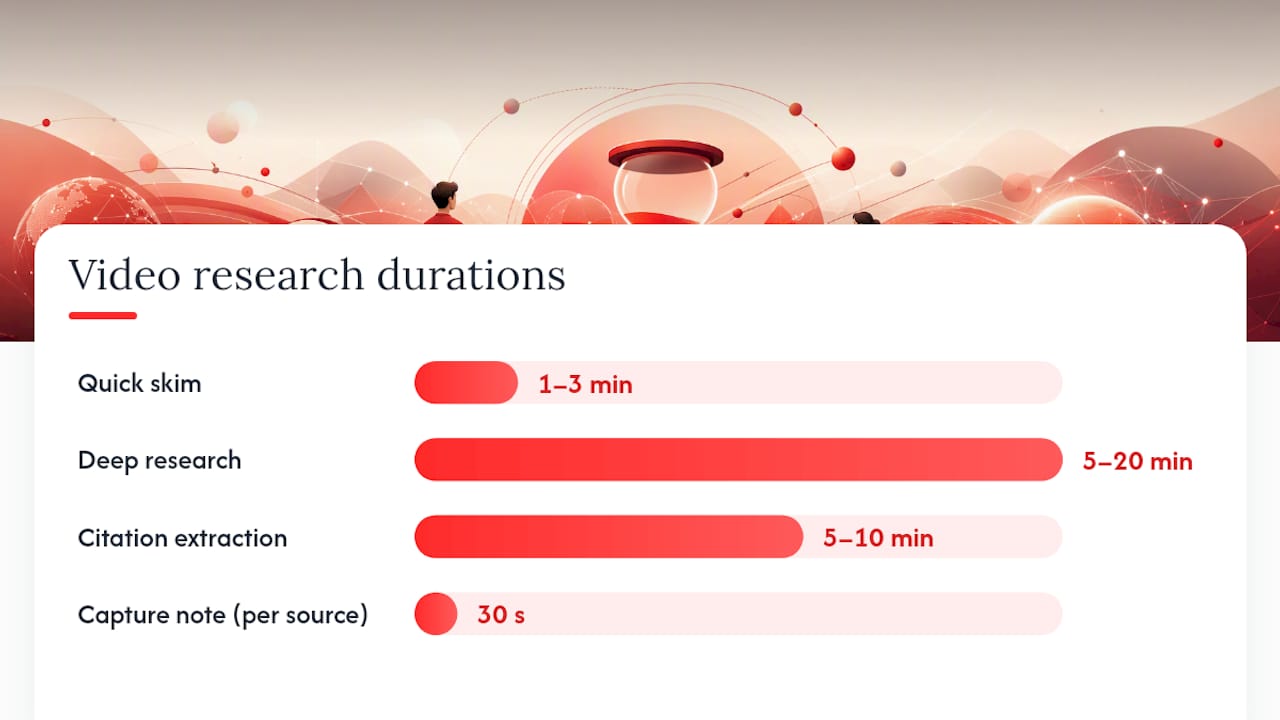
Quick skim (60 to 180 seconds). Run the transcript through an LLM or a one-click tool, request a 2-sentence overview and 5 bullet points, and decide whether the video earns a full watch. This is the right call for most videos that land in your feed with vague promise.
- Pull the transcript or open the summarizer.
- Request a short summary and 3 to 5 key bullets.
- Skim the bullets and timestamps to decide: watch, skip, or save.
Deep research (5 to 20 minutes). For lectures, interviews, or product reviews you’ll cite later, break the video into logical chunks (intro, main argument, examples, conclusion) and summarize each section separately rather than the whole transcript at once. Long transcripts lose nuance when compressed into a single pass, so chunking by chapter or by natural topic shift keeps the AI’s output sharper.
- Get chapter or topic breaks from the tool’s timestamps.
- Summarize each chunk with a focused prompt (see the next section).
- Cross-check any surprising claim against the transcript at its timestamp.
- Save the combined summary to a notes app or research folder.
Citation extraction (5 to 10 minutes). When you need an exact quote, locate the approximate timestamp from the summary, jump to that point in the transcript, and copy the surrounding sentence verbatim. Never quote directly from an AI-generated bullet. Paraphrased summaries drift from the speaker’s actual wording more often than people expect, and a misquote in a published piece is a credibility problem you don’t want.
Pro Tip: Keep a running document with the video title, link, timestamp, and quote for every source you cite. It takes 30 extra seconds per entry and saves you from re-watching a two-hour video three weeks later just to find one sentence.
What prompts and templates work best for video summaries?
A vague prompt gets a vague summary. Specificity about format and focus turns a generic AI summarizer into something closer to a research assistant, since targeted follow-up prompts consistently improve the usefulness of the output. Keep these three on hand:
- Short summary prompt: “Summarize this transcript in a 2 sentence overview, followed by 5 bullet points covering the main claims. Note any timestamps mentioned in the transcript.”
- Focused extraction prompt: “From this transcript, list only the sections that discuss [specific topic, e.g., pricing, product features, methodology]. Ignore tangents and small talk.”
- Timestamp mapping prompt: “Break this transcript into 4 to 6 sections by topic. For each section, give a one-line description and estimate the timestamp range based on transcript position.”
- Follow-up prompt: “Based on the summary above, what claims would need verification against the original source before I cite them?”
Save these in a notes app and reuse them across videos. Consistent prompts also make it easier to compare summaries across a batch of related videos when you’re working through a research queue.
How do you pick the right tool for your video research?
Not every summarizer handles every video well, and the differences show up fastest on long or technical content. Run through this checklist before you commit to a tool for a research project:
- Transcript fidelity: Does it use the video’s official captions, or does it auto-transcribe audio? Official captions are almost always more accurate, especially for technical vocabulary or accents.
- Timestamp precision: Are the timestamps clickable and do they jump to the right moment, or just approximate ranges?
- Export options: Can you pull the summary into Markdown, a notes app, or a document, or is it locked inside the tool?
- Language support: Does it handle the video’s spoken language, and does it summarize in your preferred output language?
- Cost structure: Free credits work for occasional use; a subscription makes sense once you’re summarizing multiple videos a week.
- Privacy: Does the tool need account access beyond the browser extension, and does it store your history in a way you’re comfortable with?
How does Baitless fit into these workflows?
Baitless is built around the quick-skim and first-pass deep-research workflows above. Install the Chrome extension, open a YouTube video, and it returns a one-click summary with a clear what-to-watch-versus-skip breakdown and clickable timestamps, no transcript copy-pasting required. The free tier includes 25 summary credits, enough to test the workflow across a handful of real videos before deciding whether it’s worth a subscription.
For quick skims, Baitless replaces the entire transcript-plus-prompt process. For deep research, it gives you a fast first pass. Anything you plan to quote or cite still deserves a check against the original transcript at the flagged timestamp. That step takes a minute and it’s the difference between a research shortcut and a research mistake.
A researcher’s honest take on where summaries fall short
Summaries are excellent at compressing information and terrible at preserving tone, hesitation, and qualifiers, which is why tools that turn Zoom calls into transcripts and summaries are invaluable for reducing cognitive load. A speaker who says “this might work in some cases” often gets flattened into a confident bullet point that reads like a guarantee. That’s not a tool failure so much as a compression problem. Something has to get lost when 40 minutes becomes five bullets.

My rule: if a claim in the summary would change a decision or show up in something I publish, I jump to its timestamp and listen to 30 seconds of surrounding audio. That single habit catches most of the nuance that a bullet point strips out.
Professionals who research video regularly tend to build a searchable library of saved summaries rather than starting from scratch each time. Tag them by project or topic, and a video you summarized three months ago becomes reusable evidence instead of another rewatch.
— Sergio
Try Baitless free and see the workflow in under a minute
Baitless is built for exactly the problem this article walks through: too many long videos, not enough time to watch them all. Open any YouTube video, click the extension, and you’ll have a summary with clickable timestamps before your coffee gets cold. The free plan gives you 25 credits, enough to test it against a real backlog of videos you’ve been meaning to get to.

If you summarize video regularly for work, research, or content creation, the paid plan removes the credit ceiling and adds features built for daily use. Either way, the best way to know if it fits your workflow is to try it on the next long video sitting in your watch-later list. Get started with Baitless and run your first summary today.
Sources
- What Is AI Summarization? Benefits and Uses | Slack
- How to Summarize a YouTube Video for Free (Without Watching It) | YTTranscript Blog