
Choose Which Videos to Watch in 3–5 Minutes for Busy Professionals
Choose Which Videos to Watch in 3–5 Minutes for Busy Professionals

Skip the guesswork: an AI-generated summary with timestamps and chaptered key points turns a two-hour video into a three-minute decision. Read the overview, jump to one or two flagged moments, then commit to watch, skip, or save. Baitless builds this exact workflow into a free Chrome extension, with 25 starter credits that cost nothing to try.
TL;DR:
- Summaries often include chapter segments with visuals, timestamps, and key quotes, which help identify valuable content quickly, especially when visuals are relevant.
- Accurate decision-making relies on careful triage using overviews, chapter thumbnails, and quick clips, with flags raised if transcripts are garbled or charts are missing.
- Transcription errors and missing visuals can cause summaries to misrepresent content, so cross-checking quotes against the raw transcript or original clip is essential.
- The Baitless Chrome extension automates this process, offering free credits for short videos and paid plans for frequent use, ideal for research, learning, or professional monitoring.
- Pairing summaries with brief re-watches of flagged chapters deepens understanding and helps retain key ideas.
Table of Contents
- What Does an AI Video Summary Actually Give You?
- How Do You Use a Summary to Decide What to Watch?
- When Do Video Summaries Get It Wrong?
- How Do You Set Up This Workflow With Baitless?
- Curating a Watch-Later List That Actually Works
- Try Baitless Free and Start Triaging Today
- Sources
What Does an AI Video Summary Actually Give You?
A good summary is not a paragraph that vaguely describes a video. It is a navigation layer built from the transcript itself, and it usually includes five distinct pieces.
- Timestamped transcript. The full spoken text, searchable and tied to exact moments in the video, so you can jump straight to a claim instead of scrubbing the progress bar.
- Chapter-like segments. The video broken into topic blocks, each with a title, a thumbnail, and a one-to-three sentence summary of what happens there.
- Short overview. A quick synopsis at the top, often three to five sentences, that tells you whether the whole video is even worth opening.
- Key quotes or takeaways. Pulled statements or bullet points that surface the strongest claims without you reading the entire transcript.
- Visual cues. Thumbnail frames per chapter, which matter enormously when the content involves a slide deck, a whiteboard, or on-screen code.
That last point separates a decent summarizer from a superficial one. Audio-only pipelines translate speech into text and stop there. Multimodal systems combine audio and visual signals to catch the moments where a chart or diagram carries the real information, which is exactly the design choice behind FastPerson’s video summarization approach. Skip that visual layer and you can lose the one segment that actually mattered.
Turnaround time matters too. A short clip processes in seconds. A dense 60 to 120 minute lecture or panel discussion typically takes longer, since the system has to transcribe, chapter, and condense a much larger amount of speech. Long-form educational videos also tend to carry more substance per minute than short clips, according to a study of 623 YouTube videos comparing engagement by format, which is exactly why they’re worth summarizing carefully rather than skipping outright.
How Do You Use a Summary to Decide What to Watch?
This is the part most people skip, and it’s the part that actually saves time. Reading a summary without a decision process just means you’ve read a summary; you still have not decided anything. Here’s a four-step routine that takes three to five minutes for most long videos.
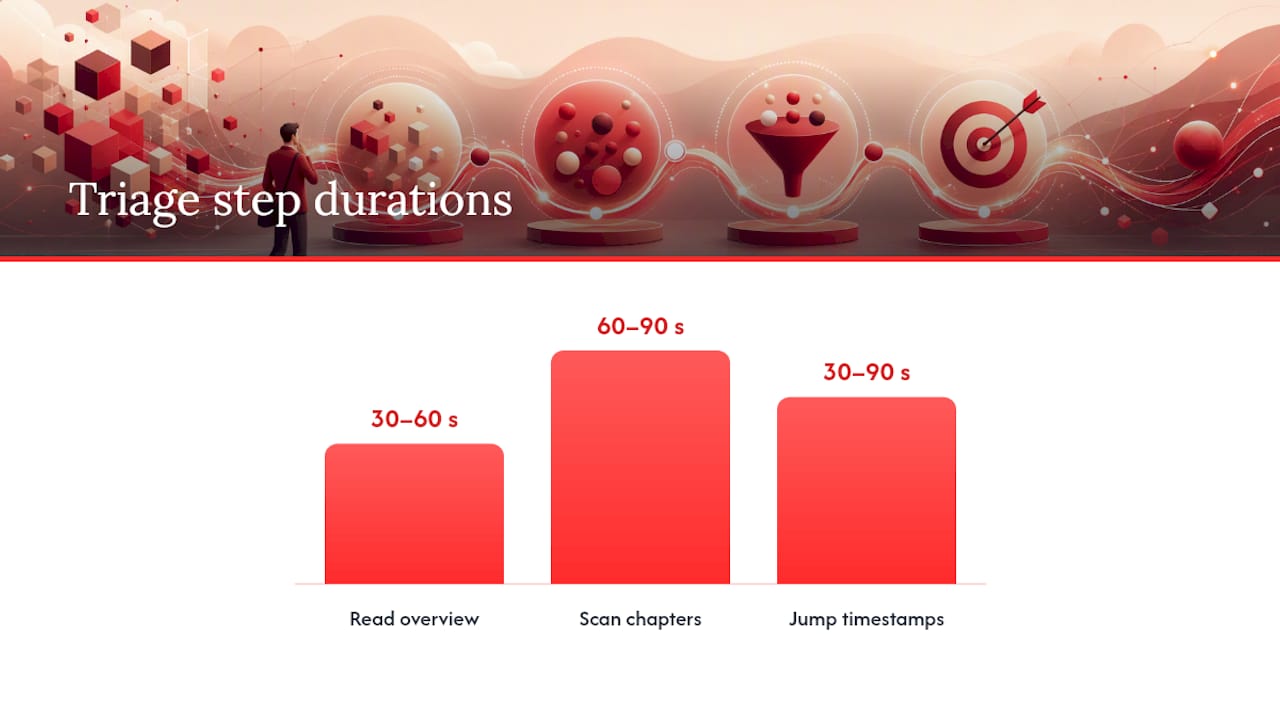
- Read the overview and chapter titles (30 to 60 seconds). Ask one question: does this topic match what you’re trying to learn or verify right now? If the overview doesn’t align with your goal, stop here and skip.
- Scan timestamps and thumbnails (60 to 90 seconds). Pick one to three chapters that look like they carry the real payoff. Ignore the rest for now.
- Jump to each candidate timestamp (30 to 90 seconds per stop). Watch just enough to confirm the claim or example is what the summary said it was.
- Decide. Watch now if a chapter delivers genuinely high-value content. Skip if nothing checks out. Save with a short note and the timestamp if it’s relevant but not urgent.
That whole sequence fits inside a coffee break, and it scales: a 90-minute conference talk and a 12-minute tutorial both go through the same four steps, just with different numbers of candidate chapters.
Watch for a few red flags while you triage. A transcript with obvious gaps or garbled phrases suggests the automatic speech recognition struggled, maybe with an accent or heavy jargon, and the summary built on top of it may be shakier than usual. A chapter list with no thumbnails or one giant unbroken block covering 40 minutes usually means the video is a single long monologue that resists chaptering, which is its own signal about production quality.
Pro Tip: Treat the summary like a searchable document, not a synopsis. If your tool lets you search the transcript directly, type the specific term or name you care about instead of reading through every chapter description.
When Do Video Summaries Get It Wrong?
Summaries fail in a few predictable ways, and knowing them ahead of time keeps you from making a bad watch or skip call.
- Transcription errors. Automatic speech recognition still stumbles on accents, fast speech, and technical vocabulary, and a mistranscribed word can flip the meaning of a whole quote.
- Missing visuals. A summary built purely from audio can skip the exact moment a speaker points to a chart or writes code on screen, since there’s nothing in the speech to summarize.
- Hallucinated or flattened detail. Abstractive summaries, the kind that generate new sentences rather than pulling exact quotes, can smooth over nuance or occasionally invent a connection that was not actually there.
Three quick checks catch most of these problems. Confirm any quote you plan to rely on against the timestamped transcript itself. View the original clip around that timestamp if the claim matters. Use in-summary search, when it’s available, to cross-reference a term across the whole video rather than trusting one chapter’s phrasing.
The upside is real, when the system is built well. FastPerson’s evaluation with 40 participants found viewing time dropped by roughly 53% while comprehension scores stayed essentially unchanged, and 78% of users specifically valued being able to toggle between the summary and the original segment. That toggle option is worth looking for in any tool you use, because it’s the fastest way to resolve doubt without rewatching the whole video.
How Do You Set Up This Workflow With Baitless?
This triage routine is built directly into a Chrome extension, so you’re not assembling transcripts and timestamps by hand.
- Install the extension, paste a YouTube link, and Baitless generates a timestamped summary with chaptered thumbnails and short takeaways for each segment.
- Follow the same four-step triage: read the overview, scan chapters, jump to one or two timestamps, decide.
- Save summaries with notes for later, or export them if you need a written record for research or work.
- The free tier includes a set number of summary credits, which covers casual and occasional use without ever entering a card number.
- Daily users who need many summaries may find value in a subscription to save time.
| Use case | Free tier fits? | Worth upgrading? |
|---|---|---|
| Occasional research lookups | Yes | No |
| Weekly lecture or course review | Maybe | Sometimes |
| Daily professional monitoring | No | Yes |
| Content curation for a team | No | Yes |
For deeper feature walkthroughs, Baitless covers how to summarize long videos without watching them and how to analyze YouTube videos with AI in minutes, both of which extend the same triage logic to specific formats like interviews and tutorials.
Curating a Watch-Later List That Actually Works
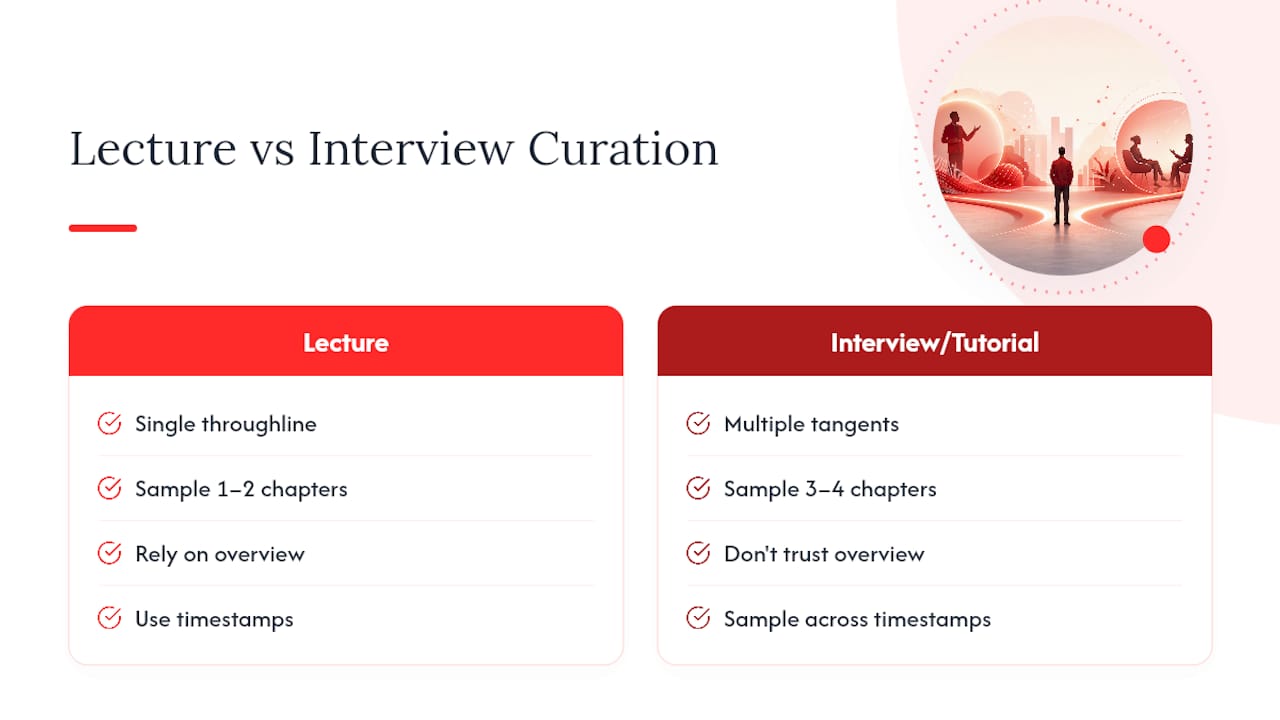
I treat lecture-style videos differently from interviews. A lecture usually has one throughline, so I lean hard on the overview and timestamps and rarely open more than two chapters. An interview or tutorial is messier, more tangents, more asides, so I sample across three or four chapters instead of trusting a single overview to represent the whole thing.
My tagging system for anything I save is three words: topic, estimated time, immediate value. That third tag is the one people skip, and it’s the one that keeps a watch-later list from becoming a graveyard of 200 unwatched videos. If something doesn’t have immediate value, it needs a real reason to stay on the list.
One habit that pays off more than people expect: pairing a summary with a five-minute rewatch of just the flagged chapter, a week later. The summary gets you the decision. The short rewatch is what actually cements the idea, especially for anything you plan to reference again.
— Sergio
Try Baitless Free and Start Triaging Today
Baitless replaces hours of aimless scrubbing with a summary you can scan in under a minute, then decide from there. Where a generic transcript tool just dumps text, Baitless pairs timestamps with chapter thumbnails and short takeaways, so you get the visual context too, not just the words.

Install the Chrome extension, paste a YouTube link, and you’ll have a chaptered summary ready before your coffee cools. The 25 free credits cover research lookups, study prep, or work triage without any commitment, and nothing you summarize gets shared or published anywhere. If you’re the kind of person juggling a dozen open tabs of “watch later” videos, this is the fastest way to actually clear that list. If your workflow stretches beyond YouTube into recorded meetings, a tool like CoachMode handles transcripts and summaries for Zoom calls the same way. Start with Baitless and see how many videos you can clear in the next ten minutes.