
ChatGPT Summarize YouTube: Fast Summaries in One Click
ChatGPT Summarize YouTube: Fast Summaries in One Click

Yes, ChatGPT can summarize any YouTube video — but it cannot watch or listen to one. It works from text, which means you need the transcript first. Once you have it, the process to get a summary can be quick and efficient.
Your two real options:
- One-click extension (fastest): A tool like Baitless pulls the transcript, injects a prepared prompt, and returns a timestamped summary without you touching anything manually.
- Manual method (most control): Copy the transcript from YouTube, paste it into ChatGPT with a precise prompt, and get a clean summary in seconds.
When speed and timestamps matter, use the extension. When you need privacy or want to control exactly what ChatGPT is told, go manual.
Key Takeaways
The fastest and most reliable way to summarize a YouTube video with ChatGPT is to extract the transcript first, use a precise prompt, and chunk long videos before consolidating the output.
| Point | Details |
|---|---|
| Transcripts are required | ChatGPT cannot watch video; copy YouTube’s transcript or use YTTranscript when captions are missing. |
| Prompt specificity matters | Tell ChatGPT the format, length, and focus — vague prompts produce vague summaries. |
| Chunk long videos | Split transcripts over 4,000 words into sections, summarize each, then consolidate for accuracy. |
| Timestamps unlock real value | Use timestamped summaries to jump to exact moments rather than re-watching entire videos. |
| Baitless automates the full workflow | The Chrome extension extracts transcripts, generates summaries, and adds timestamped navigation in one click, with 25 free credits to start. |
Table of Contents
- How to use ChatGPT to summarize a YouTube video manually
- What browser extensions and online services actually do
- How to pick the right summarizer for your needs
- Advanced prompts, chunking workflows, and techniques for better summaries
- Limitations, accuracy pitfalls, and privacy cautions
- Manual vs. extension vs. online service: how they compare
- Baitless makes the one-click version of this workflow real
- Sources
How to use ChatGPT to summarize a YouTube video manually
This works on any video with captions, takes no installs, and gives you full control over the output.
- Open the transcript on YouTube. Below the video, click the three-dot menu (⋯) and select “Show transcript.” A panel opens on the right with every spoken line and its timestamp.
- Toggle timestamps off for cleaner text. At the top of the transcript panel, click “Toggle timestamps” to remove the time codes. This gives ChatGPT a cleaner block of text to work with and reduces token waste.
- Select all and copy. Ctrl+A inside the panel, then Ctrl+C. If the video has no captions, go to YTTranscript — paste the video URL and it returns a plain-text transcript you can copy directly.
- Open ChatGPT and paste your prompt first, then the transcript. Write your instruction at the top, add a line break, then paste the transcript below it. ChatGPT reads top-to-bottom, so the instruction lands before the wall of text.
- Send and refine. If the first summary is too long or misses a focus area, follow up with “Make it shorter” or “Focus only on the business advice.”
Ready-to-use prompts:
- TL;DR: “Summarize the following transcript in 3 sentences. Focus on the main argument and key conclusion. [paste transcript]”
- 5-bullet summary: “Summarize in exactly 5 bullet points. Each bullet should be one sentence. Ignore anecdotes and filler. [paste transcript]”
- Action items: “Extract every specific action, recommendation, or next step from this transcript. List them as numbered items. [paste transcript]”
The YTTranscript blog confirms that specificity in your prompt is what separates a useful summary from a generic one — telling ChatGPT the desired format and what to ignore consistently produces tighter output.
Pro Tip: For videos that are long, ChatGPT’s context window may limit processing, so it is recommended to split transcripts into manageable chunks, summarize each separately, and then consolidate these summaries for greater accuracy, following best practice guidance from NoteGPT’s workflow analysis.
What browser extensions and online services actually do
The manual method works, but extensions remove every friction point. Here is what the automation layer actually handles:
- Transcript extraction: The extension reads YouTube’s caption data directly from the page — no copying, no toggling.
- Prompt injection: It opens ChatGPT (or another model) with a pre-written instruction already in the input field, so you skip the prompt-writing step entirely.
- Timestamped summary panel: Most extensions add an in-page sidebar showing the summary alongside clickable timestamps. Click a timestamp and the video jumps to that exact moment — what practitioners call “surgical watching.”
- Model and length controls: Better tools let you choose GPT-4 vs. GPT-3.5, set summary length, and switch between output formats (bullets, paragraphs, chapter breakdowns).
- Export options: Copy to clipboard, save as markdown, or push to a note-taking app.
As documented in the YouTube Summary with ChatGPT GitHub repository, extensions commonly add a “Transcript & Summary” panel directly to the YouTube interface, which keeps the workflow entirely in one tab.
Online summarizer services work differently. Tools like TranscriptMagic transcribe audio in-browser and return a TL;DR, key points, and chapter breakdown in one click — no extension install required. Some services, like those with free tiers noted by Rewind, let you paste a URL and get a summary with no account. The trade-off: free tiers typically cap video length or daily usage, and paid plans unlock longer videos or higher volume.
Credits vs. subscriptions: “Credits” usually mean one summary per credit. A free tier of 25 credits is enough to evaluate whether the tool fits your workflow before committing to a monthly plan.
When automation fails: Extensions cannot summarize videos with no public captions, heavy visual content where nothing is spoken, or private/unlisted videos the tool cannot access. Most tools surface a clear error when captions are unavailable rather than returning a blank or fabricated summary.
How to pick the right summarizer for your needs
The right tool depends on what you actually do with summaries.
Selection checklist:
- Speed: Does it produce a summary without leaving YouTube, or does it require tab-switching?
- Timestamp support: Can you click a summary point and jump to that video moment?
- Transcript accuracy: Does it use YouTube’s own captions or generate its own transcription? YouTube captions are faster; independent transcription can be more accurate for technical content.
- Prompt control: Can you edit the prompt, or is it locked? Locked prompts are fine for casual use; researchers and professionals usually need to customize.
- Cost model: Free credits, monthly subscription, or pay-per-use? Match the model to your usage frequency.
- Privacy: Does the tool send your transcript to third-party servers? Check the privacy policy before installing.
Red flags to avoid:
- No privacy policy, or a policy that explicitly states transcripts are stored and analyzed
- No timestamp support at all — this removes the biggest productivity benefit
- Prompts you cannot edit, especially for professional or research use
- Tools that require uploading the full video file rather than reading captions
By use case: Students researching a topic benefit most from bullet-point summaries with timestamps for citation. Researchers need editable prompts and clean transcript export. Creators scouting competitor content want fast TL;DRs. Busy professionals typically want the shortest possible summary with the option to drill into one section — which is exactly where timestamped navigation earns its keep.
Advanced prompts, chunking workflows, and techniques for better summaries
Getting a decent summary is easy. Getting a genuinely useful one takes a bit more structure.
The chunking workflow for long videos:
- Split the transcript by time block or topic shift — roughly every 3,000–4,000 words.
- Run the same summary prompt on each chunk: “Summarize this section in 3 bullet points. Focus on [your topic]. [paste chunk]”
- Collect all partial summaries into a single ChatGPT message.
- Run a consolidation prompt: “Combine the following section summaries into one final summary under 150 words, removing any repetition.”
This two-stage approach avoids context-window errors and, per NoteGPT’s analysis, produces more accurate output than single-pass summarization of a long transcript.
Prompt patterns that consistently work:
- Audience framing: “Summarize for a non-technical marketing manager. Avoid jargon.”
- Length constraint: “Maximum 100 words. No filler sentences.”
- Focus filter: “Ignore personal stories and focus only on data, statistics, and recommendations.”
- Format instruction: “Use headers for each main topic. Under each header, write one sentence.”
Pro Tip: Keep timestamps in the transcript when you want ChatGPT to preserve time references in its output. Paste the timestamped version and add this line to your prompt: “Where relevant, include the timestamp of the moment you are referencing.” The output becomes a navigable index of the video, not just a flat summary.
Limitations, accuracy pitfalls, and privacy cautions
Fritz makes the core constraint plain: ChatGPT summarizes what is in the transcript, nothing more. If a presenter draws on a whiteboard, shows code on screen, or demonstrates a product without narrating every step, that content simply does not appear in the summary.
Accuracy issues to watch for:
- Auto-captions mis-transcribe technical jargon, proper nouns, and accented speech regularly. A summary built on a bad transcript will confidently repeat those errors.
- Noisy audio or music-heavy intros often produce garbled caption blocks that throw off the summary’s opening section.
- Long videos with topic shifts can produce summaries that over-weight the first third of the content, since that is where most caption data is cleanest.
Context window limits: GPT-4 handles roughly 25,000–30,000 words in a single context window. A two-hour video transcript can easily exceed that. Chunking is not optional for long recordings — it is the only reliable path to an accurate summary.
Privacy checklist before using any tool:
- Is the video public? Private and unlisted videos may expose content you did not intend to share.
- Does the extension send transcript data to its own servers, or does it pass text directly to ChatGPT’s API?
- Does the provider’s privacy policy mention storing, training on, or selling transcript content?
- For sensitive professional content (legal, medical, financial), the manual method with ChatGPT’s standard interface gives you the clearest data-handling picture.
Manual vs. extension vs. online service: how they compare
| Method | Speed | Ease of use | Accuracy | Timestamp support | Cost | Privacy |
|---|---|---|---|---|---|---|
| Manual (YouTube transcript + ChatGPT) | 2–4 min | Moderate | Depends on caption quality | Manual only | Free | Highest — no third party |
| Browser extension | Under 30 sec | Very easy | Depends on caption quality | Yes, clickable | Free tier + subscription | Varies — check policy |
| Online summarizer service | Under a minute | Easiest | Varies (own transcription) | Sometimes | Free URL paste; paid for long videos | Varies — often server-side |
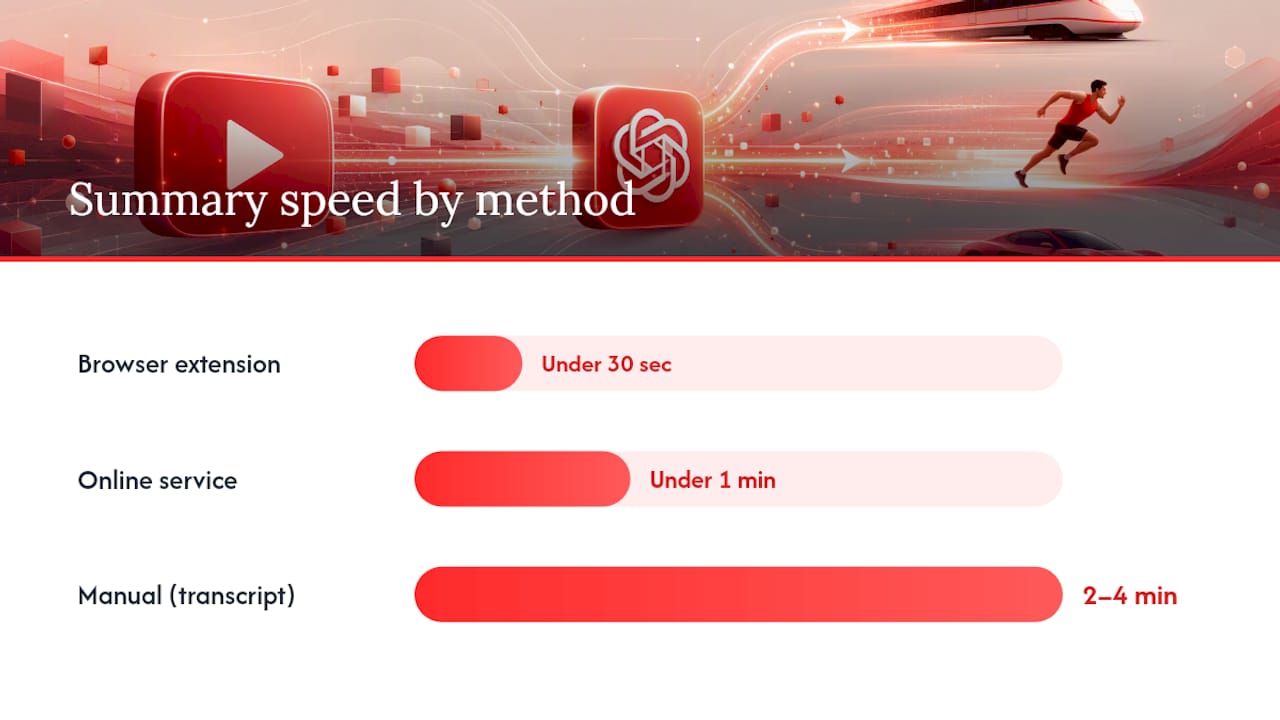
Transcript quality affects every row equally. A bad auto-caption file produces a bad summary regardless of which method you use. The summarizer model is almost never the bottleneck — the transcript is.
Best-for cases: Manual for privacy-sensitive content or when you need full prompt control. Extension for daily use and timestamped navigation. Online service for a one-off summary of a long video without installing anything.
The workflow professionals actually use
Timestamped transcripts are the real productivity unlock here, not the summary itself. A summary tells you what the video covers; a timestamp lets you jump to the 14-minute mark where the speaker actually explains it. That combination — quick summary for triage, targeted timestamp for depth — is what separates a five-minute workflow from a 45-minute one.

For visual-heavy content, no transcript-based tool replaces watching. The right move is to use the summary to identify which timestamps are worth your time, then watch only those sections. That is still a significant time saving, even when the summary is incomplete.
Baitless makes the one-click version of this workflow real
The manual method works, but it requires tab-switching, copying, and prompt-writing every single time. Baitless removes all of that.

Baitless is a Chrome extension built specifically for this workflow. It extracts the transcript directly from YouTube, generates a concise AI-powered summary in a sidebar panel, and highlights the key moments worth watching versus the sections you can skip — without opening a new tab or writing a prompt. Timestamped navigation is built in, so you can jump straight to any key point.
New users get 25 free summary credits to test the full workflow before committing to anything. For daily users, a subscription unlocks higher credit volume at a straightforward monthly rate. Credit pricing is transparent, with one summary costing one credit and no hidden caps.
Try Baitless free at Baitless to quickly generate your first summary.
Sources
- Fritz
- Get a YouTube Transcript for ChatGPT | YTTranscript Blog
- YouTube Summary with ChatGPT — GitHub