
How to Avoid Clickbait on YouTube Without Wasting Time
How to Avoid Clickbait on YouTube Without Wasting Time

Use transcript based AI summaries with timestamps to decide in seconds whether to watch, skip, or save a YouTube video. That single habit is the fastest way to avoid clickbait on YouTube, because it lets you check what a video actually delivers before the title or thumbnail gets a chance to waste your afternoon.
Transcript-first summaries outperform quick “summarize this” requests because the model works from the speaker’s actual words instead of guessing at context from a description box, and multiple tool guides recommend feeding the transcript directly into an AI tool for exactly this reason. A summary without timestamps is just a shorter version of the same guessing game. One with timestamps turns into a map.
Here is the 30-second version:
- Pull the transcript (YouTube captions or a transcription tool) instead of relying on the title
- Run it through an AI summarizer, or open Baitless directly on the video page
- Scan the timestamped highlights for the specific claim or moment you care about
- Decide: watch the flagged segment, skip entirely, or save the summary for later
Key Takeaways
Transcript-first AI summaries with timestamps let you evaluate a YouTube video’s real content in under a minute instead of gambling on its title.
| Point | Details |
|---|---|
| Transcript beats title | Pull captions or a transcript before summarizing; it produces far more accurate results than judging from the thumbnail alone. |
| Ask for timestamps and a verdict | A good prompt requests a short overview, top moments with timestamps, and a watch or skip recommendation. |
| Verify before you act | Match any specific claim, name, or number to its timestamp and glance at that clip before repeating it. |
| Watch for the real red flags | Thumbnail mismatches, padded intros, and recycled shock-face templates signal clickbait faster than any single video’s title. |
| Baitless handles the workflow in-page | The Chrome extension summarizes YouTube videos with timestamps and a watch-or-skip breakdown, with 25 free credits to start. |
Table of Contents
- How to Avoid Clickbait on YouTube With a Repeatable Workflow
- What Prompts Get the Most Accurate Video Summaries?
- How Do You Know When a Summary Is Missing Something?
- Getting Baitless Into Your Daily Video Routine
- What Actually Defines Clickbait on YouTube?
- What Tactics Do Clickbait Creators Rely On Most?
- How Does Clickbait Affect Trust and Channel Reputation?
- How Can You Spot Clickbait Without Running a Summary?
- How Should Creators Avoid Making Clickbait Themselves?
- What Tools Help You Cut Through Clickbait Faster?
- The Real Skill Isn’t Detecting Clickbait, It’s Deciding Fast
- Try Baitless and Turn Any Video Into a 30-Second Decision
- Sources
How to Avoid Clickbait on YouTube With a Repeatable Workflow
The process below takes less time than watching the first two minutes of most videos, and it works whether you are checking a 12-minute tutorial or a 3-hour interview.
1. Set your purpose before you touch the video. Are you trying to decide whether to watch, trying to study the content, or trying to save a reference for later? This changes what you ask the AI for. A decision needs a verdict. A study session needs structure.
2. Get the transcript first. YouTube’s auto-captions work for most videos; a dedicated transcription tool helps when captions are disabled or garbled. This is the step people skip, and it is the one that matters most, since transcript quality drives everything downstream.
3. Ask the AI summarizer for timestamps and a verdict, not just a summary. Guides on using AI for YouTube video summaries consistently point out that pairing a summary with specific timestamps, something like “watch 00:06:40 to 00:08:15”, is what turns a wall of text into something you can actually act on.
4. For anything over 20 minutes, summarize in chunks. Break the video by chapters or fixed time windows, summarize each chunk, then combine them. This matters because segmenting long videos before merging summaries reduces the odds that a dense middle section gets glossed over, which is exactly where creators tend to bury the real substance behind a flashy intro.
5. Verify before you act on anything important. Cross-check names, numbers, and any claim that sounds surprising against the timestamp the AI gave you. This takes 20 seconds and saves you from repeating a mistake the video itself made.
Pro Tip: Keep the original video link and your summary notes in the same place. If a claim later turns out to be wrong or outdated, you want to trace it back in one click, not go hunting through your browser history.
What Prompts Get the Most Accurate Video Summaries?
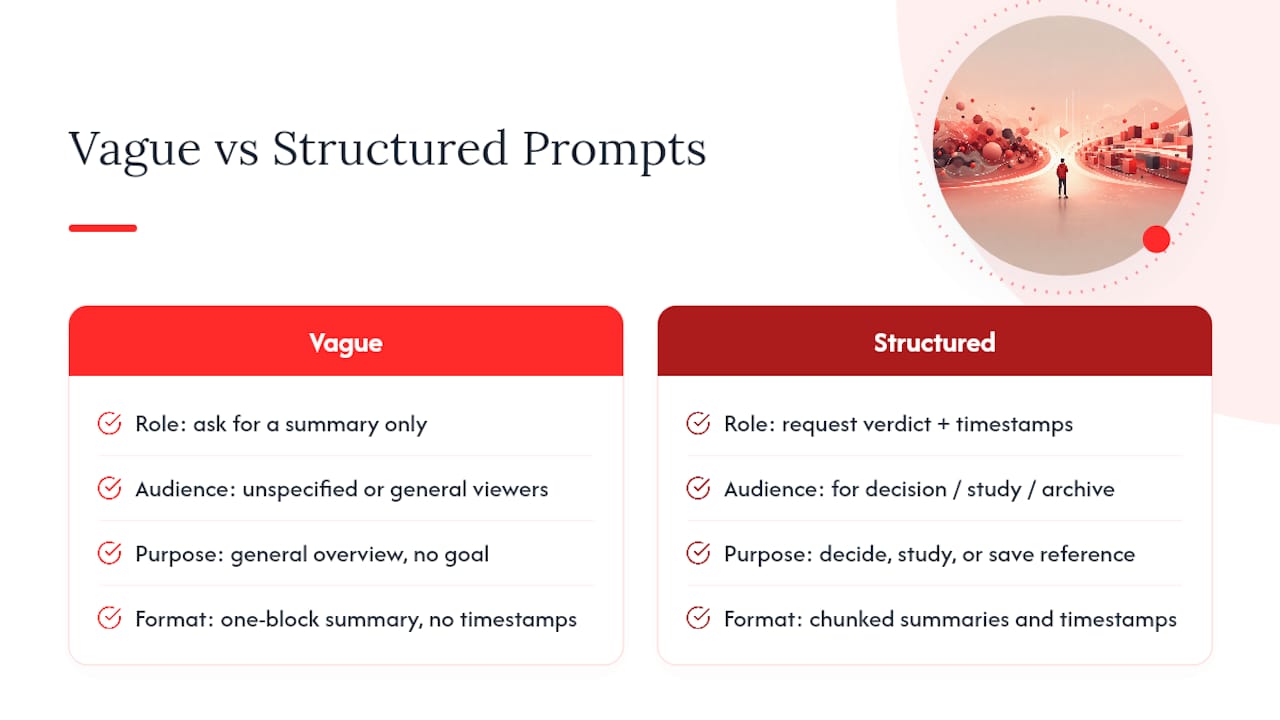
A vague “summarize this video” prompt gets you a vague summary. Structured prompts that specify role, audience, purpose, format, and verification checks consistently produce more useful, checkable output. Here are four templates worth saving.
The decision prompt, for when you just need to know if a video is worth your time:
The study prompt, for lecture-style or educational content:
That confidence-score request matters more than it sounds. When a transcript mangles a proper noun or a technical term, the right move is flagging it for you to check manually rather than letting the AI silently guess and smooth it over.
The how-to prompt, for tutorials and step-based content:
- Ask for the steps in the exact order given
- Ask for any warnings or caveats the creator mentions
- Ask for tools, ingredients, or prerequisites listed anywhere in the video, not just the intro
The uncertainty-flag prompt, layered onto any of the above: “List anything you’re not confident about, and anything the transcript alone can’t confirm (visuals, on-screen text, tone).” This single line does more to protect you from bad information than the rest of the prompt combined.
How Do You Know When a Summary Is Missing Something?
Summaries fail in predictable ways, and most of those failures trace back to one thing: the transcript itself. When captions or transcripts are poor quality or missing entirely, summary accuracy drops fast, and visual or demonstration heavy content simply can’t be captured by text alone.
Run this check before trusting a summary on anything that matters:
- Match every specific claim (a number, a date, a name) to its timestamp and glance at that moment in the actual video
- If the video involves a demo, a chart, a facial expression, or an on-screen graphic, the transcript missed it. Watch that clip.
- Treat any AI-added qualifier like “it seems” or “possibly” as a signal to verify manually, not as filler
- If the summary skips over a section entirely with no timestamp, assume the transcript had a gap there
A useful rule of thumb from workflow guides on this exact problem: audio clarity and transcript completeness are the two biggest predictors of summary accuracy, more than the length of the video or the summarizer you choose. A mumbled interview or heavy background music degrades a transcript just as much as missing captions do.
For research, health, or financial claims specifically, always watch the original segment before you repeat or act on the information. A summary is a triage tool, not a citation.
Getting Baitless Into Your Daily Video Routine
Baitless fits into three specific moments: deciding whether a video is worth your lunch break, bookmarking research for later without losing the thread, and reviewing a recorded lecture before an exam without rewatching all 90 minutes of it.
The free tier gives you 25 summary credits, enough to build the habit before you know if you need more. Once you are running summaries daily, a subscription raises your credit ceiling so the workflow does not stall out mid-week.
A few habits make the extension more useful:
- Save the timestamp bookmarks a summary generates, rather than retyping them later
- Export a summary alongside notes when you are researching something you will revisit in a month
- Keep the original video link next to your saved summary. Guides on this workflow consistently recommend this pairing for traceability, since a summary without its source is hard to double-check later.
- Use the “should I watch” verdict as your default filter before opening anything longer than 15 minutes
Pro Tip: If you are summarizing a video for a group, share the timestamp highlights instead of the full summary text. It respects everyone’s time and points them straight to the part that matters.
What Actually Defines Clickbait on YouTube?
Clickbait on YouTube is a title, thumbnail, or combination of the two that promises something the video does not deliver, or delivers only after ten minutes of padding. The gap between promise and payoff is the entire definition. A video with an exaggerated title that still delivers the goods quickly is aggressive marketing, not clickbait. A video that buries a three-sentence answer inside a 20-minute ramble to inflate watch time is clickbait, regardless of how accurate the title technically is.
The tell-tale characteristics show up in a few consistent places:
- A thumbnail with an exaggerated facial expression, a red circle, or an arrow pointing at something the video barely addresses
- A title that poses a question the video never actually answers
- Numbers or superlatives (“This ONE trick,” “You won’t believe”) that don’t match the actual content
- A thumbnail image that doesn’t correspond to any moment that actually happens in the video
Clickbait isn’t always dishonest in a strict sense. Sometimes the video does eventually cover what the title promises. The problem is the tax on your time between the click and the payoff, and that tax is exactly what a timestamped summary lets you skip.
What Tactics Do Clickbait Creators Rely On Most?
A handful of tactics show up again and again once you start watching for them. Recognizing the pattern is half the battle.
The curiosity gap title. “I tried this for 30 days and the results shocked me” tells you nothing about what happened. It is engineered purely to make you click to resolve the tension, not to inform you.
The false urgency thumbnail. Countdown timers, “before it’s too late” text overlays, or expressions of shock that don’t match anything in the actual footage.
The bait-and-switch intro. The first 60 to 90 seconds recap the title’s promise without adding anything, stretching out the runtime before the real content starts. This is the single most common tactic, and it is precisely what a summarizer cuts through, since the AI reads the full transcript and tells you where the actual content begins.

Misleading numbers. “5 things nobody tells you about X” where two of the five are common knowledge padded out to hit a round number.
Thumbnail mismatch. An image showing a dramatic moment, a crash, a reveal, a reaction, that either never happens or happens completely differently than depicted.
None of these tactics are illegal or against YouTube’s terms in most cases. They are simply designed to convert curiosity into a click before you have any information to evaluate the actual value of the video.
How Does Clickbait Affect Trust and Channel Reputation?
The first time a clickbait title burns you, you remember the channel, not just the video. That is the real cost for creators who lean on this tactic repeatedly: it is not a one-time penalty, it is compounding damage to how much benefit of the doubt viewers extend the next time that channel shows up in their feed.
Viewers who feel misled once become skeptical by default. They start hovering over the thumbnail longer, reading comments before clicking, or simply scrolling past. That skepticism doesn’t stay contained to the one channel either. Once a viewer gets burned a few times, they generalize the caution to the entire category of content, which is part of why AI summary tools have grown popular among people who got tired of gambling their time on a title.
For channels, the reputation cost shows up in metrics that matter more than the initial view count: session watch time drops because viewers click away faster once they sense a pattern, and subscriber retention weakens because people unsubscribe from channels that feel like they are being worked rather than served. A single clickbait video might spike views in the short term. A pattern of them erodes the audience relationship that makes a channel sustainable in the first place.
The irony is that the creators who avoid clickbait and build titles that match their content tend to build slower but stickier audiences, the kind that show up reliably rather than the kind that clicks once and never returns.
How Can You Spot Clickbait Without Running a Summary?
AI summaries handle the content-level check, but a few visual and behavioral signals let you filter obvious clickbait before you even open the video.
Check the title against the thumbnail for internal consistency. If the title makes a specific claim and the thumbnail shows something unrelated, that mismatch is often the first tell.
Look at the channel’s upload history. A channel with a consistent pattern of exaggerated titles across dozens of videos is more predictable than a single outlier video. One clickbait title can be a mistake. Ten in a row is the channel’s actual strategy.
Read the top comments before clicking. Viewers often call out a misleading title directly in the comments, and that crowd-sourced warning is faster than watching the video yourself to find out.
Notice the upload frequency and video length pattern. Channels that pad every video to the same round runtime (exactly 10 minutes, exactly 20 minutes) regardless of how much content they actually have are often optimizing for a monetization threshold rather than value.
Watch for recycled thumbnail templates. Repeated red circles, repeated shocked expressions, repeated arrow placements across a channel’s entire catalog signal a formula, not a spontaneous reaction to something interesting.
None of these signals require a tool. They just require slowing down for five seconds before you click, which is often all it takes to catch the pattern.
How Should Creators Avoid Making Clickbait Themselves?
If you make YouTube content, the line between a strong hook and clickbait comes down to one question: does the title accurately set expectations for what the viewer gets?
Write the title after you know what the video actually delivers, not before. A title written in advance to “sound exciting” tends to drift from the finished content. Writing it last keeps the promise honest.
Test your title against a simple rule: could a viewer read it, watch the video, and feel the title was fair? If a title requires you to mentally add a lot of caveats to defend it, rewrite it.
Front-load the payoff. Cutting the padded recap intro and getting to the substance in the first 30 seconds does more for retention long-term than a dramatic cold open that stalls the actual value.
Make the thumbnail represent a real moment. If nothing in the thumbnail happens in the video, that gap is exactly what erodes trust, even if the title itself is accurate.
Use specificity over superlatives. “3 mistakes that cost me $2,000 in ad spend” builds more credibility than “The BIGGEST mistake marketers make,” because it is checkable and it sets an expectation you can actually meet.
Creating honest YouTube content isn’t a growth ceiling. Channels that consistently deliver on their titles tend to build the kind of trust that keeps people clicking on future uploads without hesitation, which is a more durable growth engine than any one viral thumbnail.
What Tools Help You Cut Through Clickbait Faster?
Beyond a manual eye for red flags, a category of browser extensions and AI tools now exists specifically to shortcut the clickbait problem by summarizing content before you commit to watching it.
Extensions that integrate directly with YouTube can transcribe and summarize a video in place, which speeds up triage considerably compared to copying a transcript into a separate chat window. The convenience of staying on the video page while getting a summary and timestamps is the main advantage over general-purpose AI chat tools.
That said, not every summarizer is built the same way. Faster tools optimized purely for speed can skip deeper context or examples in exchange for a quicker overview. That trade-off is fine for a quick decide-or-skip check on a 10-minute video. It matters more on longer, denser content where the details you are trying to catch are exactly the ones a speed-optimized tool tends to compress away.
Baitless sits in the in-page extension category: it generates a summary directly on the video, breaks out what to focus on versus what to skip, and gives you timestamps to jump straight to the relevant section instead of reading a flat wall of text. For a busy professional or student deciding among a dozen open tabs, that in-page speed is the entire point.
The Real Skill Isn’t Detecting Clickbait, It’s Deciding Fast
Most advice on this topic focuses on spotting clickbait, reading thumbnails critically, checking upload patterns, treating a shocked-face thumbnail as a warning sign. All of that is useful, but it treats the problem as a detection exercise when it is actually a decision speed problem.
You do not need to get better at recognizing manipulative titles. You need a workflow that makes the title irrelevant, because you can check the actual content in under a minute regardless of what the thumbnail promised. That is the meaningful shift: stop evaluating the bait, and start evaluating the substance directly.
Where conventional advice falls short is assuming detection skills scale. They don’t. A sharp eye for red flags still requires you to guess, and guessing wrong costs you the same 15 minutes as falling for the clickbait in the first place. A transcript-based summary with timestamps removes the guess entirely.
If you take one thing from this, prioritize the workflow over the vigilance. Get the summary, check the timestamps, then decide. The title stops mattering once you can see what is actually inside the video.
— Sergio
Try Baitless and Turn Any Video Into a 30-Second Decision
Baitless installs as a Chrome extension and works directly on the YouTube video page, so you never have to copy a transcript into a separate app just to get a straight answer on whether something is worth your time. Open a video, generate a summary, and get a breakdown of what to focus on and what to skip, complete with timestamps, right where you are already watching.

The free tier includes 25 summary credits, enough to run the workflow across a normal week of research, lectures, and videos your coworkers keep sending you. If you are summarizing daily, the subscription plan raises your credit limit so you are not stuck rationing them by Wednesday.
Getting started takes four steps: install the Baitless extension, open any YouTube video, generate your first summary, and scan the timestamps for the part that actually matters to you. That is the whole learning curve.
Sources
- How to Summarize YouTube Videos with AI
- How to Use AI to Summarize YouTube Videos | Coursiv Blog
- How To Summarize a YouTube Video
- DeepSum | YouTube AI Summary - Chrome Web Store