
How to Analyze YouTube Videos with AI in Minutes
How to Analyze YouTube Videos with AI in Minutes

The fastest way to analyze a YouTube video is to paste its URL into Baitless, a Chrome extension that pulls the transcript, identifies key moments, and returns timestamped highlights in seconds. No scrubbing. No guesswork.
Here’s how to run your first analysis right now:
- Paste the URL into Baitless directly from any YouTube page.
- Generate the summary and let the AI extract the transcript, segment it, and surface the moments worth watching.
- Jump to timestamps or export the output as TXT or SRT for notes, clips, or citations.
One caveat worth knowing upfront: if a video relies on auto-generated captions or has poor audio, the summary quality drops. That’s not a tool problem — it’s a transcript problem, and the fix is covered below.
Key Takeaways
AI-powered YouTube summarizers work best when transcript quality is high and outputs are paired with video retention data—especially average view duration, retention graphs, and the first 30 seconds—for real editing decisions where it matters most.
| Point | Details |
|---|---|
| Start with transcript quality | Poor auto-captions degrade every downstream output; fix the transcript first for better summaries. |
| Match output format to your role | Students use bullet highlights; creators need timestamped chapters; casual viewers need a fast paragraph summary. |
| Pair summaries with Studio metrics | CTR, average view duration, and retention graphs turn a passive summary into a specific editing target. |
| Free credits cover casual use | Baitless offers 25 free summary credits; upgrade to a subscription for batch playlists and daily heavy use. |
| Baitless installs on Chrome | The extension adds a summary button directly to YouTube pages, returning timestamped highlights in seconds. |
Table of Contents
- What does an AI YouTube video summarizer actually produce?
- How does an AI summarizer process a video?
- How to analyze any YouTube video step by step
- What features actually matter when choosing a tool?
- Who actually benefits from AI video summaries?
- Free vs. paid: when do you actually need to upgrade?
- How to combine AI summaries with YouTube Studio metrics
- Why Baitless is built around timestamps and fast decisions
- Baitless gives you the point before YouTube gets your attention
- Sources
What does an AI YouTube video summarizer actually produce?
These tools do three things: extract the transcript, identify the most information-dense moments, and package the result into a structured output you can actually use.
The typical outputs include a short paragraph summary, bullet-point highlights, timestamped chapters, a Q&A or chat interface, a mind map, and SRT or TXT exports. Each format fits a different need. Students tend to reach for bullet highlights when building study notes. Creators want timestamped chapters they can turn into short clips. Researchers pull SRT exports to cite exact moments with a timecode reference.
How does an AI summarizer process a video?
The pipeline is simpler than it sounds, and understanding it helps you predict when results will be sharp and when they’ll fall short.
- Fetch captions or transcript: The tool pulls the video’s existing caption track (auto-generated or manual) or requests a transcript via the YouTube API.
- Clean the text: Filler words, repeated phrases, and formatting artifacts get stripped.
- Segment and timestamp: The cleaned text is split into logical chunks and each chunk is mapped back to its timecode in the video.
- Run the summarization model: A large language model condenses each segment into a highlight or chapter title.
- Post-process: The tool assembles chapters, generates Q&A pairs, and prepares export files.
Where things break down: auto-generated captions on fast speech, heavy accents, or technical jargon introduce errors that compound through every step. Music-heavy intros and nonverbal content produce blank or garbled transcript segments. The AI cannot fix what the caption track got wrong.
How to analyze any YouTube video step by step
This workflow takes under three minutes for a single video and scales to a full playlist with batch mode.
- Choose a public URL or playlist. Private or age-restricted videos won’t return a transcript. For a lecture series or research deep-dive, grab the playlist URL instead of individual links.
- Paste the URL into your tool. With Baitless installed, a summary button appears on the YouTube page itself — no tab-switching needed.
- Select your output type. Pick a paragraph summary for a quick read, timestamped highlights for clip sourcing, or Q&A mode if you’re studying or fact-checking.
- Review and edit the transcript if needed. Skim the raw transcript before finalizing. Correcting a few misheard technical terms takes 60 seconds and meaningfully improves the summary.
- Export or clip timestamps. Download TXT for notes, SRT for video editing software, or copy individual timestamps directly into your workflow.
For a playlist of 10 conference talks, batch mode processes all of them in one pass and returns a summary per video — useful for researchers who need to decide which sessions to read in full.
Pro Tip: When a transcript looks weak, check whether the creator uploaded manual captions. If they did, switch to those via YouTube’s settings before summarizing. Manual captions are almost always cleaner than the auto-generated track, and the quality difference in the final summary is significant. You can also extract and clean a transcript manually before pasting it into your summarizer.
What features actually matter when choosing a tool?
A layered analysis workflow covers title, thumbnail, hook, structure, pacing, emotional trigger, and originality. The features you need depend on which of those layers you care about.
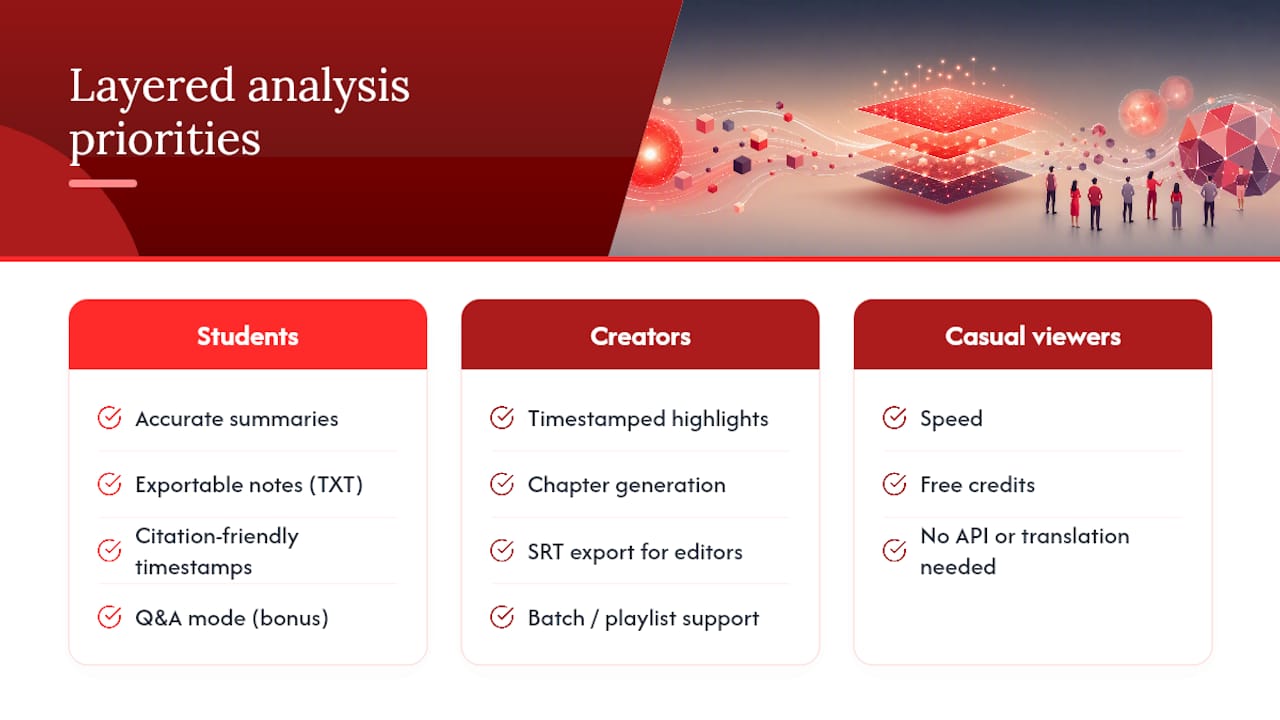
For students: Accurate summaries, exportable notes (TXT), and citation-friendly timestamps matter most. Q&A mode is a bonus for exam prep.
For creators: Timestamped highlights and chapter generation are non-negotiable. SRT export lets you feed clips directly into editing software. Batch/playlist support saves hours when analyzing competitor content.
For casual viewers: Speed and free credits are the deciding factors. You don’t need API access or translation if you’re just deciding whether a 90-minute documentary is worth your evening.
The privacy question is worth a direct answer: most AI summarizers work exclusively with the public caption track and never upload the video file itself. Check the tool’s terms for how long transcripts and summaries are retained on their servers, especially if you’re summarizing internal training videos or proprietary content.
Who actually benefits from AI video summaries?
The use cases are broader than most people expect.
- Students use timestamped summaries to build 5-minute study clips from 90-minute lectures, then export bullet highlights as flashcard source material.
- Professionals drop a webinar URL into a summarizer before a meeting and arrive with the three key takeaways already extracted, skipping 45 minutes of playback.
- Creators run competitor videos through a summarizer to map structure and pacing, then use the chapter breakdown as a production brief for their own follow-up content.
- Researchers and journalists pull SRT exports to locate exact quotes with timecodes, making citations verifiable and fast.
- Casual viewers use the summary to decide in 20 seconds whether a video is worth watching at all — the core promise of a tool like Baitless.
The efficiency gain is real in every case. The difference between skimming a 3-sentence summary and sitting through a 40-minute video is a decision made in seconds instead of half an hour.
Free vs. paid: when do you actually need to upgrade?
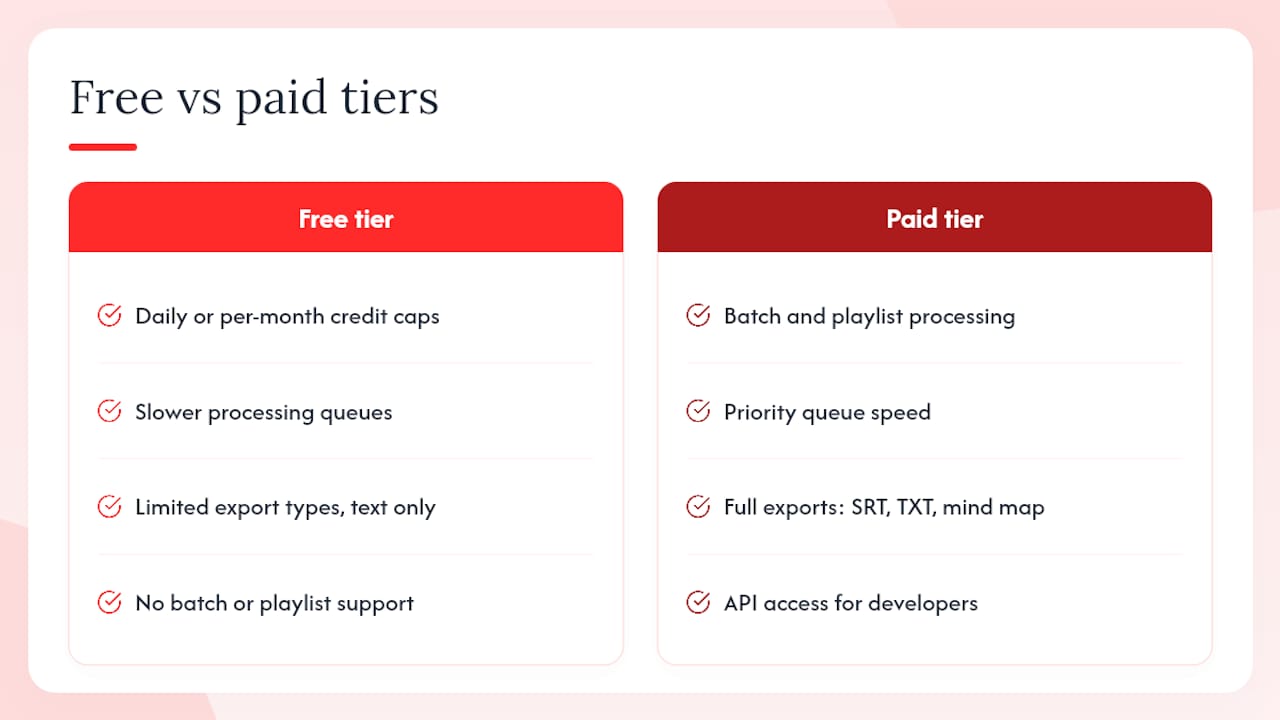
Most people start on a free tier and stay there longer than they expect. Here’s what the tiers typically look like:
Free tier limitations: Daily or per-month credit caps, slower processing queues, limited export types (often text only), and no batch/playlist support.
Paid tier unlocks: Batch and playlist processing, priority queue speed, full export options (SRT, TXT, mind map), API access for developers, and higher daily credit volume.
Baitless offers 25 free summary credits to start, which covers a solid week of casual use. The subscription is designed for daily users who need batch processing or want to run summaries across a playlist without hitting a wall mid-session. Before subscribing to any tool, check the privacy policy for data-retention terms — particularly if you plan to summarize sensitive or proprietary content.
How to combine AI summaries with YouTube Studio metrics
This is where analysis moves from passive to useful. YouTube Studio’s Content tab tracks impressions, CTR, average view duration, retention graphs, top moments, spikes, and dips at the video level. Pair those numbers with an AI summary and you get a specific editing target, not just a vague sense that something isn’t working.
Retention metrics and traffic source breakdowns — search vs. suggested — tell you far more about audience behavior than raw view counts. A video with strong search traffic but a 35% average view duration has a hook problem. A summary that flags an unclear middle section points you to the exact timestamp to check against the retention graph.
| YouTube Studio metric | What the AI summary reveals | Suggested action |
|---|---|---|
| CTR (impressions click-through rate) | Whether the title and thumbnail match the video’s actual top moments | Rework thumbnail or first 10 seconds to reflect the strongest moment |
| Average view duration | Where the summary’s weakest or most repetitive section falls | Edit or cut that segment; front-load the top moment |
| Retention graph (spike or dip) | Which timestamped section caused the drop | Compare dip timecode to summary chapter; tighten pacing or cut filler |
| Top moments | Which clip the AI flagged as highest-density | Create a Short or promo clip from that exact timestamp |
| Traffic source (search vs. suggested) | Whether the hook serves search intent or browse intent | Adjust the first 30 seconds to match the dominant source |
YouTube’s retention tools show “typical retention” for your last 10 similar-length videos, focusing on the first 30 seconds and identifying top moments, spikes, and dips. If the AI summary flags a slow intro and the retention card confirms below-typical performance in the first 30 seconds, you have a testable fix: re-edit the hook, improve thumbnail/title alignment, and compare the retention curve of your next upload.
Why Baitless is built around timestamps and fast decisions
Most video summarizers treat the summary as the end product. Baitless treats it as a decision tool. The focus is on surfacing what to watch and what to skip — fast enough that a busy user can act on it before the video even loads.
The Chrome extension sits directly on the YouTube page, so there’s no workflow interruption. Timestamped highlights let you jump to the moment that matters rather than reading a paragraph and guessing where it falls in the video. The 25 free credits are enough to test the tool across a real week of use before committing to a subscription.
Baitless gives you the point before YouTube gets your attention
If you’ve read this far, you already know the workflow. The missing piece is a tool that doesn’t slow it down.

Baitless installs as a Chrome extension and adds a summary button directly to every YouTube page. Paste a URL, choose your output (paragraph summary, timestamped highlights, or Q&A), and get the key moments in seconds. The 25 free summary credits cover casual use with no card required. For heavier use — batch playlists, daily summaries, SRT exports — the subscription removes the credit cap and adds priority processing. No long-term lock-in. Try it on one video today and see whether the summary matches what you’d have pulled from 40 minutes of watching.
Sources
- Content tab analytics tips - Video - YouTube Help
- YouTube analysis in 2026 goes beyond chasing views — Metricool
- YouTube Video Analyzer Workflow for Viral Videos